Home/Magento Documentation

How to Use the CrawlHunt Magento Extension

This guide walks Magento store owners through adding their store in CrawlHunt, installing the extension from the Adobe Commerce Marketplace, enabling it via the command line, and connecting it to their CrawlHunt account to run their first SEO audit.

Before You Start

What you'll need

A Magento 2 store (version 2.4 or later)
A CrawlHunt account
SSH access or a hosting file manager to upload files to your server
PHP CLI access to run bin/magento commands
Admin access to your Magento admin panel
Don't have a CrawlHunt account yet? Create one for free before you begin.
Step-by-Step Guide

Magento Documentation

Follow each step in order. Open any screenshot at full size to see the details.

01Step 1 of 6

Add your Magento store in CrawlHunt

Go to the Integrations page in your CrawlHunt dashboard and click Add Integration. Select Magento as the platform, enter your Magento store URL, and click Add Integration. The next steps (installing the extension and connecting it) will open in a new tab.

Navigate to Integrations in your CrawlHunt dashboard
Select Magento from the platform list
Enter your full Magento store URL including https://
Click Add Integration — this guide opens in a new tab
Keep this guide open while you install the extension in your Magento store
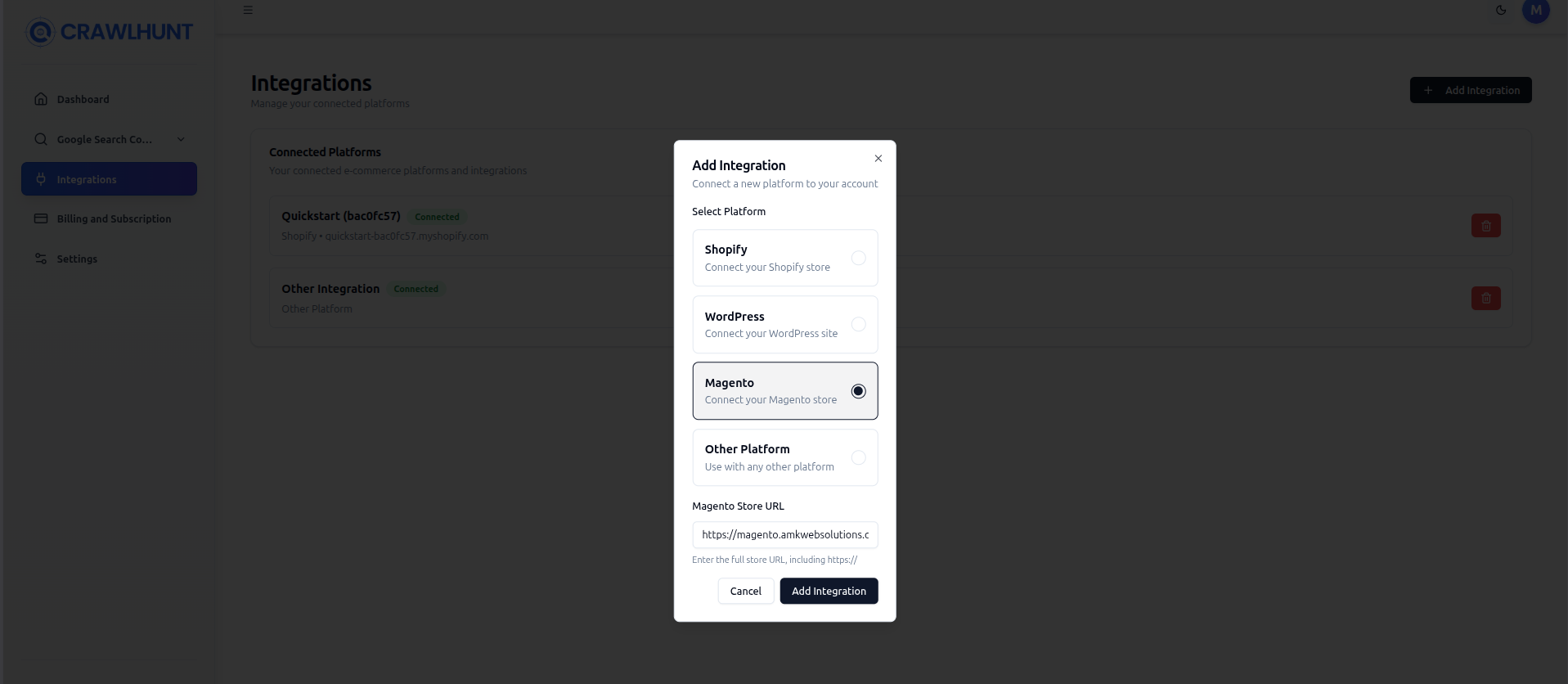
CrawlHunt Add Integration modal with Magento selected
CrawlHunt Add Integration modal with Magento selectedOpen Full Screenshot
02Step 2 of 6

Install the extension from the Adobe Commerce Marketplace

Find CrawlHunt on the Adobe Commerce Marketplace and add it to your account, then install it with Composer from your Magento root directory. The extension is installed to vendor/ like any other Marketplace extension.

Open the CrawlHunt listing on the Adobe Commerce Marketplace and add it to your account
Make sure your Marketplace access keys are set in Composer's auth.json
Connect to your server via SSH and go to the root of your Magento installation (where app/, pub/, and bin/ are located)
Run: composer require crawlhunt/seo-audit
Verify that vendor/crawlhunt/seo-audit/registration.php exists
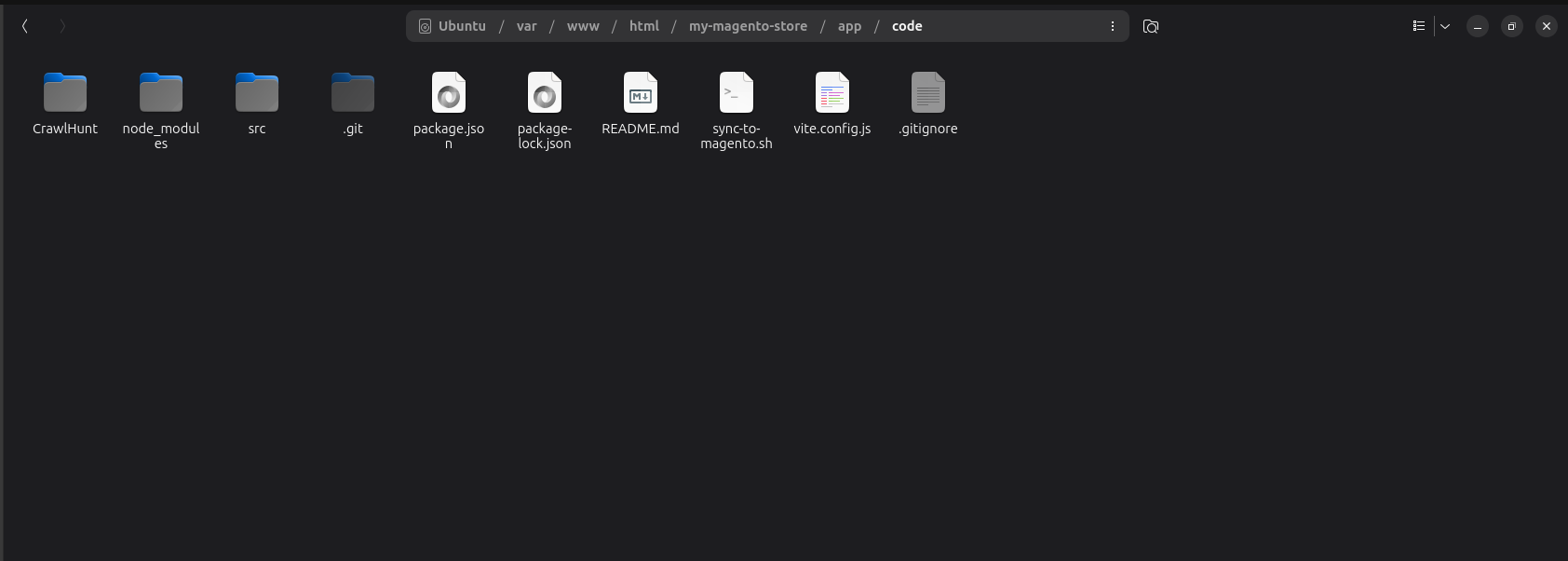
SFTP client showing CrawlHunt/SeoAudit/ correctly placed under app/code/
SFTP client showing CrawlHunt/SeoAudit/ correctly placed under app/code/Open Full Screenshot
03Step 3 of 6

Enable the module via the command line

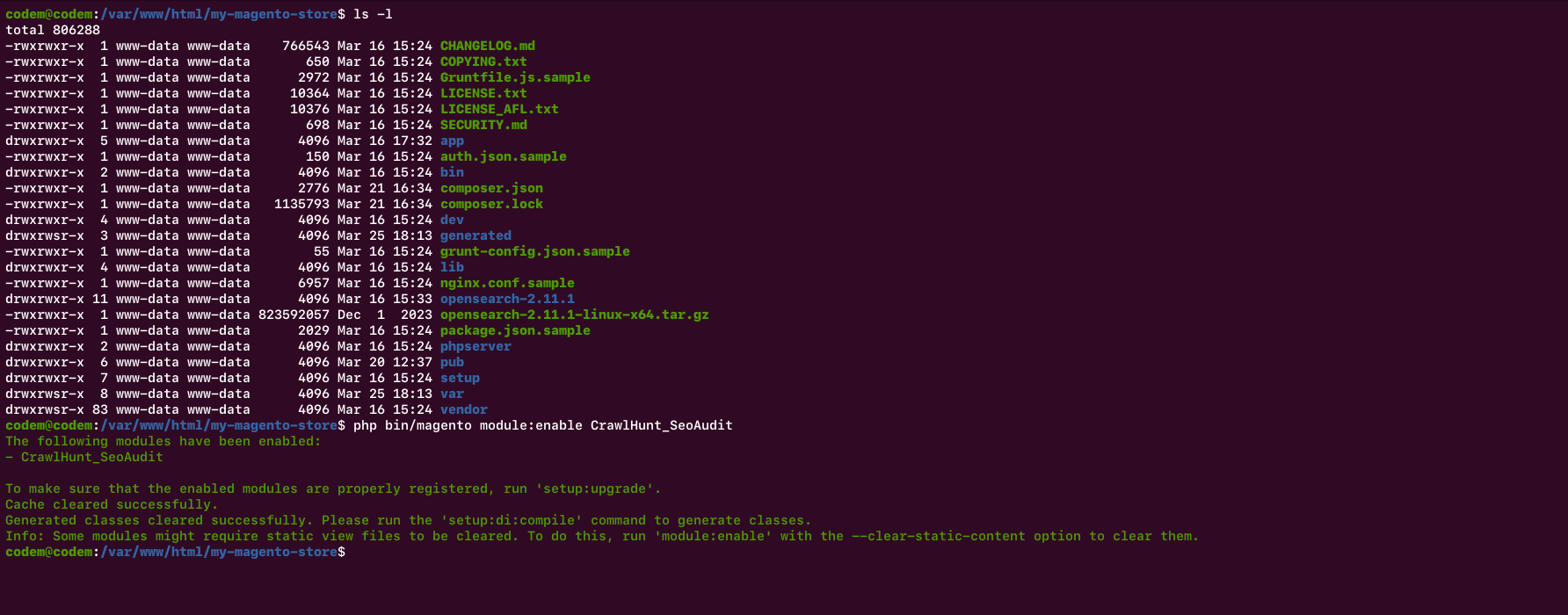
Connect to your server via SSH and run the following commands from your Magento root directory to register and enable the CrawlHunt module. These commands must be run in order.

Run: php bin/magento module:enable CrawlHunt_SeoAudit
Run: php bin/magento setup:upgrade — applies any database changes
Run: php bin/magento cache:clean
Run: php bin/magento cache:flush
Optional for production: php bin/magento setup:di:compile && php bin/magento setup:static-content:deploy -f
Verify the module is active: php bin/magento module:status CrawlHunt_SeoAudit
SSH terminal showing successful module:enable and setup:upgrade output
SSH terminal showing successful module:enable and setup:upgrade outputOpen Full Screenshot
04Step 4 of 6

Connect the extension to your CrawlHunt account

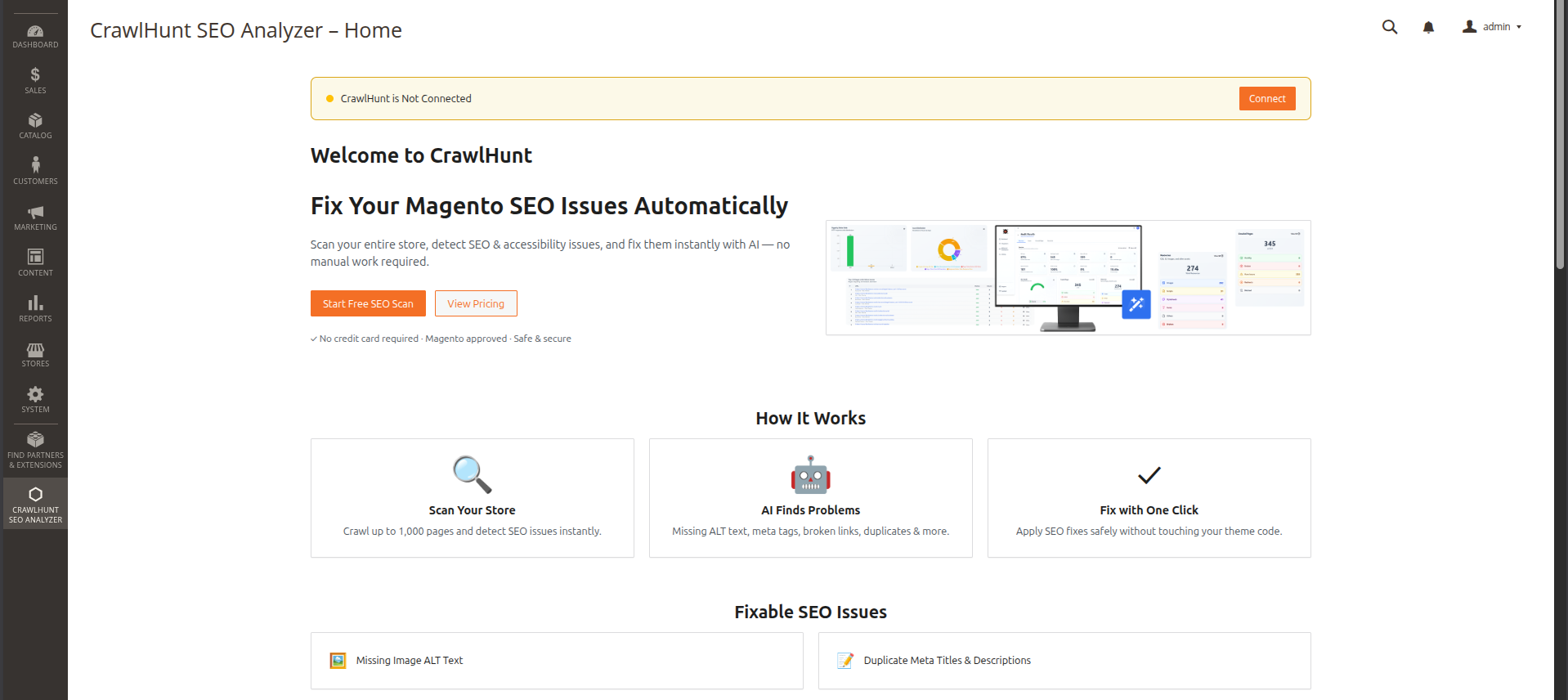
Open your Magento admin panel. The CrawlHunt menu item will now appear in the left sidebar. Click it and then click Connect to link the extension to your CrawlHunt account via a secure OAuth flow.

Log in to your Magento admin panel
Find CrawlHunt in the left sidebar — it appears after module:enable and setup:upgrade
Click Connect on the CrawlHunt home screen
Complete the authorization prompt to link your CrawlHunt account
Once connected, the CrawlHunt menu has six pages: Home, Dashboard, Pricing, AEO & GEO (AI visibility checks and fixes), Search Tools (canonical tags, schema markup, IndexNow and sitemap ping) and What's New
CrawlHunt Magento admin panel showing Connect button
CrawlHunt Magento admin panel showing Connect buttonOpen Full Screenshot
05Step 5 of 6

View your crawl results

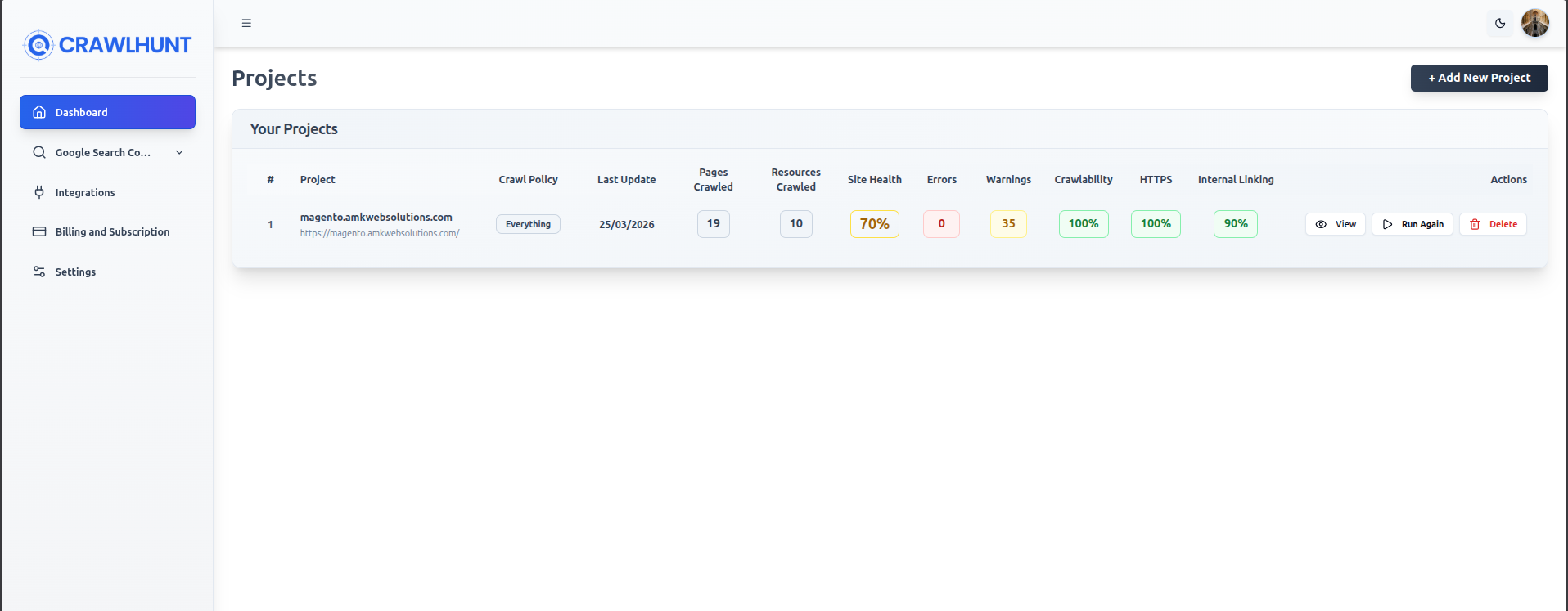
Once connected, CrawlHunt will automatically create a project for your Magento store. Head to the Projects page in your CrawlHunt dashboard to see crawl results including site health score, errors, warnings, crawlability, HTTPS status, and internal linking score.

Open the CrawlHunt dashboard and go to Projects
Find your Magento store listed under Your Projects
Review site health, errors, warnings, and crawlability metrics
Click Run Again to trigger a new crawl at any time
CrawlHunt Projects dashboard showing Magento store crawl metrics
CrawlHunt Projects dashboard showing Magento store crawl metricsOpen Full Screenshot
06Step 6 of 6

Review issues and apply fixes

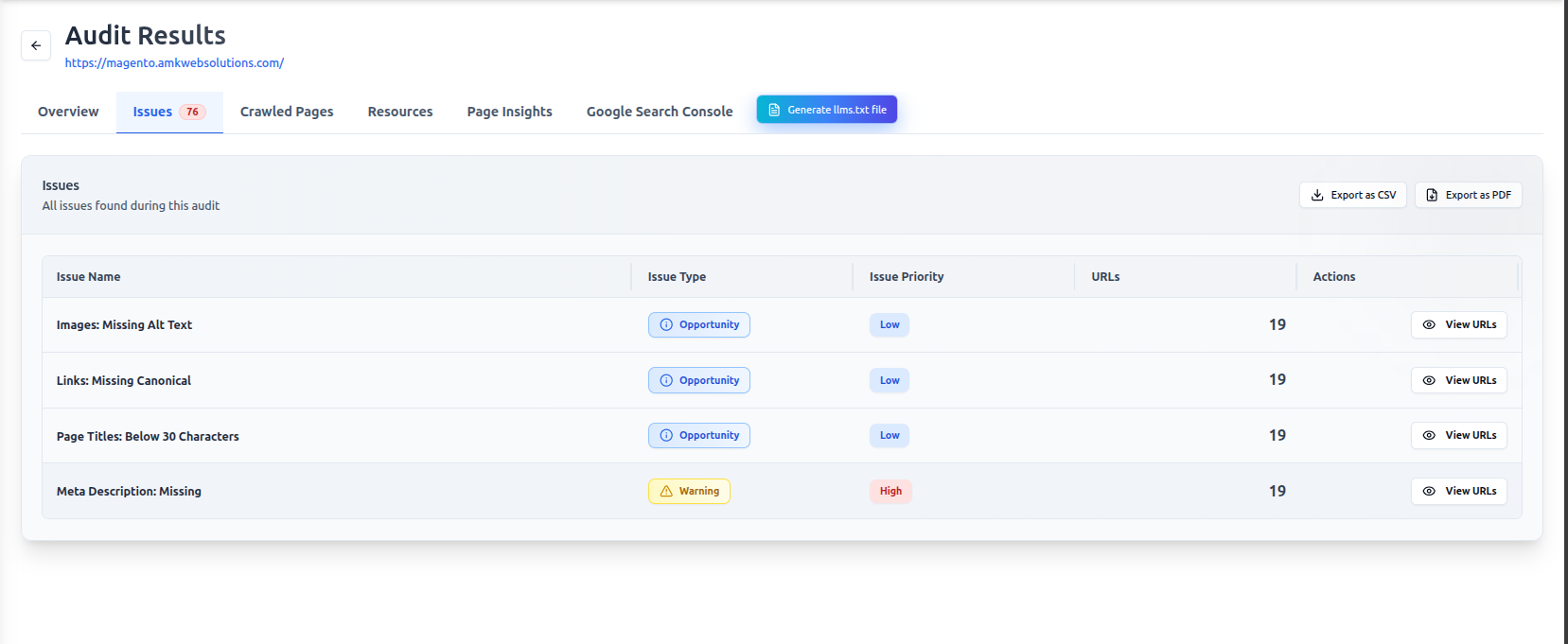
Click View on your project to open the audit results. Navigate to the Issues tab to see all detected SEO problems for your Magento store, including missing canonical tags, duplicate content, broken links, missing meta descriptions, image alt text issues, and schema markup errors.

Click View next to your project to open the audit report
Switch to the Issues tab to see all detected problems
Filter by issue type or priority to focus on what matters most
Apply fixes from the dashboard and rerun the audit to track improvements
CrawlHunt audit Issues tab showing SEO issues for Magento store
CrawlHunt audit Issues tab showing SEO issues for Magento storeOpen Full Screenshot
Magento Documentation

Ready to run your first SEO audit?

Open CrawlHunt to start auditing, or head back to the integration overview.