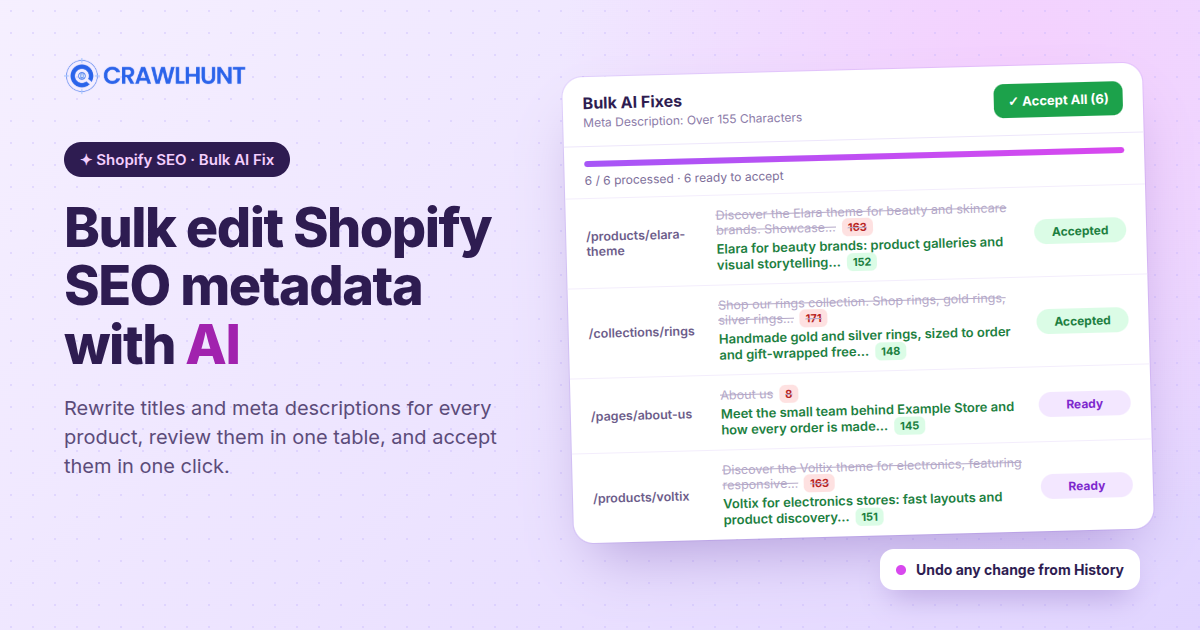
Every product, collection, page and blog post in a Shopify store has its own SEO metadata: the title and meta description that search engines can show in results. On a store with a few hundred products, fixing that one page at a time in the Shopify admin takes days. This guide shows how to bulk edit Shopify SEO metadata using AI with CrawlHunt: find every page with a weak title or description, let AI write a better one for each, review the suggestions in one table, and apply the ones you approve to your live store.
The whole job happens on one screen, and nothing changes on your store until you accept it. Pages that Shopify does not let apps edit are flagged before any AI runs, and every applied change can be undone from the audit's History tab.
What Shopify SEO metadata is and why bulk editing helps
In Shopify, the SEO metadata for a page sits in the Search engine listing section at the bottom of the product, collection, page or blog post editor. It has two fields:
- Page title (the SEO title). Google often uses it for the clickable headline in results.
- Meta description. A short summary that Google may show under the headline.
If you leave these fields empty, Shopify fills them from the product name and the first part of the description. That is why so many stores end up with the same problems: titles that are too long and get cut off, descriptions that are copied from the product text, and dozens of pages sharing one description.
Editing the SEO metadata of a single page is easy. The trouble is scale. Each page needs a title and description that fit the length limits, describe that page and are not repeated elsewhere. Writing 200 of them by hand is slow, and it is easy to miss pages. This is a common gap in Shopify SEO.
A bulk workflow solves the scale problem in three parts. A crawl finds every page with a problem. AI writes a first draft for each one. You review and approve the drafts in one list instead of opening each page in the Shopify editor.
What you need before you start
CrawlHunt's Bulk AI Fix is built for this job. Before you use it, check these four things:
- A CrawlHunt project for your store, with a finished crawl. Bulk AI Fix works from the issues the crawl found. If you have never run an audit, run one first from your CrawlHunt dashboard.
- Your Shopify store connected through the CrawlHunt Shopify app. The app is what writes the new metadata to your store. The project's domain must match the connected store. Install it from the CrawlHunt page on the Shopify App Store.
- A paid plan. Bulk AI Fix is included in every paid plan (Starter, Growth and Agency). Current plan limits are listed on the CrawlHunt pricing page.
- AI credits. Each row the AI writes uses one AI credit. A row that fails is not charged.
If your store is not connected, the Bulk AI Fixes button shows a Connect label and opens the connection steps instead.
How to bulk edit Shopify SEO metadata with Bulk AI Fix
The steps below use the CrawlHunt web dashboard. The same Bulk AI Fixes button is also in the CrawlHunt app inside your Shopify admin, under Audit Results, and works the same way.
Step 1: Open the Issues tab and pick an issue group
Open your project's audit and go to the Issues tab. Click the Opportunities card to filter the list. SEO metadata problems appear as separate issue groups, each marked Auto-fixable.
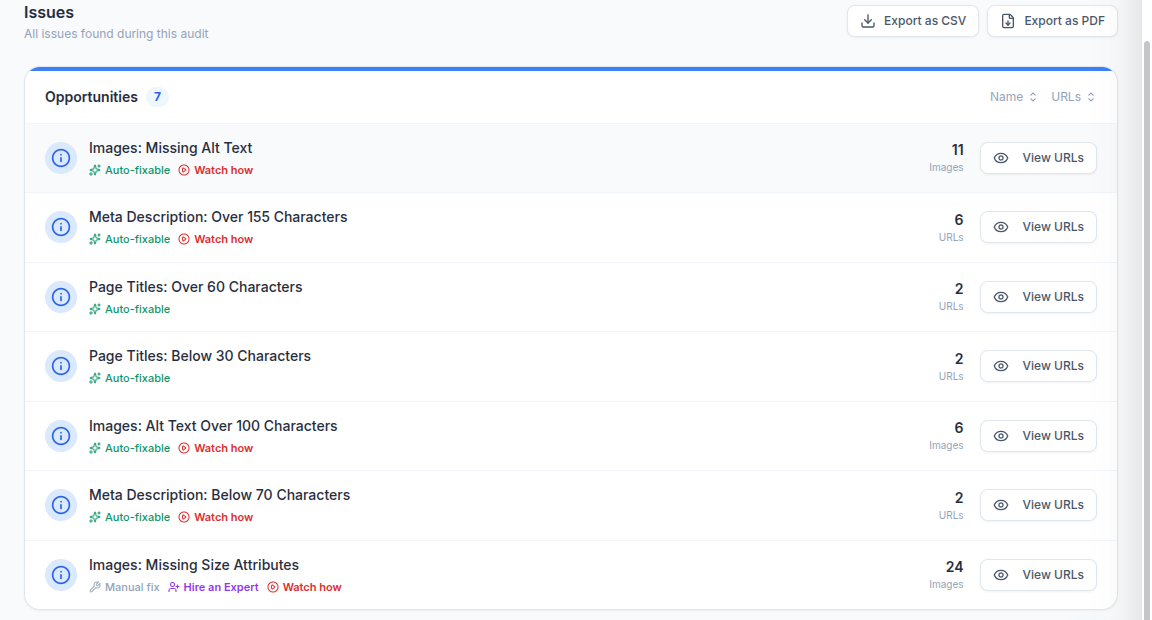
Bulk AI Fix handles these SEO metadata issue groups:
Issue group in CrawlHunt | What the AI is asked to write |
|---|---|
Page Titles: Missing | A new title of 50 to 60 characters for that page |
Page Titles: Over 60 Characters | A shorter title of 50 to 60 characters that keeps the meaning and main keyword |
Page Titles: Below 30 Characters | A fuller title of 50 to 60 characters |
Page Titles: Duplicate | A title that differs from the duplicated one |
Meta Description: Missing | A new description of 140 to 155 characters |
Meta Description: Over 155 Characters | A trimmed description of 140 to 155 characters |
Meta Description: Below 70 Characters | A fuller description of 140 to 155 characters |
Meta Description: Duplicate | A description that differs from the duplicated one |
The same tool also writes image alt text and suggests redirects for broken pages. This post sticks to SEO metadata.
Step 2: View the affected URLs
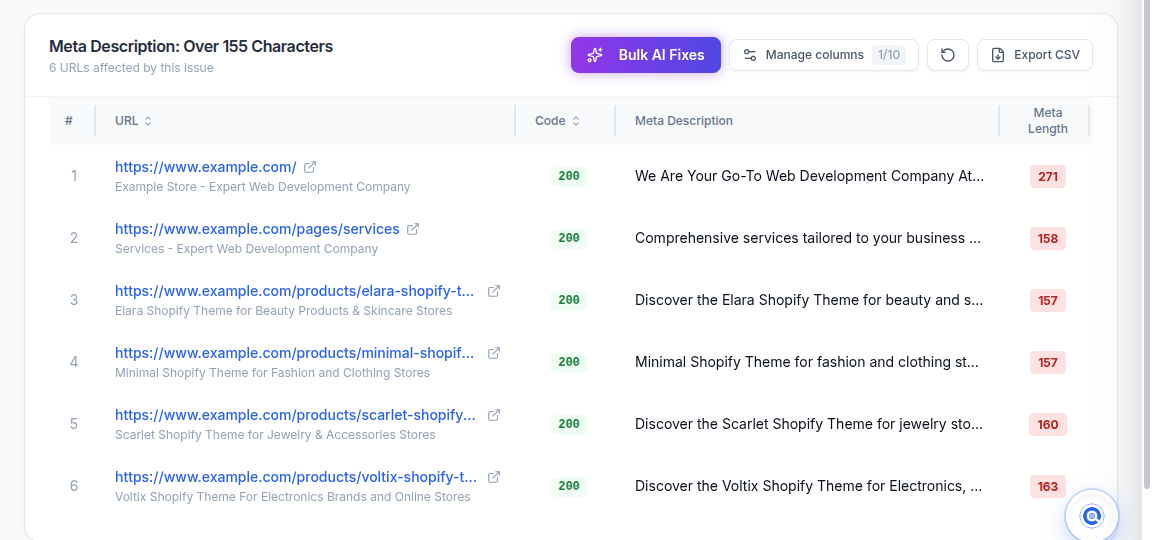
Click View URLs on an issue group. CrawlHunt lists every page with that problem, its current value and its length. Check that the list looks right, then click Bulk AI Fixes.
Step 3: Choose the rows and start generation
The Bulk AI Fix page opens with one row per page. Each row shows the page URL and the current value. All rows start out selected, so clear the checkbox on any page you want to leave alone. Then click Start Generation.
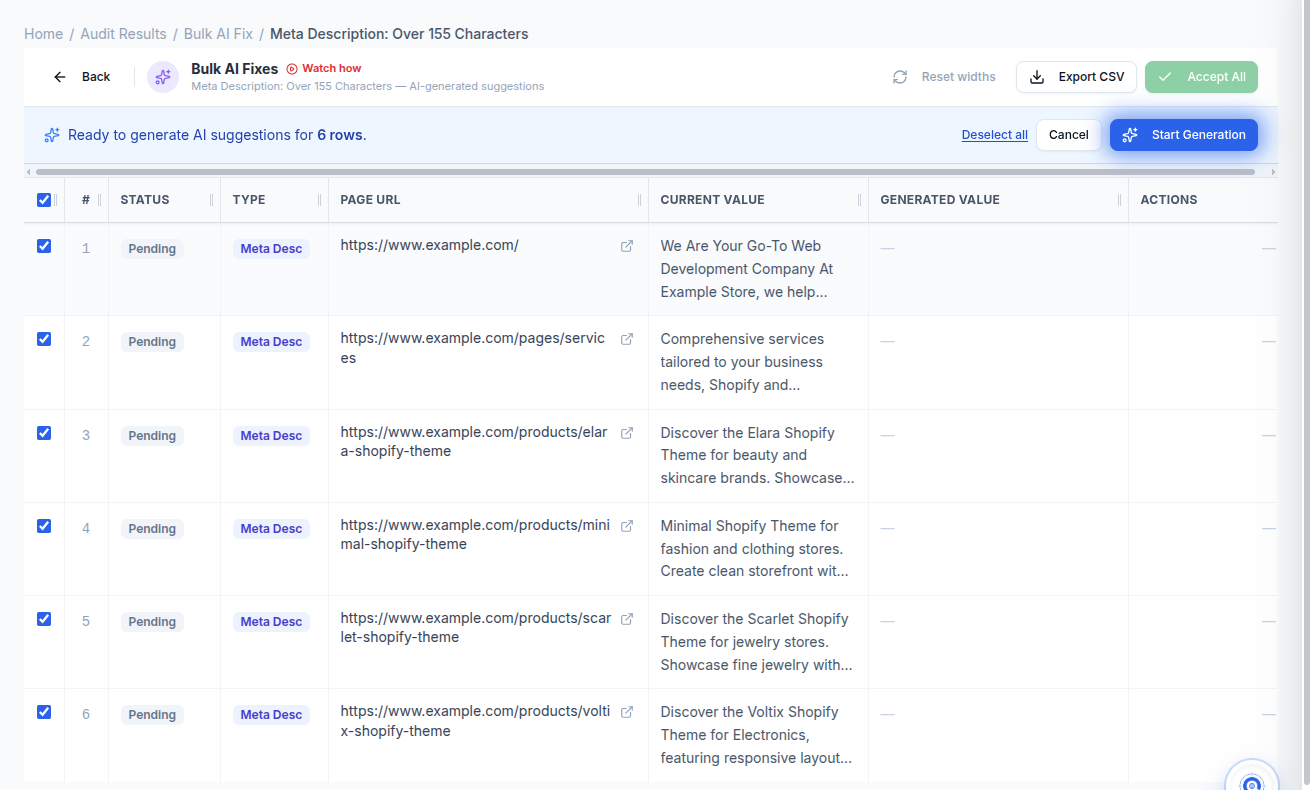
No AI credits are used until you click Start Generation. If your batch is larger than your remaining credits, CrawlHunt warns you first. You can then buy more credits or generate as many rows as you have credit for. If the credits run out partway through a job, it stops and marks the remaining rows as skipped.
Step 4: Let the job run
Generation runs in the background, so you can leave the page and come back later. A progress bar shows how many rows are done. While the job is running, you can Pause it, Resume it from where it stopped, or Cancel it.
The AI writes each suggestion from the page's URL and its current title or description. It aims for the lengths in the table above. It does not read the full product page, so check product details such as materials or sizes before you accept.
Step 5: Review, edit or reject each suggestion
When a row is done, its status changes to Ready and the suggestion appears in the Generated value column, next to the current value. For each row you can:
- click the pencil icon to edit the suggestion yourself, then Save;
- click the X to reject it, so it is never applied;
- click Accept to apply that one row now.
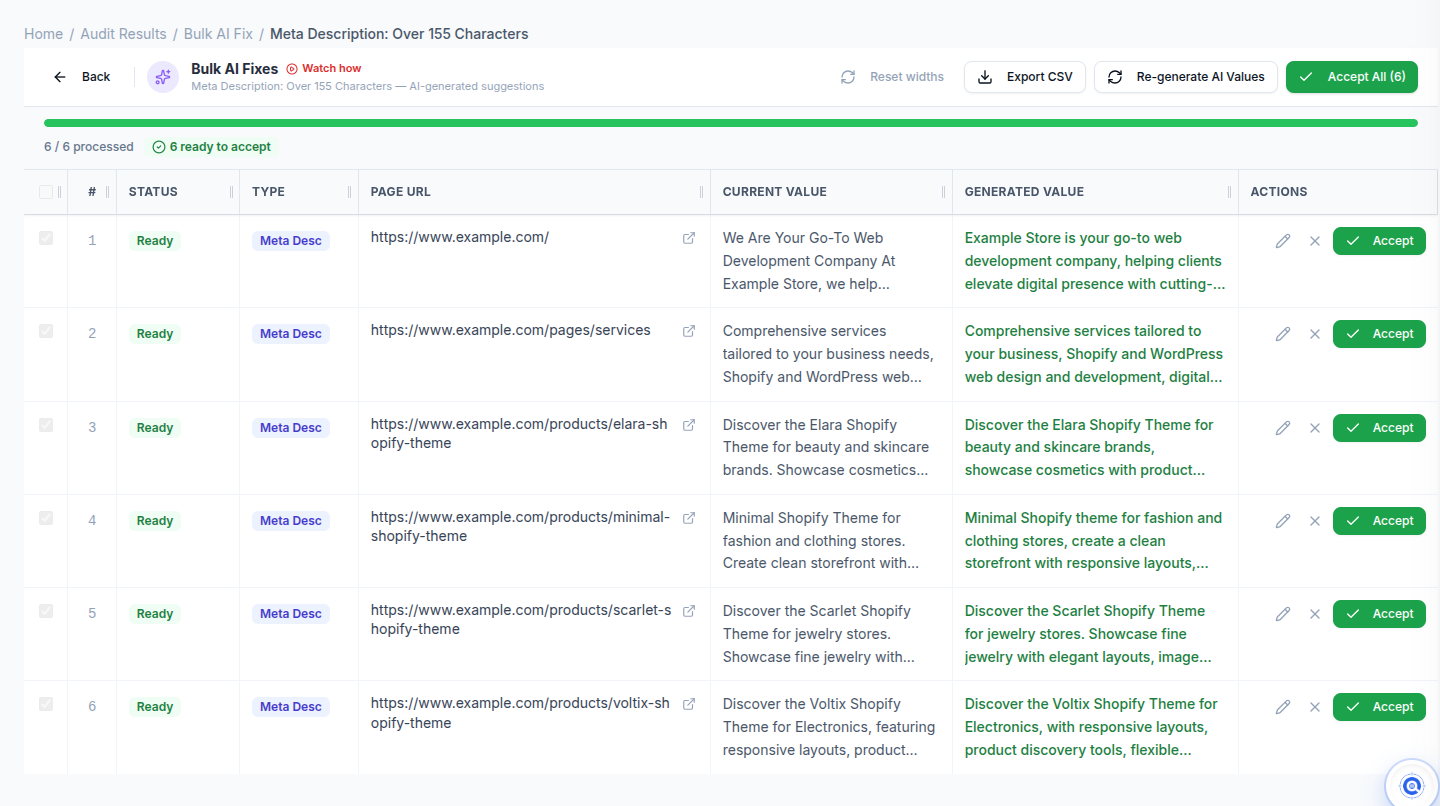
Editing is worth a few seconds on your most important pages. The AI gets the length right and keeps the topic, and you add the detail only you know, such as an offer, a material or the reason to buy from you.
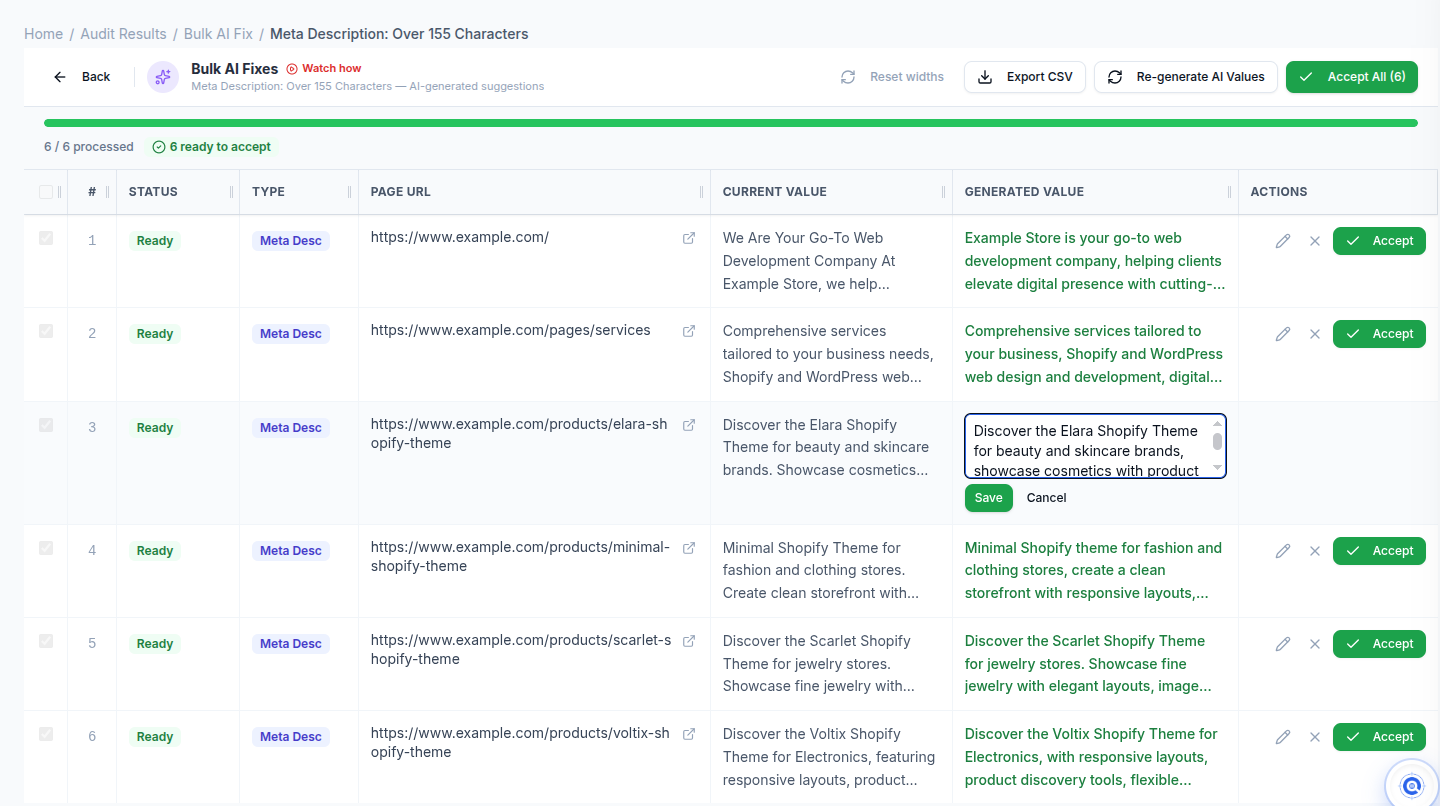
To review the batch outside the app, or to share it with a colleague, use Export CSV. The file lists each page with its current value and generated value. If you are not happy with the batch, Re-generate AI Values starts it again.
Step 6: Accept the changes
Click Accept on single rows, or Accept All to apply every row marked Ready. Before the first live change, CrawlHunt asks you to confirm that it may change your store, and one confirmation covers the whole batch. Accept All runs in the background, and you can leave the page while it works.
For each accepted row, the CrawlHunt Shopify app writes the new SEO metadata to the Search engine listing title or meta description of that product, collection, page, blog or blog post. Only the SEO fields change. The product name and description that shoppers see on the page stay the same.
If Shopify rejects a change, that row is marked Failed with the reason, and the rest of the batch carries on.
Step 7: Re-crawl and check the results
Click Run Again on the audit to crawl the store with the new SEO metadata. The fixed pages should drop out of the issue group. Search engines pick up the new SEO metadata the next time they crawl each page. To speed that up for key pages, request indexing in Google Search Console.
Shopify pages CrawlHunt skips, and how to undo a change
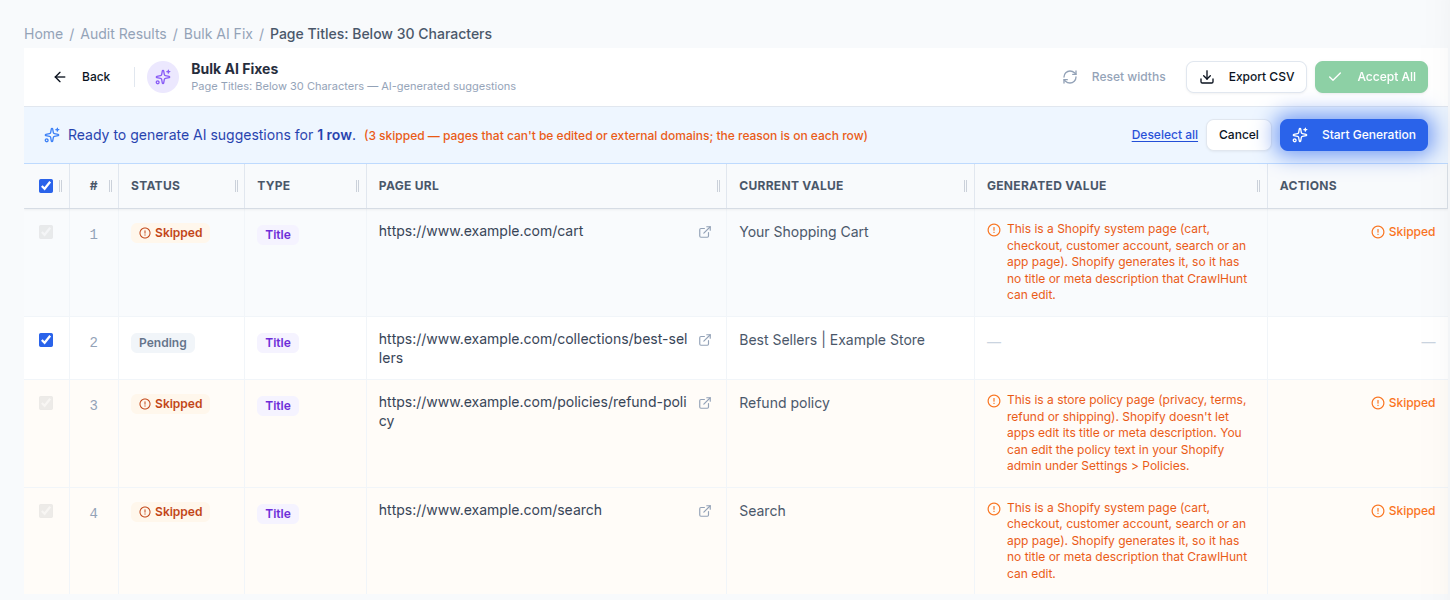
Some URLs in a Shopify store have no editable SEO metadata. Shopify builds them itself, so no app can change their SEO fields. CrawlHunt recognises these pages and marks them Skipped with the reason before any AI runs, so they never use a credit.
Page type | Example URL | Where to change it instead |
|---|---|---|
Cart, checkout, search, customer account and app pages | /cart, /search, /account | Shopify generates these, so there is no SEO field to edit |
Store policy pages | /policies/refund-policy | Edit the policy text under Settings > Policies in the Shopify admin |
The automatic "All" collection | /collections/all | Create your own collection and use it instead |
Blog tag pages | /blogs/news/tagged/sale | Edit the blog template in your theme |
Password page | /password | Remove the storefront password in Online Store > Preferences |
Rows can also be skipped when the page is on another domain or a subdomain outside your connected store.
How to undo a bulk change
Every accepted change is recorded with the value it replaced. To roll some or all of them back:
- Open the audit and go to the History tab.
- Find the Bulk AI entry for the run and click Review fixes.
- Select the changes you want to reverse and click Undo selected.
CrawlHunt writes the previous title or description back to your Shopify store. Single changes can also be undone from their own row in the History tab.
Tips for reviewing AI-written SEO metadata
AI gets you a clean first draft in seconds, but a quick review makes the difference. Check these points before you click Accept All:
- Brand name. Decide whether your store name belongs at the end of every title. If it does, check that each suggestion still fits within 60 characters with it.
- Product facts. The AI works from the URL and the current text. Make sure it has not added a feature, size or material that the product does not have.
- Your most valuable pages first. Spend your editing time on best sellers and top collections, and accept the rest as they are if they read well.
- Duplicates. Run the duplicate title and duplicate description groups as well as the length groups. Shared descriptions across similar products are a common cause of thin, repetitive results.
- Handles. Bulk AI Fix changes titles and descriptions, not URLs. If your product handles are messy too, fix those separately.
- Clicks after the change. Better metadata is meant to earn more clicks, so compare click-through rates before and after. Google Search Console shows clicks and impressions per page.
Frequently asked questions
Does bulk editing SEO metadata change what shoppers see on my product pages?
No. Bulk AI Fix only writes the SEO title and meta description in each page's Search engine listing. The product name, description and images on the page do not change. Shoppers mainly see the new SEO title in the browser tab and in search results.
Can I bulk edit Shopify SEO metadata without the CrawlHunt Shopify app?
You can generate and review suggestions only when the store is connected, because the app is what writes them to Shopify. Without a connection, you can still fix pages one at a time in the Shopify admin using the issue list as a to-do list. You can install the CrawlHunt app from the Shopify App Store.
How many AI credits does a bulk edit use?
One credit per row the AI writes. Rows that fail, rows you deselect and pages marked Skipped are not charged. Your remaining credits are shown on the Billing and Subscription page, where you can also buy more if a large batch needs them.
Will new SEO metadata improve my rankings?
Not by themselves. Titles and descriptions mainly affect how your result looks and whether people click it. Google may also rewrite them in results when it thinks another text fits a search better. Clear, unique SEO metadata gives you the best chance that your own wording is shown.
Can I undo a bulk change?
Yes. Open the audit's History tab, click Review fixes on the Bulk AI run, select the changes and click Undo selected. CrawlHunt restores the previous values on your store.
Is there a limit to how many pages I can fix at once?
Each job covers one issue group, and it runs for as long as you have AI credits. For a large catalogue, work through one issue group at a time and review each batch before you accept it.