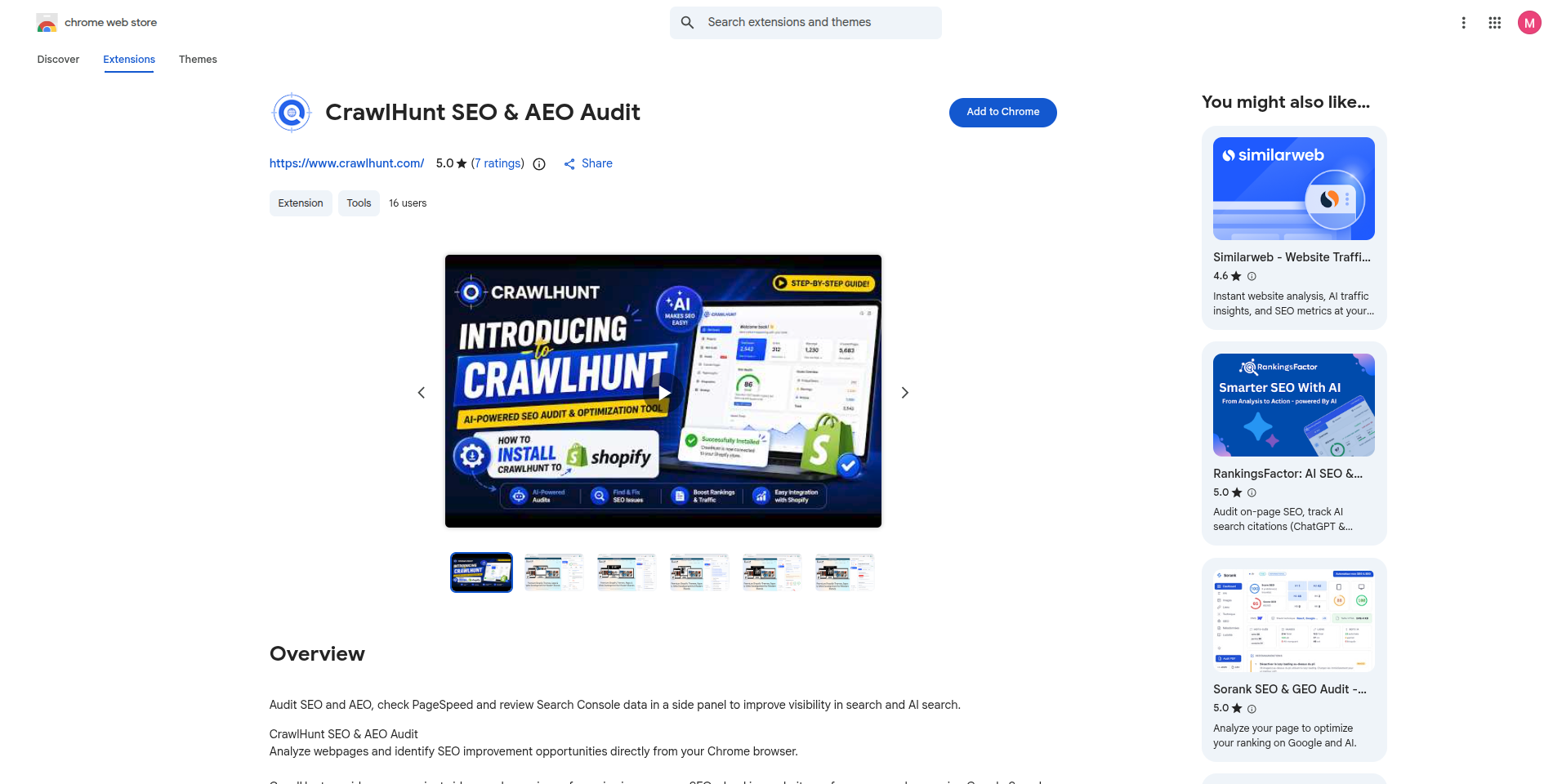
Install the extension from the Chrome Web Store
Open the CrawlHunt SEO & AEO Audit listing on the Chrome Web Store and add it to Chrome.

This guide walks through installing the CrawlHunt SEO & AEO Audit extension, scanning a page or a whole website from the Chrome side panel, and reading the results, PageSpeed and Search Console data.
Follow each step in order. Open any screenshot at full size to see the details.
Open the CrawlHunt SEO & AEO Audit listing on the Chrome Web Store and add it to Chrome.

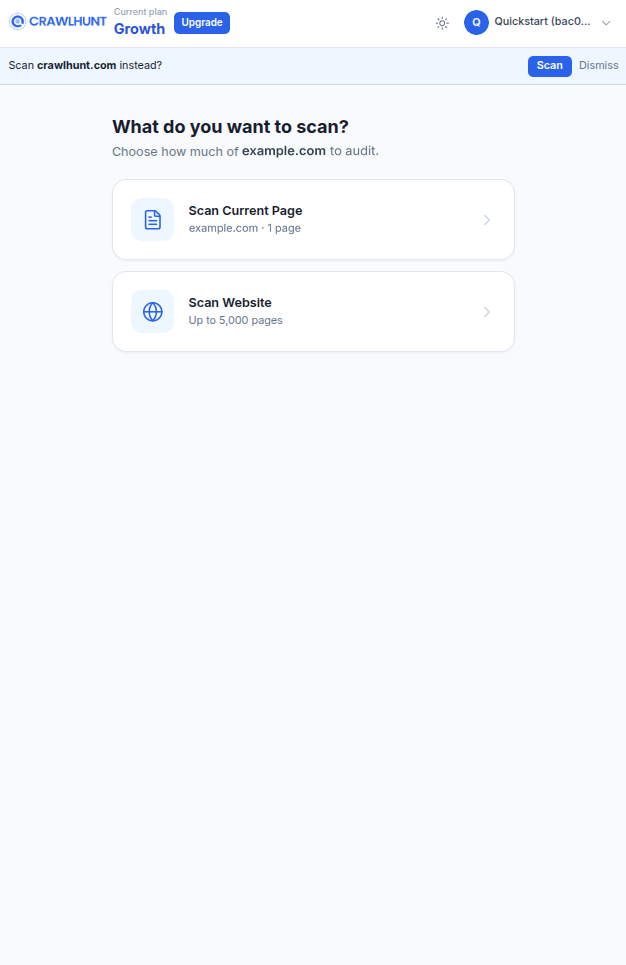
Go to the website you want to check and click the CrawlHunt icon. The audit opens in a side panel next to the page, so you can keep browsing while you read the results.
If there are no results yet, the panel asks what to scan. Nothing is scanned until you pick one of the two options.

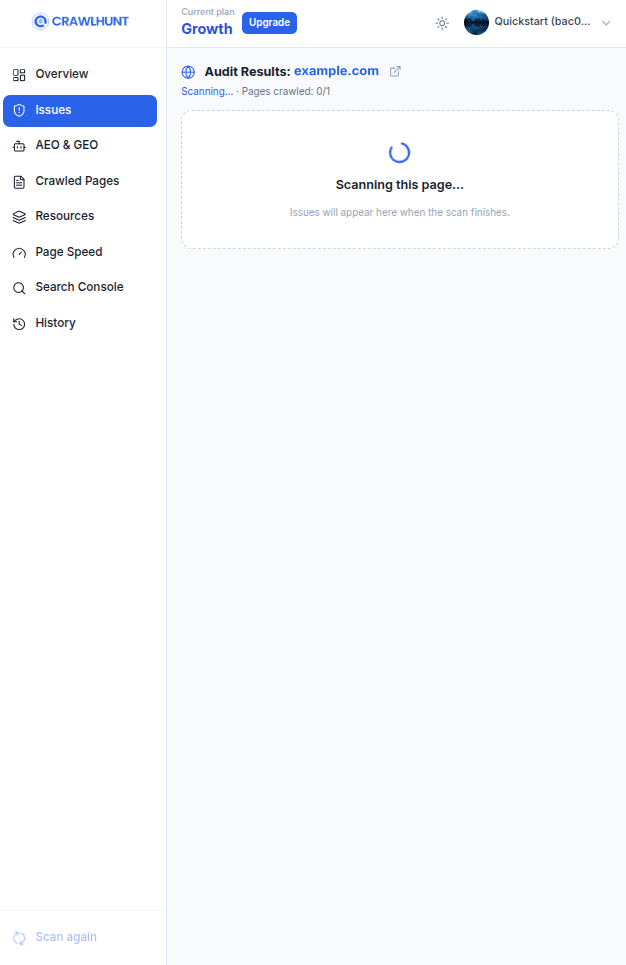
The panel shows how many pages have been scanned out of the scan's page limit, for example 1 of 100 pages. You can close the panel while it runs: the crawl continues on CrawlHunt's servers, and reopening the panel shows its progress.

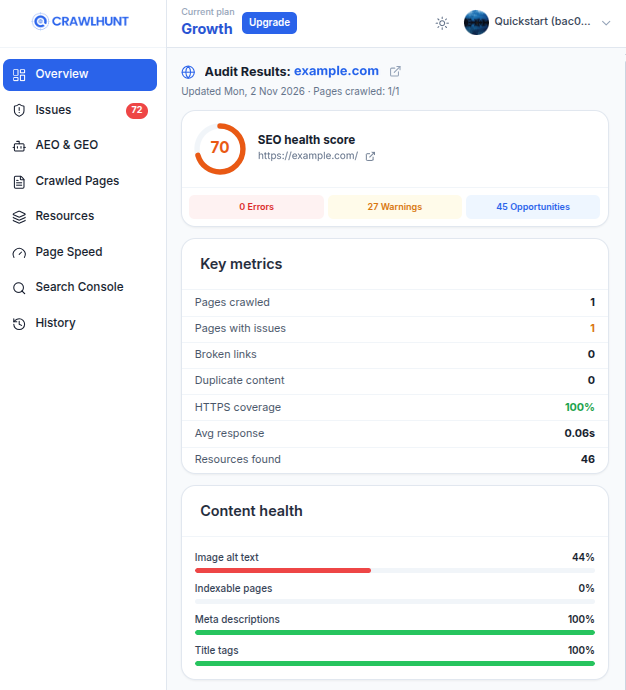
When the scan finishes, the Overview tab shows the SEO health score with the number of errors, warnings and opportunities, key metrics such as pages crawled, broken links and HTTPS coverage, and a content health summary.

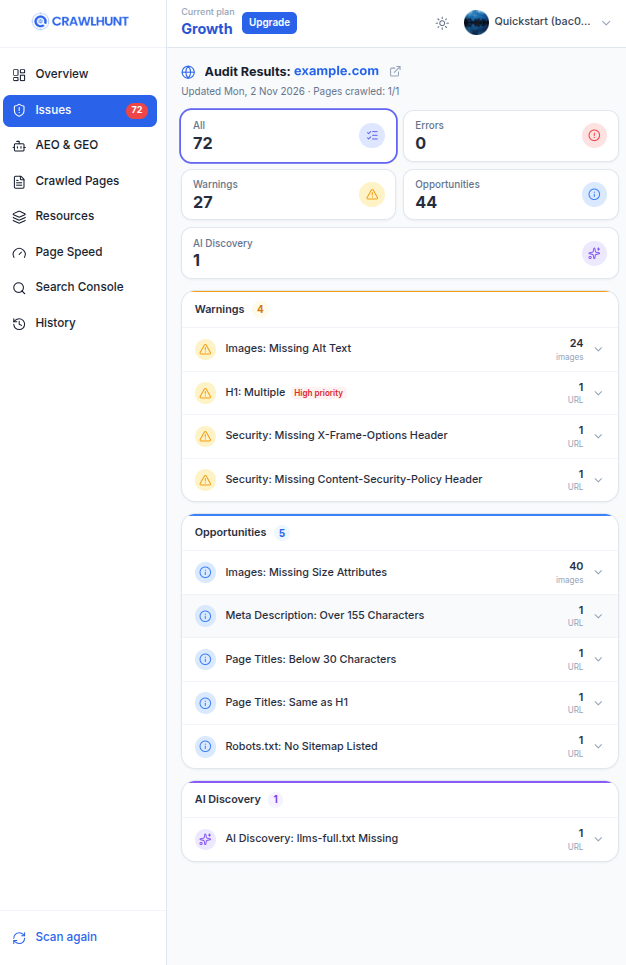
The Issues tab lists everything the scan found, grouped as errors, warnings and opportunities, and you can filter by type.

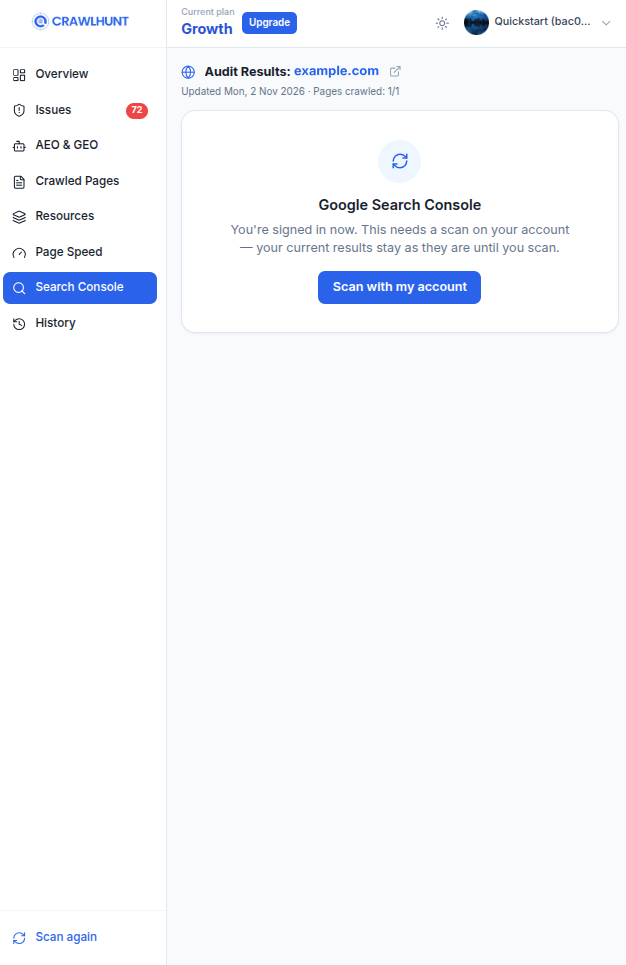
Without an account the extension is read-only: PageSpeed and Search Console are locked, and links ask you to log in. Sign in to your CrawlHunt account to unlock them and to scan whole websites.

Open CrawlHunt to start auditing, or head back to the integration overview.