Open Connectors in Claude
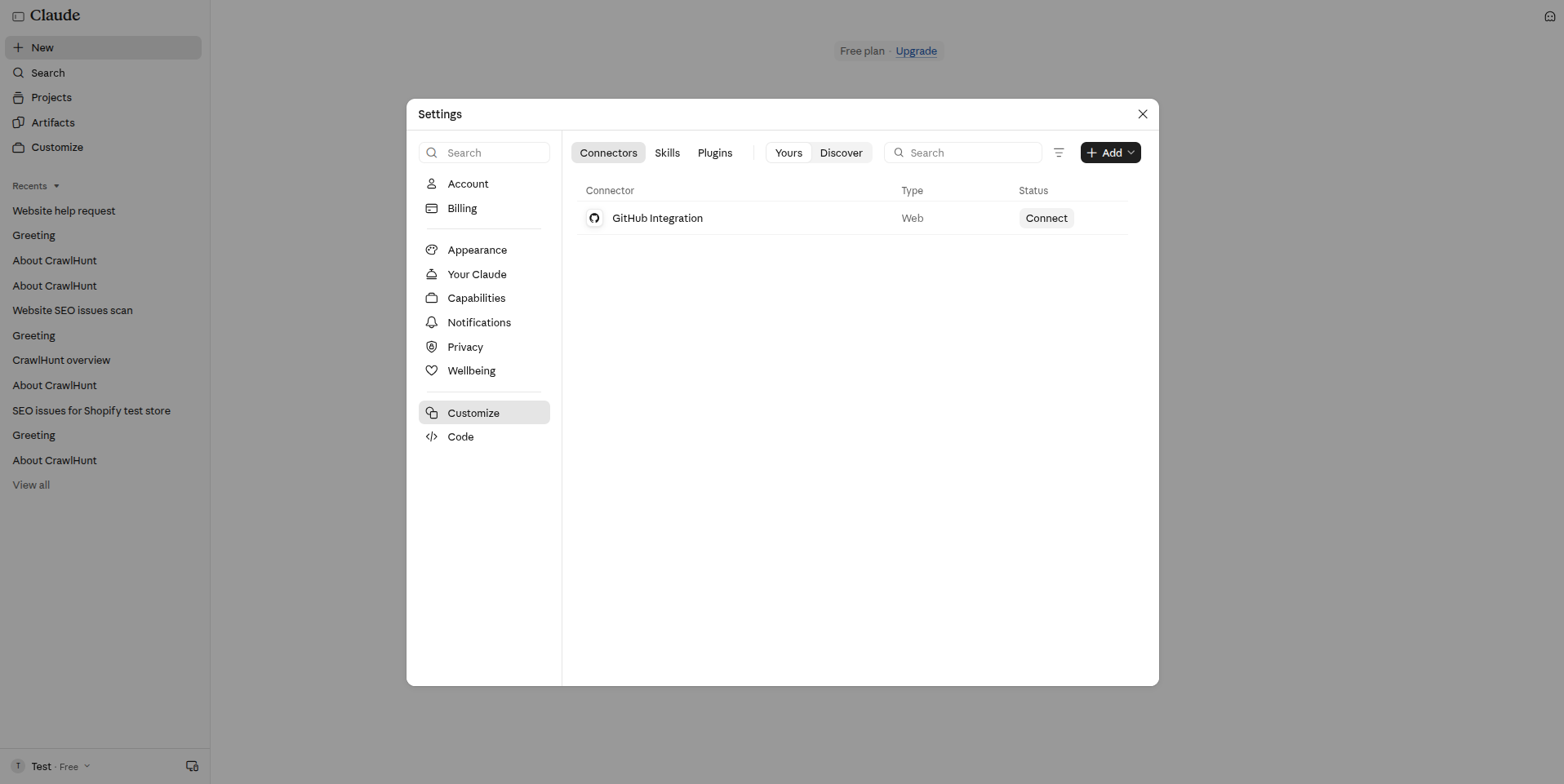
Open Claude on the web (claude.ai) or the desktop app, then go to Settings, then Customize, then the Connectors tab. This is where custom connectors are added, and they then work on the web, desktop and mobile apps.

Scan your website for SEO problems, review them and fix them by chatting with Claude. This guide shows how to add CrawlHunt to Claude as a custom connector, sign in, and use it, including what it can do, what data it uses and how to remove it.
Follow each step in order. Open any screenshot at full size to see the details.
Open Claude on the web (claude.ai) or the desktop app, then go to Settings, then Customize, then the Connectors tab. This is where custom connectors are added, and they then work on the web, desktop and mobile apps.

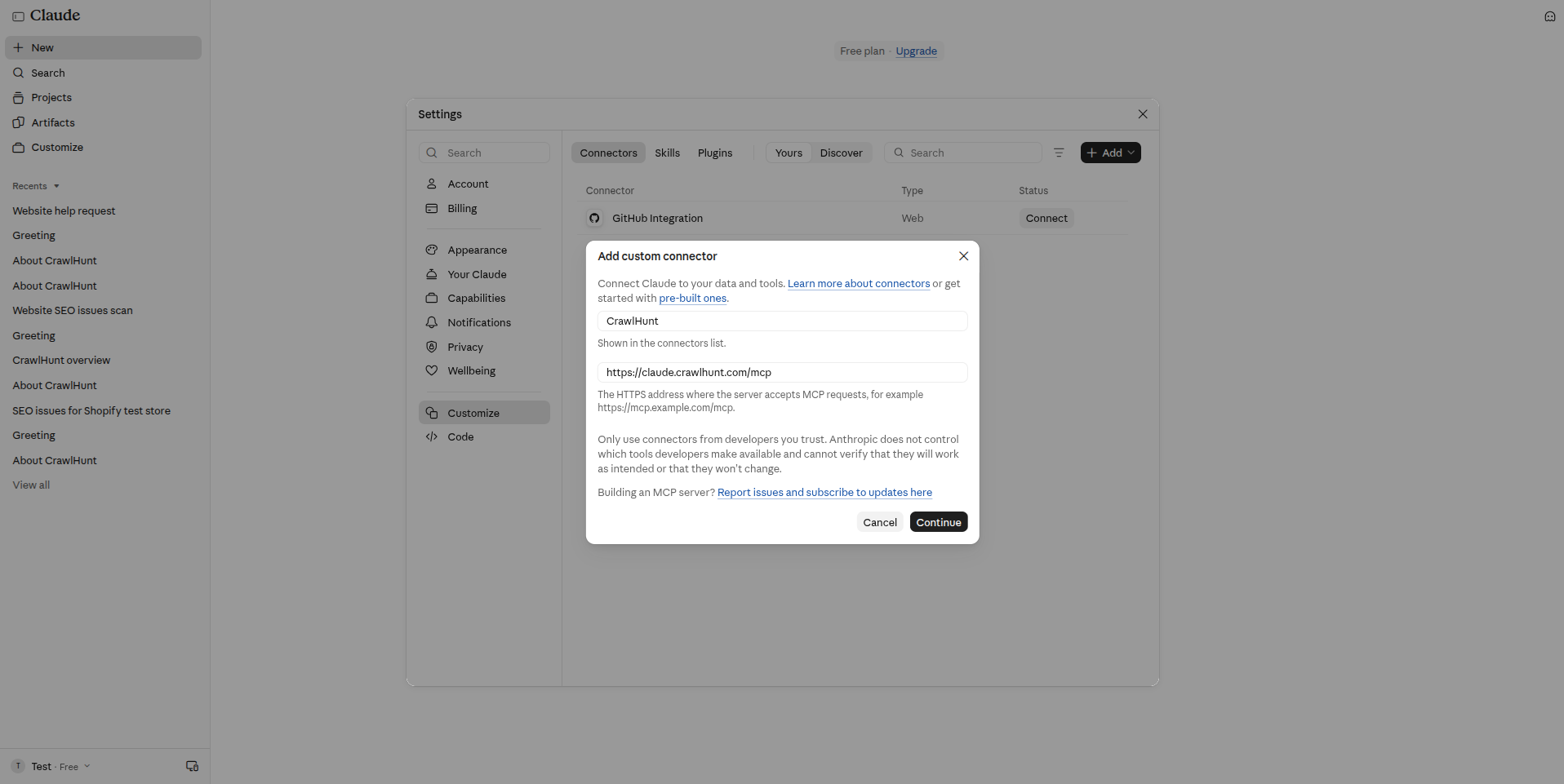
Click Add, then choose Add custom connector. In the window that opens, enter a name and the server URL from the Connection Details section of this page, then click Continue.

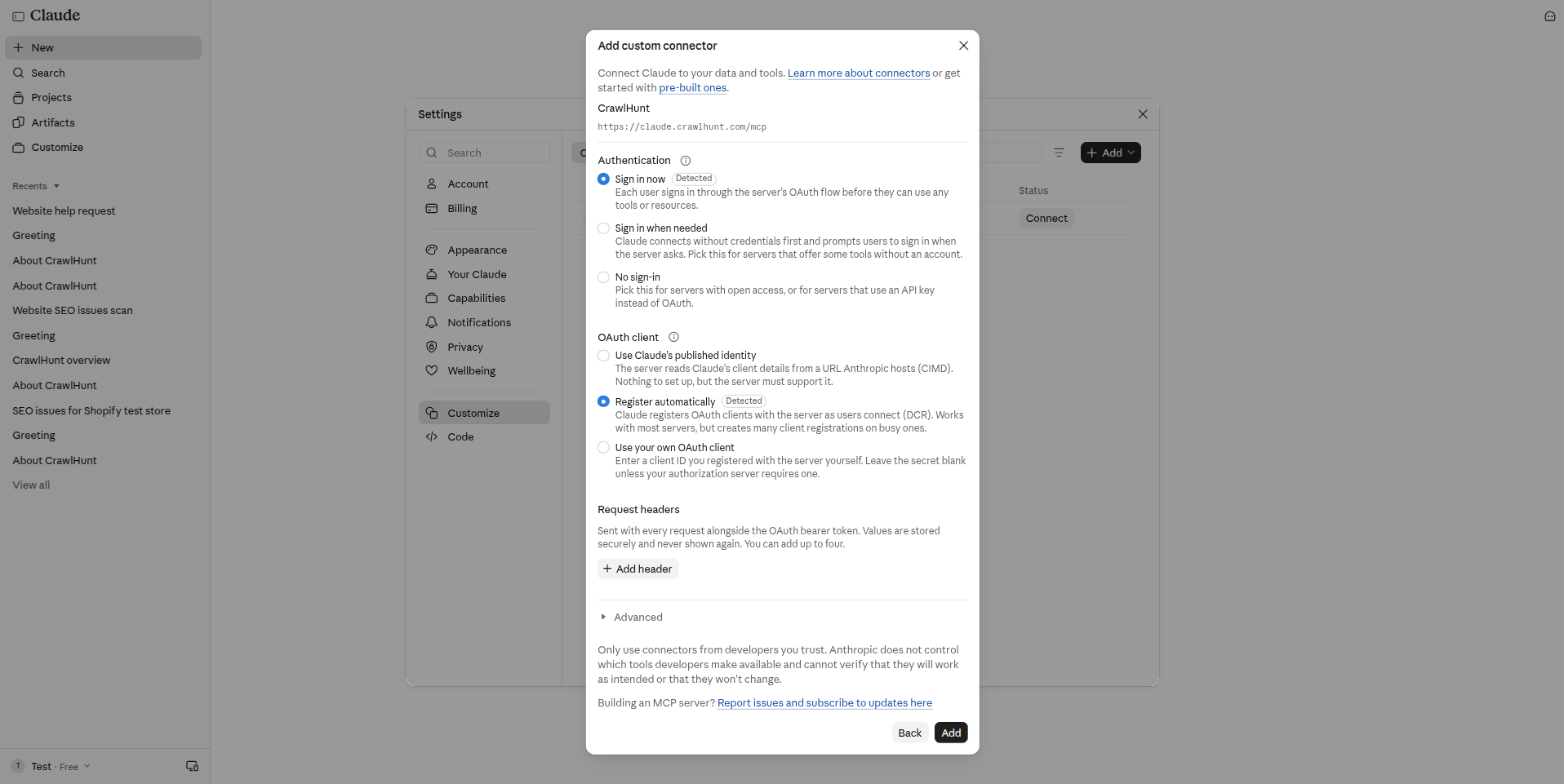
Claude checks the server and fills in the sign-in settings for you. CrawlHunt is detected as Sign in now with Register automatically, so leave them as they are and click Add.

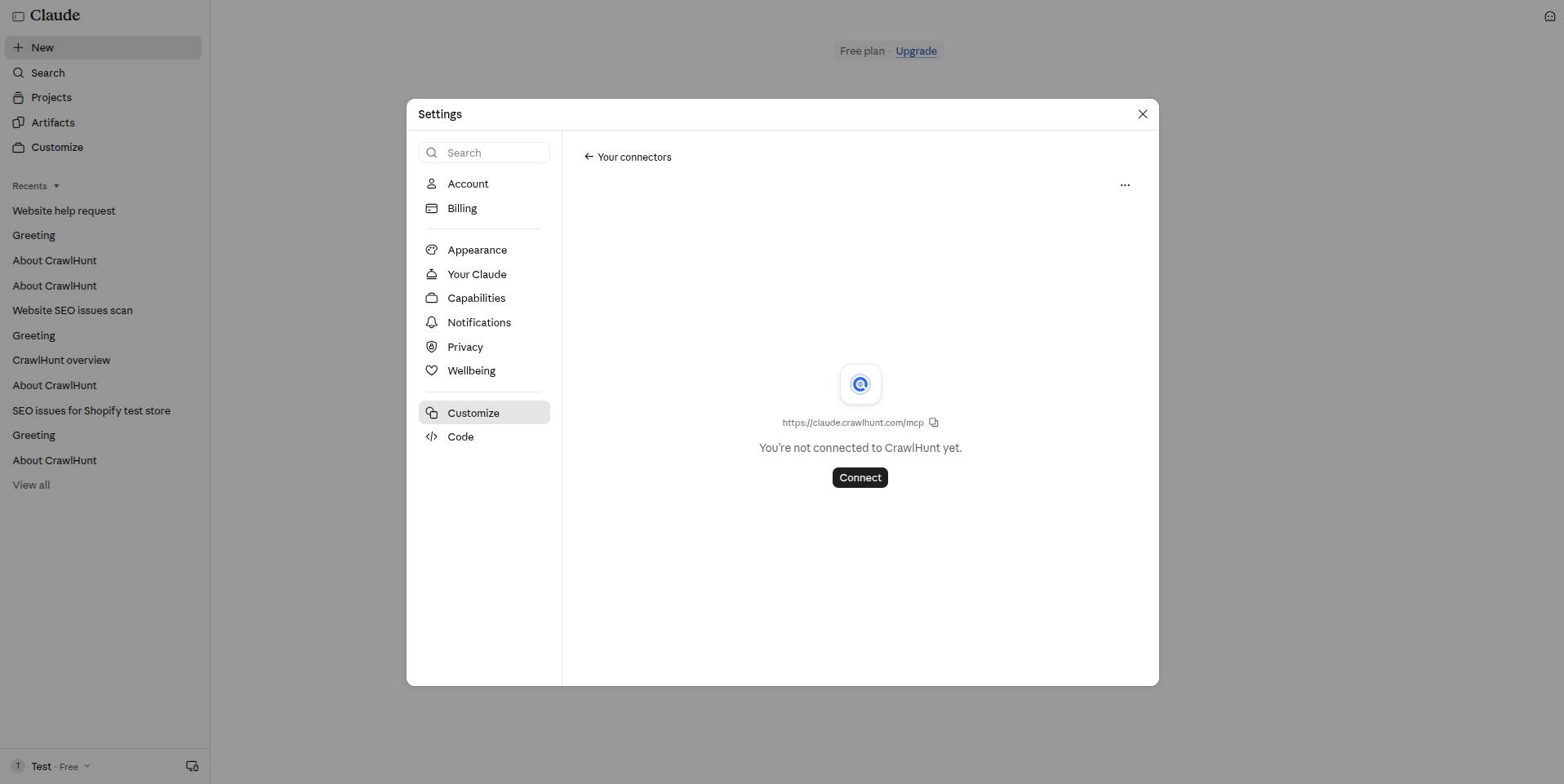
CrawlHunt now shows in your connector list, with the message "You're not connected to CrawlHunt yet". Click Connect to continue to CrawlHunt's own sign-in page.

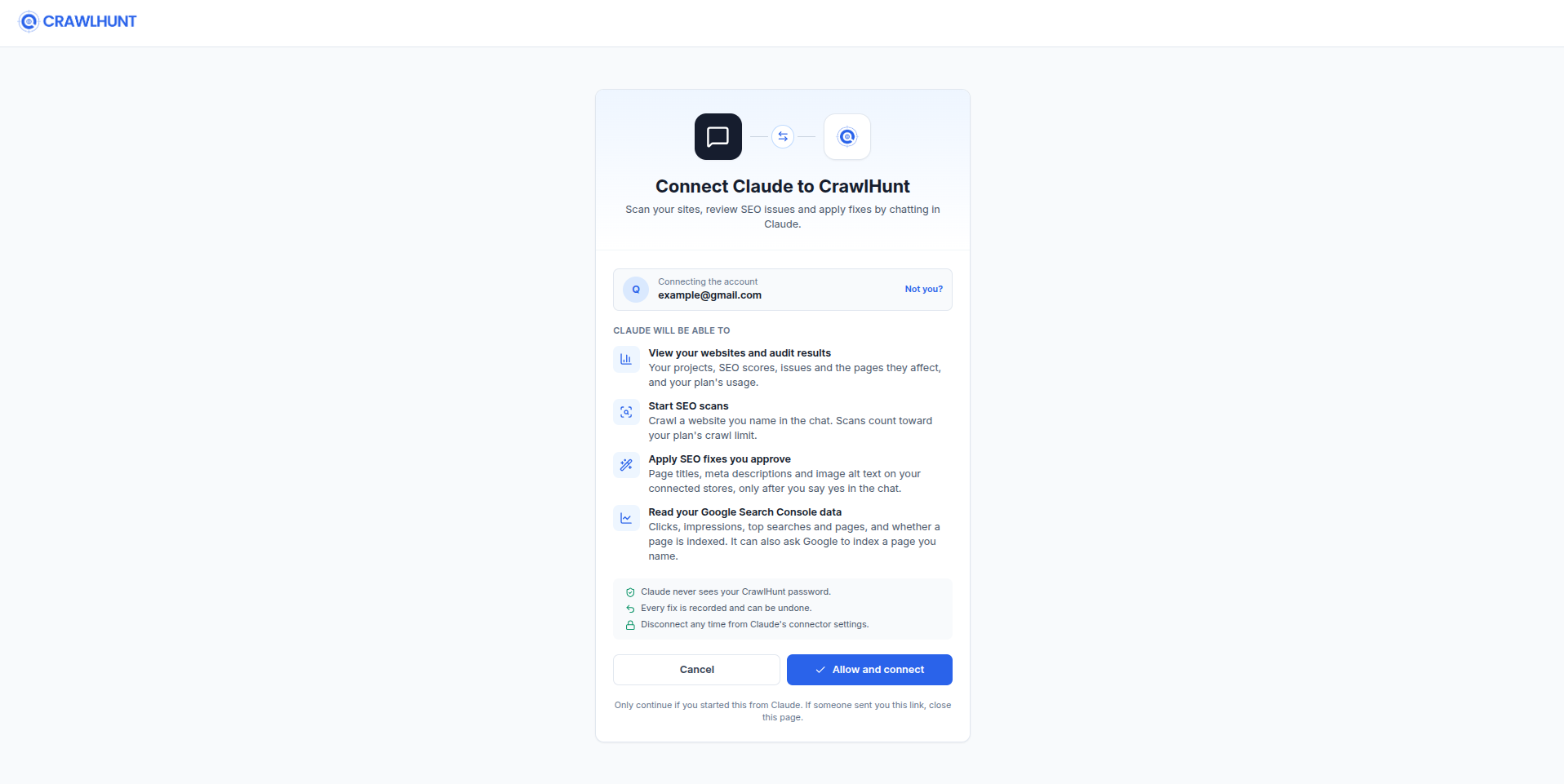
A CrawlHunt page opens. Sign in to your CrawlHunt account if asked (two-factor sign-in works as usual), check that the account shown is the one you want, and review what Claude will be able to do.

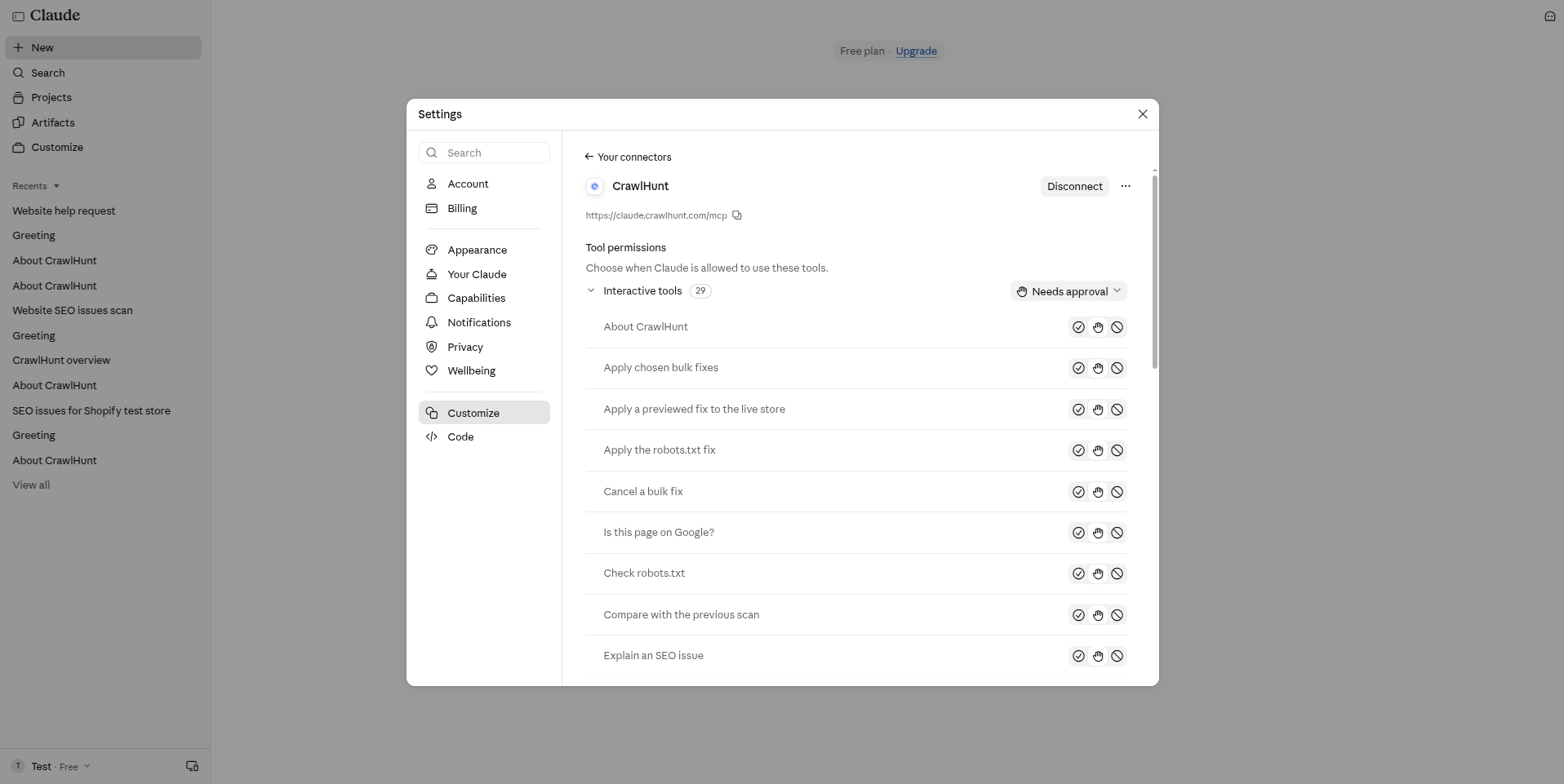
Back in Claude, the CrawlHunt page now shows Disconnect and a Tool permissions list. Each tool can be set to Always allow, Needs approval or Blocked. The default, Needs approval, makes Claude ask before it uses a tool.

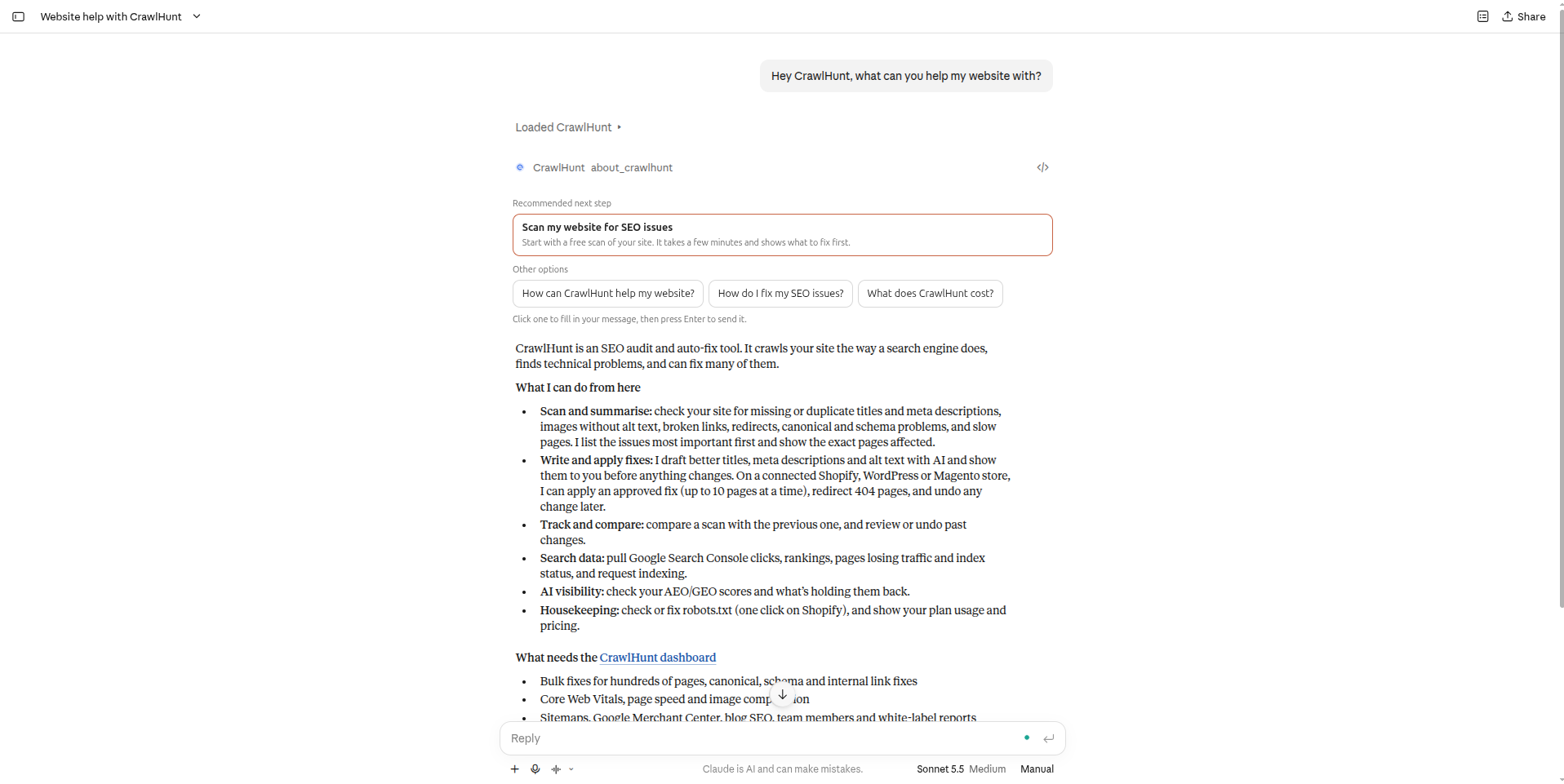
Open a new chat and ask in plain language, naming CrawlHunt so Claude knows to use it. Claude shows Loaded CrawlHunt, runs the tool and answers with a recommended next step and clickable options.

Ask Claude to scan a site, for example: "Use CrawlHunt to scan example.com". CrawlHunt adds the site to your account if it is new, crawls it, and Claude reports progress and then the issues found.
Ask Claude to fix an issue, for example: "Write a better title for the pricing page". CrawlHunt generates the text and Claude shows the current and proposed versions with Apply and Undo buttons. Nothing on your website changes until you approve.
The same chat can also review your robots.txt file, read Google Search Console clicks and index status, and show how ready your site is to be quoted by AI answers (AEO/GEO).
You can disconnect at any time. In Claude, open Settings, Customize, Connectors, choose CrawlHunt and click Disconnect, or use the ... menu to remove the connector. Access tokens can also be revoked on request at contact@crawlhunt.com.
Copy these into the Add custom connector window from step 2.
CrawlHunthttps://claude.crawlhunt.com/mcpOnce it is connected, ask in plain language. These are good first prompts.
“What can CrawlHunt do for my website?”
“Use CrawlHunt to scan example.com and tell me what is wrong”
“Which pages are missing a meta description?”
“Write a better title for my pricing page”
“Show my recent CrawlHunt changes and undo the last one”
“Check my robots.txt”
“Show my Search Console clicks for the last 28 days”
“How AI-ready is my site (AEO/GEO)?”
“What plan am I on and how much have I used?”
Custom connectors are only available on some Claude plans. On Team and Enterprise plans an Owner has to add the connector under Organization settings first; after that you will see CrawlHunt in your own Connectors list and can click Connect.
Check that the URL is exactly the one on this page, including https:// and /mcp at the end, and that Authentication is Sign in now with Register automatically. If the CrawlHunt sign-in page does not open, allow pop-ups for claude.ai and try again.
Name CrawlHunt in the request, for example: "Use CrawlHunt to scan example.com". Also check that CrawlHunt is still connected under Settings, Customize, Connectors, and that its tools are not set to Blocked.
Claude does not always allow a button to run a tool directly. Type "apply that fix" or "undo the last fix" in the chat instead; it does the same thing.
Fixes are only applied to a Shopify, WordPress or Magento site that is connected to CrawlHunt under Integrations, and the live-fix notice must be accepted in your CrawlHunt dashboard. For any other site CrawlHunt can still write the text for you to paste in yourself.
Scans, AI fixes and bulk fixes follow the same limits as the CrawlHunt dashboard. The reply shows your usage and links to upgrade or buy more credits.
Claude receives the audit results, page addresses and page text you ask about, which it handles under Anthropic's own terms. CrawlHunt never sees your Claude conversation: it only receives the specific requests Claude sends to its tools. CrawlHunt stores access tokens in hashed form and never receives your Claude password. See the CrawlHunt Privacy Policy and Terms and Conditions for how your account data is handled.
Open CrawlHunt to start auditing, or head back to the integration overview.