Shopify image optimization is essential for improving store speed, enhancing user experience, and supporting search engine visibility. High-quality product images help customers understand what they are buying, but large image files can slow down page loading and affect store performance. Optimizing images helps maintain visual quality while reducing file sizes, making it easier for visitors to browse products across desktop and mobile devices. Ignoring image performance is one of the common SEO mistakes to avoid for any online store.
From choosing the right image formats to compressing files and adding descriptive alt text, several practices can help improve image performance. In this blog, you will learn how to optimize images for your Shopify store, reduce unnecessary loading delays, and make your product pages more search-friendly using practical optimization techniques.
What Is Shopify Image Optimization?
Shopify image optimization is the process of improving images on a Shopify store to reduce file sizes, maintain visual quality, and support faster page loading. It involves techniques such as image compression, resizing, selecting suitable file formats, and adding descriptive alt text.
Product photos, banners, lifestyle images, and promotional graphics can all affect store performance. Large image files may take longer to load, especially for visitors using mobile devices or slower internet connections. Optimizing these images helps create a smoother browsing experience without compromising the visual presentation of products.
Shopify supports image delivery and optimization features, but merchants can further improve their stores by preparing appropriately sized images, choosing efficient formats, and reviewing image-related SEO issues with reliable SEO analysis tools.
Why Is Image Optimization Important for Shopify Stores?
Image optimization contributes to store performance, usability, and search visibility. Since product images play a major role in online shopping, optimizing them helps merchants balance visual quality with website efficiency.
- Improves Page Loading Speed: Large image files can increase the amount of data a browser needs to download. Compressing images and using suitable dimensions can reduce file sizes and help pages load more efficiently. Faster-loading pages make it easier for customers to browse products and navigate between collections.
- Enhances the Mobile Shopping Experience: Many customers browse Shopify stores on smartphones, where network conditions and available bandwidth can vary. Optimized images help reduce unnecessary data transfers, making product pages more accessible to mobile shoppers.
- Supports Image SEO: Search engines use information such as image alt text, surrounding page content, and image context to understand visual content. Descriptive alt text and relevant filenames can provide additional context about product images, helping search engines interpret them more accurately.
- Helps Improve Core Web Vitals: Oversized images can contribute to slow loading and poor page performance. Optimizing prominent images, particularly those responsible for Largest Contentful Paint (LCP), can help improve relevant Core Web Vitals measurements. The actual results depend on other factors, including theme code, scripts, hosting, and the page layout.
- Reduces Unnecessary Data Usage: Smaller image files require less data to download. This can benefit customers with limited mobile data plans and help reduce the amount of content transferred when browsing image-heavy product and collection pages.
- Creates a Better Product Browsing Experience: Clear, well-sized product images help customers examine product details without unnecessary loading delays. Maintaining consistent image dimensions and visual quality also creates a more organized storefront, making it easier for customers to compare products and explore collections.
Ultimately, Shopify image optimization helps merchants balance image quality, page performance, and discoverability. Combining optimized images with good website design and technical SEO practices creates a stronger foundation for an effective online store.
How to Do Shopify Image Optimization with CrawlHunt Image Optimizer Tool
Shopify image optimization involves reducing image file sizes, maintaining visual quality, and improving the way images load across your online store. While Shopify provides built-in image delivery and resizing capabilities, large product photos and theme images can still benefit from additional optimization. Missing image alt text is another common issue that can affect accessibility and limit the information available to search engines about your visual content.
CrawlHunt provides two dedicated tools to help Shopify merchants address these issues: Image Optimizer and Bulk Missing Image Alt Text Generator. The Image Optimizer compresses product and theme images to help reduce file sizes, while the bulk alt text generator works as an AI image alt text generator, creating descriptive text for images that do not have it. Using both tools helps you address two important aspects of Shopify image optimization: image performance and image SEO.
Follow the steps below to optimize your Shopify store images using CrawlHunt.
Step 1: Open CrawlHunt and Access Your Shopify Project
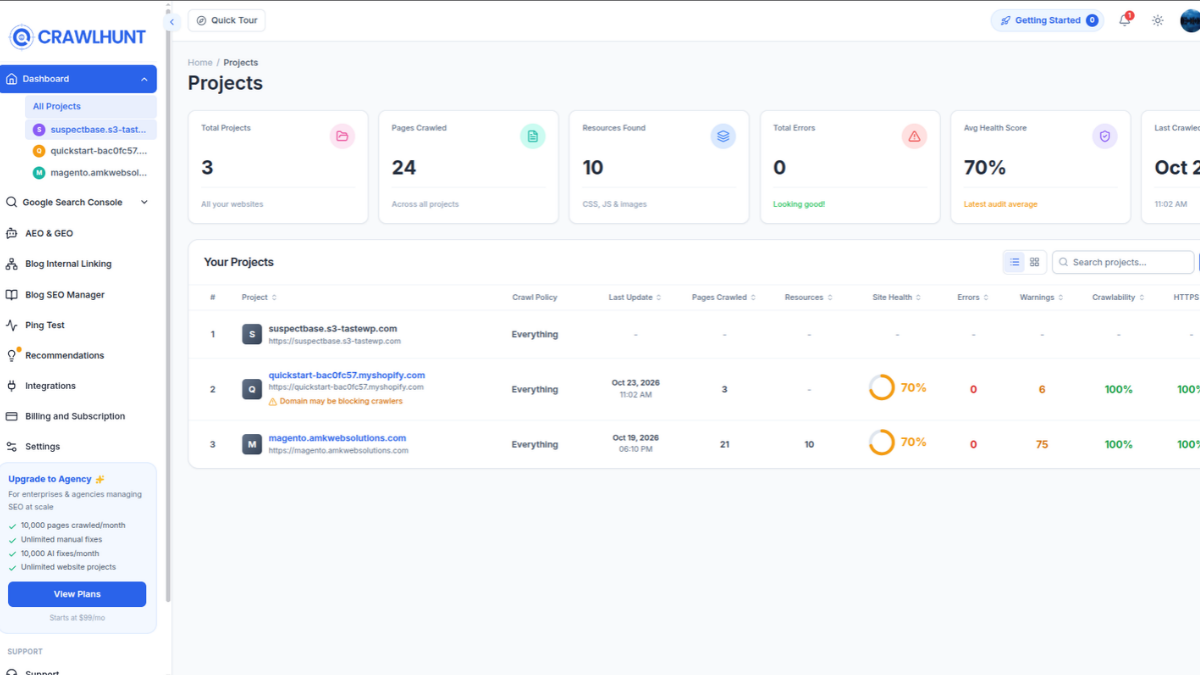
Start by opening the CrawlHunt SaaS application and navigating to your existing Shopify project. The project dashboard provides access to the tools and reports you need to identify and address website optimization issues.
Once you open your project, locate the Image Optimizer tab. This section contains the dedicated functionality for compressing product images and theme images. You can use it to review the available images and optimize eligible files without manually processing each image individually.
Before proceeding, make sure you have selected the correct Shopify project so that you are working with the images associated with the intended store.
Step 2: Check Your Product and Theme Images
Inside the Image Optimizer tab, locate the Product Images and Theme Images sections. These sections allow you to check the images associated with your store's products and theme.
Click the Check Images button in the relevant section to retrieve the available images. This step allows CrawlHunt to identify the images that can be reviewed for optimization.
Product images commonly include product photographs, alternate product views, and other visuals displayed on product pages. Theme images may include banners, promotional graphics, and other visual assets used throughout your storefront.
Reviewing both categories helps you identify optimization opportunities across different parts of your Shopify website rather than focusing only on individual product pages.
Step 3: Configure the Image Optimization Settings
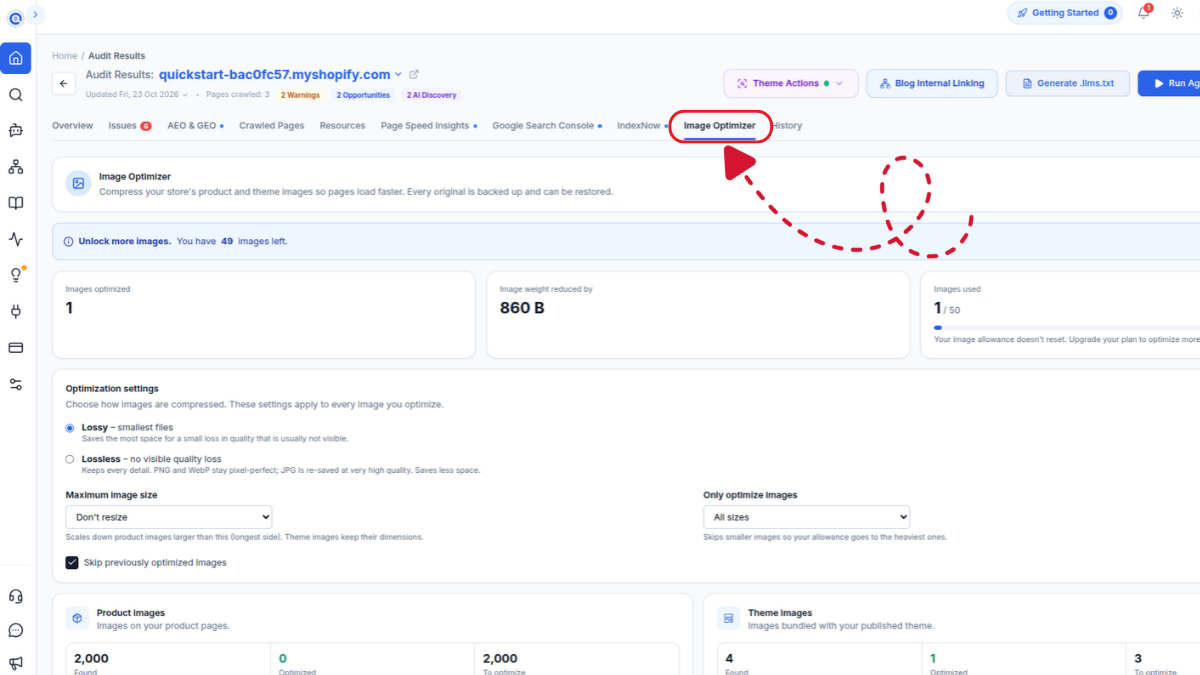
Before clicking the Optimize Images button, configure the optimization settings according to your store's requirements. These settings determine how images are compressed, whether oversized images are resized, and which files are included in the optimization process.
Choosing suitable settings is an important part of Shopify image optimization because different stores have different image quality requirements and optimization allowances.
Choose the compression method
CrawlHunt offers two compression methods: Lossy and Lossless.

Lossy compression
Lossy compression reduces image file sizes more aggressively by removing some image data. This approach can provide greater savings, and the resulting visual differences are often difficult to notice at appropriate compression levels.
This setting can be useful for stores with large product catalogs, high-resolution product photographs, and image-heavy collection pages where reducing file sizes is a priority. However, inspect important product images after compression to ensure that details, colors, and textures remain suitable for your products.
Lossless compression
Lossless compression aims to reduce file sizes without visibly degrading image quality. According to CrawlHunt's settings, PNG and WebP images retain their image details, while JPG images are re-saved at a very high quality.
This option is suitable for merchants who prioritize preserving image details, particularly for products where texture, color accuracy, or fine visual elements are important. File size reductions may be smaller than those achieved with lossy compression.
For most stores, the appropriate choice depends on the balance between visual quality and file size. Consider testing the available options on representative images before optimizing a large collection.
Set the maximum image size
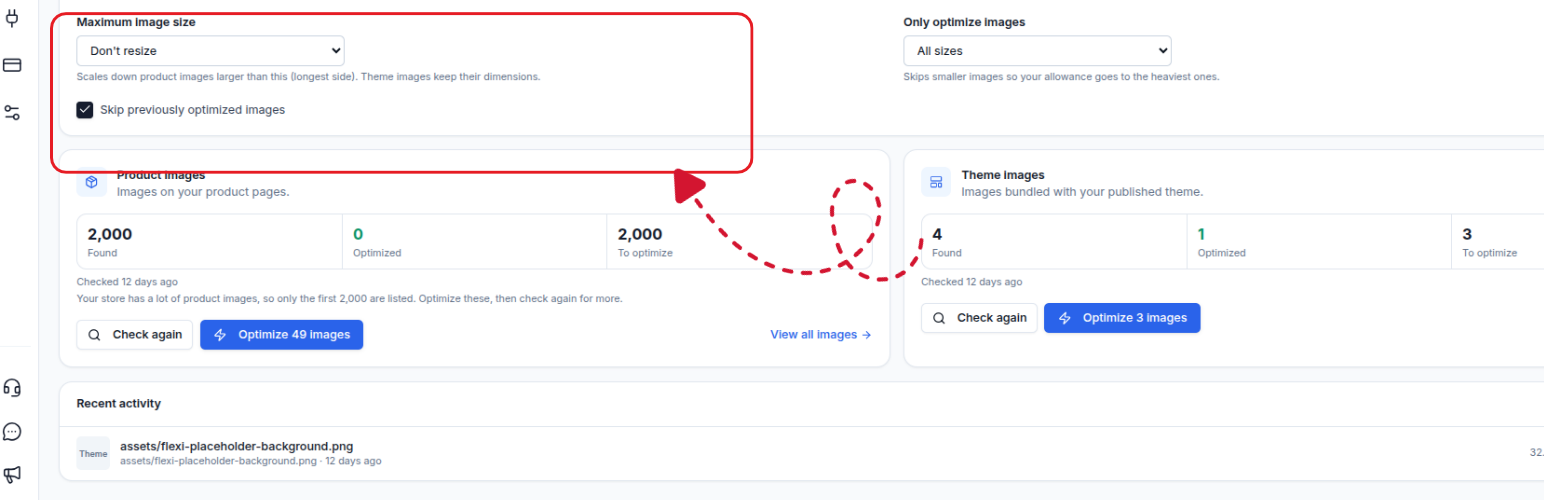
The maximum image size setting controls the largest permitted dimension for eligible product images. CrawlHunt provides the following options:
- Don't resize: Retains the existing image dimensions.
- Max 2048 px: Scales down product images whose longest side exceeds 2048 pixels.
- Max 3000 px: Scales down product images whose longest side exceeds 3000 pixels.
- Max 4096 px: Scales down product images whose longest side exceeds 4096 pixels.
For example, if a product image measures 5000 × 4000 pixels and you select a maximum size of 2048 pixels, the image can be scaled down so that its longest side is 2048 pixels while preserving its proportions.
Choose a size that suits your storefront's display requirements. Very large source images may contain more resolution than your theme needs, but reducing dimensions too aggressively can affect zoom functionality and product detail visibility.
Important: CrawlHunt's setting specifies that theme images retain their existing dimensions. The maximum image size setting therefore applies to resizing eligible product images rather than automatically resizing theme images.
Select which images to optimize
The Only optimize images setting lets you choose which image sizes should be included in the optimization process.
Available options include:
- All sizes: Includes images regardless of their current file size.
- Larger than 100 KB: Targets images exceeding 100 KB.
- Larger than 200 KB: Targets images exceeding 200 KB.
- Larger than 500 KB: Targets images exceeding 500 KB.
Selecting a file-size threshold can help prioritize larger images, which may offer greater opportunities for reducing the total amount of data downloaded by visitors.
For example, if your store contains many small thumbnails and several large product photographs, choosing a threshold of 200 KB can focus the optimization process on larger files instead of spending your allowance on images that are already relatively small.
If your goal is to review and optimize the entire image collection, select All sizes. If you want to prioritize heavier files, choose a suitable threshold based on the images available in your store.
Skip previously optimized images
Enable Skip previously optimized images if you want CrawlHunt to exclude images that have already been optimized.
This option can help avoid repeatedly processing the same images when you run optimization again. It is particularly useful for stores with large catalogs or when you periodically review newly added products and theme assets.
Once you have selected the compression method, maximum image size, file-size threshold, and previous-image handling option, review your settings before proceeding.
Step 4: Optimize Your Shopify Product and Theme Images
After configuring the settings, return to the relevant Product Images or Theme Images section and click Optimize Images.
CrawlHunt will begin processing eligible images according to your selected configuration. Depending on the settings, the process may compress image files, resize oversized product images, or skip files that fall below your selected file-size threshold. Previously optimized images will also be skipped when that option is enabled.
Image compression helps reduce the amount of data required to load product pages and other image-heavy sections of your store. The potential benefit depends on the original image sizes, the compression method, and the number of images that can be optimized.
For example, a product collection containing many large photographs may benefit from reducing the file sizes of those images. Smaller files can reduce image transfer sizes, although the overall loading speed also depends on other factors, including theme code, third-party applications, scripts, and network conditions.
After the optimization process finishes, review representative product images and theme visuals to confirm that their quality and appearance remain appropriate. Pay particular attention to product details, banners, and images that customers rely on when making purchasing decisions.
Step 5: Identify Shopify Images with Missing Alt Text
Compressing images addresses file size, but it does not automatically ensure that images have descriptive alt text. Alt text provides a textual description of an image for screen readers and helps search engines understand the image's subject.
To identify images with missing alt text, return to your CrawlHunt project dashboard and open the Issues tab.
Locate the Missing Image Alt Text error. This issue identifies images that do not have alt text and may therefore lack a useful textual description. It is also one of the most frequent findings in an on page SEO audit report.
Click the View URL button to inspect the affected URLs and review the images associated with the issue. This helps you understand where the missing alt text occurs and which pages may need attention.
For stores with large product catalogs, checking every image manually can be time-consuming. CrawlHunt's bulk missing image alt text generator is designed to simplify this process by generating descriptions for multiple images through a single workflow.
Step 6: Generate Missing Image Alt Text in Bulk
After reviewing the affected URLs, click the Bulk Fixes button to access the available bulk-fixing options.
Next, click Start Generation to begin generating alt text for the identified images. CrawlHunt will process the images and generate descriptive text that can be applied to the relevant image fields.
When the generation process is complete, review the generated descriptions before applying them. Good image alt text should describe what is actually visible in the image, using clear and relevant language.
For example:
- Poor alt text: image123.jpg
- Better alt text: Black leather office chair with adjustable armrests
- Poor alt text: best chair buy chair office chair cheap chair
- Better alt text: Ergonomic mesh office chair with a black frame
The improved examples describe the visible subject without relying on generic filenames or excessive keyword repetition.
For product images, use relevant details such as product type, color, material, or distinctive features when they can be identified accurately. Avoid adding specifications that are not visible or supported by the product information.
Once you are satisfied with the generated descriptions, click Select All to select the generated alt text entries and apply them to the images in real time through CrawlHunt's bulk-fix workflow.
After applying the changes, review a sample of updated images to confirm that the descriptions are accurate and relevant. Automated descriptions can save time, but they should still be checked for incorrect product details, repetitive wording, or descriptions that do not match the actual image.
Step 7: Verify Image Optimization and Check Store Speed
Once you have completed image compression and added the missing alt text, verify the results instead of assuming that every issue has been resolved.
Start by reviewing the optimized product and theme images. Check that important product details remain clear, image dimensions are appropriate, and banners or other theme visuals still appear correctly across your storefront.
Next, revisit the Missing Image Alt Text issue in CrawlHunt to check whether the relevant entries have been resolved. You can also inspect selected product pages to confirm that the generated descriptions have been applied correctly.
Finally, test your Shopify store's performance using Google PageSpeed Insights. Compare the results for important product pages, collection pages, and your homepage where relevant. Pay attention to image-related recommendations and the Largest Contentful Paint (LCP) metric, particularly when a large image is the main content element on a page.
For a meaningful comparison, test the same URLs under similar conditions before and after optimization. Keep in mind that results can vary because of caching, network conditions, third-party scripts, and other performance factors. Treat this as part of regular Core Web Vitals monitoring rather than a one-time check.
Combining CrawlHunt's image compression and bulk alt text generation tools with performance testing gives you a practical workflow for addressing image file sizes, missing alt text, and related storefront optimization opportunities.
Conclusion
Shopify image optimization is an important step toward improving store performance, creating a better shopping experience, and supporting image SEO. Compressing large product and theme images helps reduce file sizes, while adding descriptive alt text makes visual content more accessible and easier for search engines to understand.
CrawlHunt simplifies this process with two dedicated tools: Image Optimizer and Bulk Missing Image Alt Text Generator. You can use the Image Optimizer to compress eligible images with your preferred settings and the bulk alt text generator to identify and fix missing image descriptions across your store.
By regularly reviewing image sizes, maintaining appropriate visual quality, fixing missing alt text, checking your website speed, and including images in every technical SEO audit, you can build a more efficient Shopify storefront. Make Shopify image optimization part of your ongoing store maintenance to keep your product pages visually appealing, accessible, and better prepared for search.
Frequently Asked Questions
1. What is Shopify image optimization?
Shopify image optimization is the process of reducing image file sizes, choosing suitable image dimensions and formats, and improving image descriptions without unnecessarily compromising visual quality. It helps reduce image-related loading overhead and supports a better shopping experience.
2. How can I optimize images on my Shopify store?
You can optimize Shopify images by compressing large files, resizing oversized product images, choosing appropriate image formats, and adding descriptive alt text. CrawlHunt helps streamline these tasks through its Image Optimizer and Bulk Missing Image Alt Text Generator. When comparing the best Shopify SEO apps, look for ones that cover both image compression and alt text.
3. Does image optimization improve Shopify store speed?
Image optimization can improve loading performance by reducing the amount of image data that browsers need to download. However, the actual improvement depends on the original image sizes, compression results, theme configuration, third-party scripts, and other performance factors.
4. What is the best image compression method for Shopify?
The best method depends on your requirements. Lossy compression generally reduces file sizes more aggressively, while lossless compression prioritizes preserving image details. Choose the method that provides a suitable balance between file size and visual quality for your products.
5. What is the ideal image size for Shopify product images?
The ideal dimensions depend on your theme, product presentation, and zoom requirements. CrawlHunt offers maximum image size settings of 2048 px, 3000 px, and 4096 px, along with an option to avoid resizing. Choose dimensions that suit your storefront without unnecessarily large files or reduced product detail.
6. What is image alt text, and why is it important for Shopify SEO?
Image alt text is a written description of an image. It helps screen readers communicate visual information to users and provides search engines with additional context about image content. Descriptive, accurate alt text supports accessibility and image SEO.
7. How can I add missing image alt text in bulk on Shopify?
You can use CrawlHunt's Bulk Missing Image Alt Text Generator. Open your project dashboard, navigate to Issues, select Missing Image Alt Text, click View URL, and then choose Bulk Fixes. Click Start Generation to generate descriptions, review the results, and use Select All to apply the generated text to the selected images.
8. Can CrawlHunt optimize both product images and theme images?
Yes. CrawlHunt's Image Optimizer provides separate sections for Product Images and Theme Images. You can check the available images in each section and optimize eligible files using your configured settings. The maximum image size setting applies to resizing product images, while theme images retain their dimensions.
9. How often should I perform Shopify image optimization?
Review your images whenever you add new products, upload new banners, or make significant theme changes. You can also schedule periodic reviews to identify oversized files and missing alt text. Enabling CrawlHunt's Skip Previously Optimized Images setting can help avoid repeatedly processing images that have already been optimized.
10. How can I check whether Shopify image optimization has worked?
Review the optimized images to ensure their visual quality remains acceptable, check whether missing alt text issues have been resolved, and test important pages using Google PageSpeed Insights. Compare performance results for the same URLs before and after optimization to evaluate changes in loading speed and image-related performance metrics.