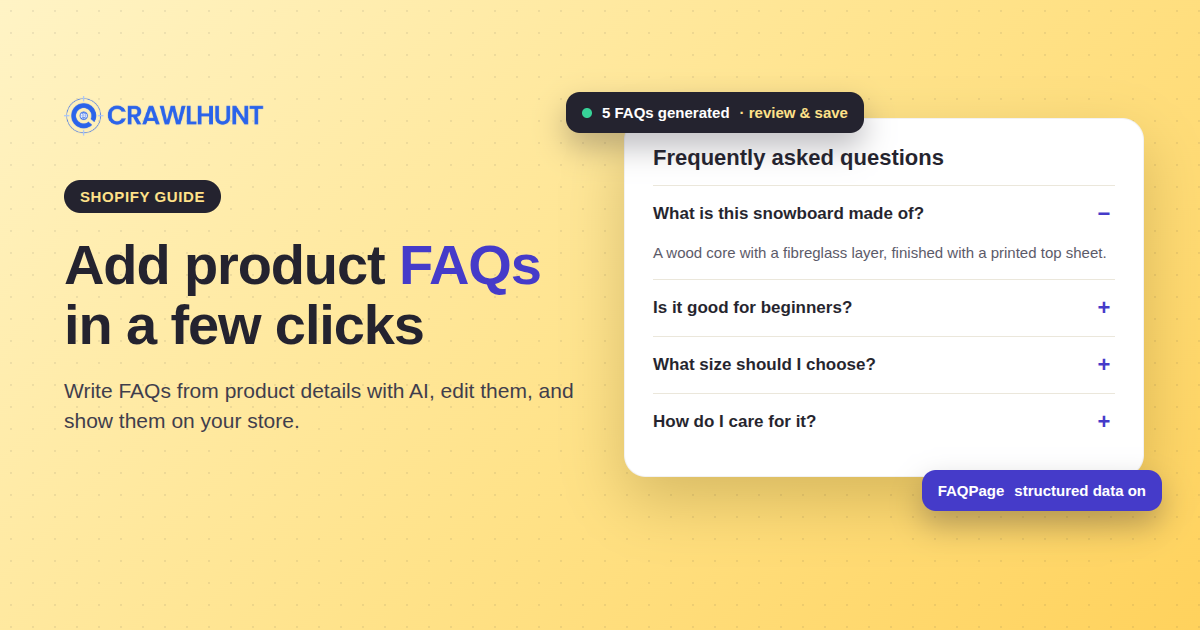
Shoppers ask the same things before they buy: what a product is made of, who it is for, how to care for it. Product FAQs answer those questions right on the product page, so fewer people leave to look for answers elsewhere. This guide shows how to add product FAQs to your Shopify store with CrawlHunt. You generate them from each product's own details with AI, review and edit them in the Shopify admin, and show them on your store as an accordion, with FAQ structured data added for search engines.
The feature is part of the CrawlHunt Shopify app. It works on Shopify product pages only; it is not available for WordPress, Magento or other sites yet.
How CrawlHunt adds FAQs to Shopify: two blocks
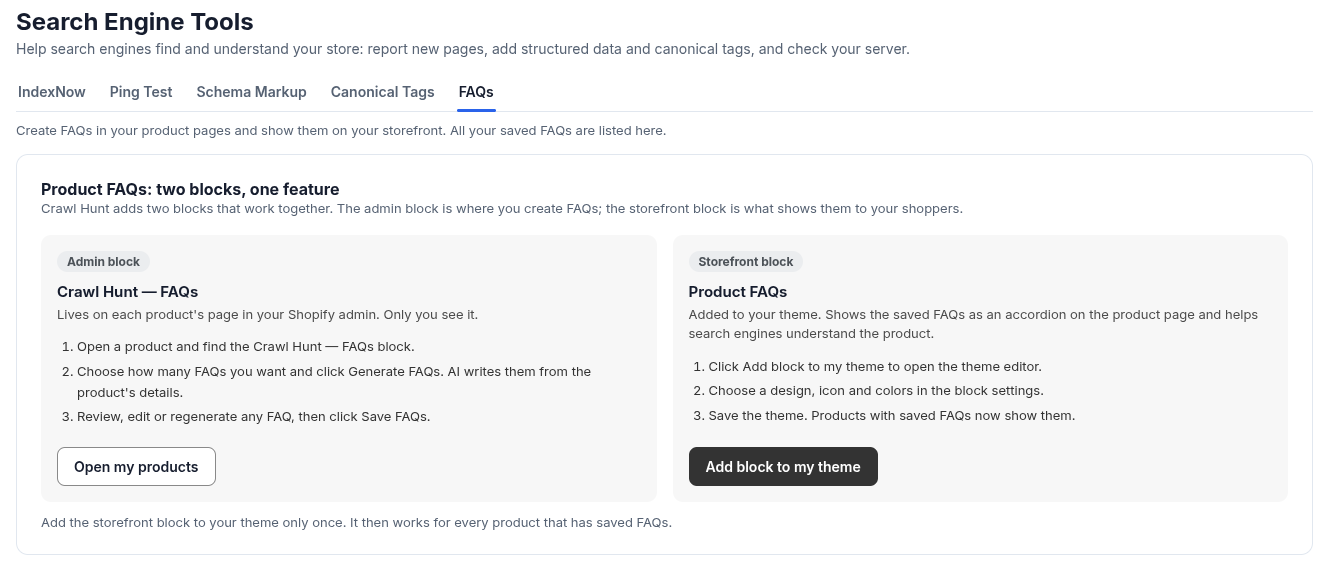
CrawlHunt adds product FAQs with two blocks that work together. One lives in your Shopify admin and is where you create the FAQs. The other lives in your theme and is what your shoppers see.
Block | Where it lives | Who sees it | What it does |
|---|---|---|---|
Crawl Hunt — FAQs (admin block) | On each product's page in the Shopify admin, under Blocks | You and your staff | Writes FAQs from the product's details with AI, lets you edit, regenerate or delete them, and saves them to the product |
Product FAQs (storefront block) | In your theme, on the product template | Your shoppers | Shows the saved FAQs as an accordion and adds FAQPage structured data |
The saved FAQs are stored on the product itself, in a Shopify product metafield (crawlhunt.faqs). The storefront block reads that metafield, so the FAQs load with the page and do not depend on CrawlHunt's servers. You add the storefront block to your theme once; after that, every product with saved FAQs shows them, and products without FAQs show nothing.
The Search Engine Tools page in the app has a FAQs tab that explains both blocks and lists every product that has saved FAQs.
How to add product FAQs with CrawlHunt, step by step
Before you start, install CrawlHunt from the Shopify App Store and connect your store.
The CrawlHunt Shopify app docs cover the install in more detail.
Step 1: Add the Crawl Hunt FAQs block to a product page
- In your Shopify admin, open Products and click a product.
- Scroll to the Blocks section near the bottom of the page.
- Click + Block and choose Crawl Hunt FAQs.
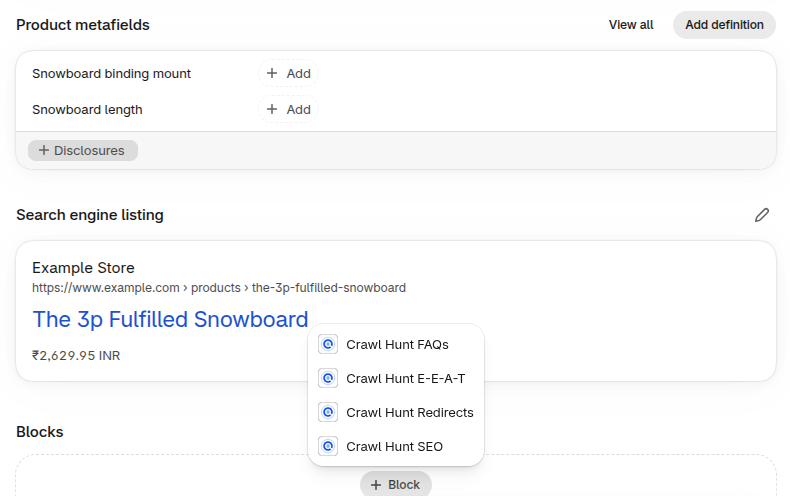
Use the pin icon on the block if you want it to stay on every product page for all staff. Otherwise Shopify shows the + Block menu again next time.
Step 2: Choose how many FAQs to generate
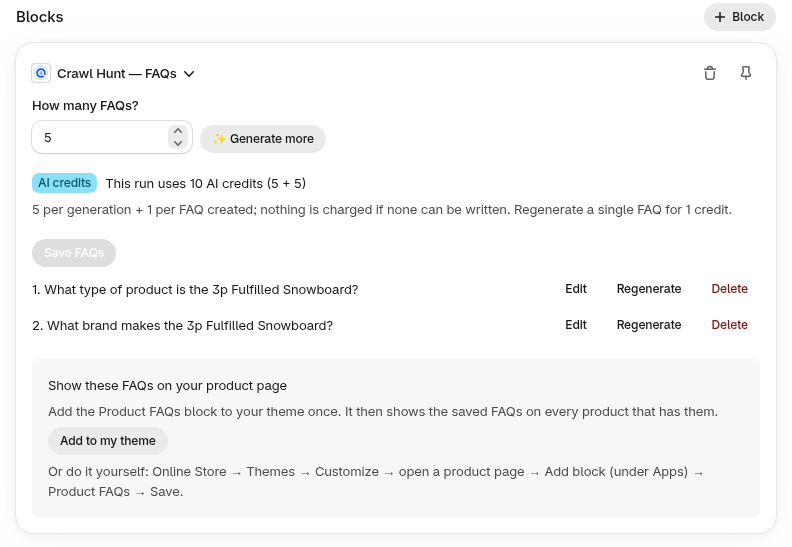
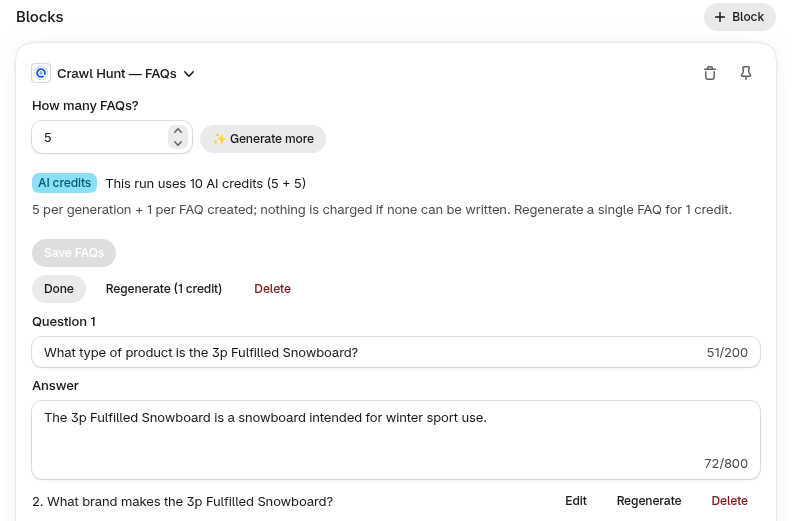
The block reads the product's title, description, vendor, product type and tags. Enter how many FAQs you want, from 1 to 10, and click Generate FAQs.
Below the button, the block shows what the run will cost in AI credits before you click, for example "This run uses 10 AI credits (5 + 5)". The pricing section below explains the numbers.
The AI follows a few rules that keep the answers safe to publish:
- It answers only from the product details. It does not invent sizes, materials, dimensions, warranty, shipping or prices.
- It skips questions the details cannot answer, so you may get fewer FAQs than you asked for. Fewer good answers beat filler.
- It writes in the language of your product description.
- It never repeats a question that is already on the product.
If a product has almost no description, the block may return no FAQs at all. In that case nothing is charged, and the block asks you to add more detail to the description first.
Step 3: Review, edit or regenerate each FAQ
New FAQs are added below any FAQs the product already has, so nothing you wrote before is lost. Each FAQ appears as one line with three actions:
- Edit opens the question and answer so you can change the wording.
- Regenerate replaces that one FAQ with a new question and answer, for 1 AI credit.
- Delete removes it.
Read every answer before you save it. The AI only uses your product details, but you know the product best. If an answer is too vague, add the missing detail to the product description and regenerate, or simply edit the text.
Step 4: Save the FAQs
Click Save FAQs. The block writes the product FAQs to the product's crawlhunt.faqs metafield. Until you save, the FAQs exist only in the block, and the block shows "Unsaved changes" as a reminder. Generated and regenerated FAQs that you never save are lost when you leave the page, but the credits for them are still used.
To remove all FAQs from a product, delete them one by one and save. The product then has no FAQs, and the storefront block shows nothing on that page.
Step 5: Add the Product FAQs block to your theme (once)
Saved product FAQs do not appear on your store until the storefront block is in your theme. You only do this once per theme.
- After saving, the admin block shows a box called "Show these FAQs on your product page". Click Add to my theme.
- Shopify opens the theme editor on your product template, with the Product FAQs block already added.
- Move the block where you want it on the page, then click Save in the theme editor.
You can also do it by hand: Online Store, Themes, Customize, open a product page, Add block (under Apps), Product FAQs, Save. The same button and steps are on the FAQs tab of Search Engine Tools and in the "Add CrawlHunt blocks" guide on the app's Home page.
Step 6: Check all your FAQs in one place
In the CrawlHunt app, open Search Engine Tools and the FAQs tab. It lists every product that has saved FAQs, with each question and answer, and an Edit in product button that opens the product so you can change them in the admin block.
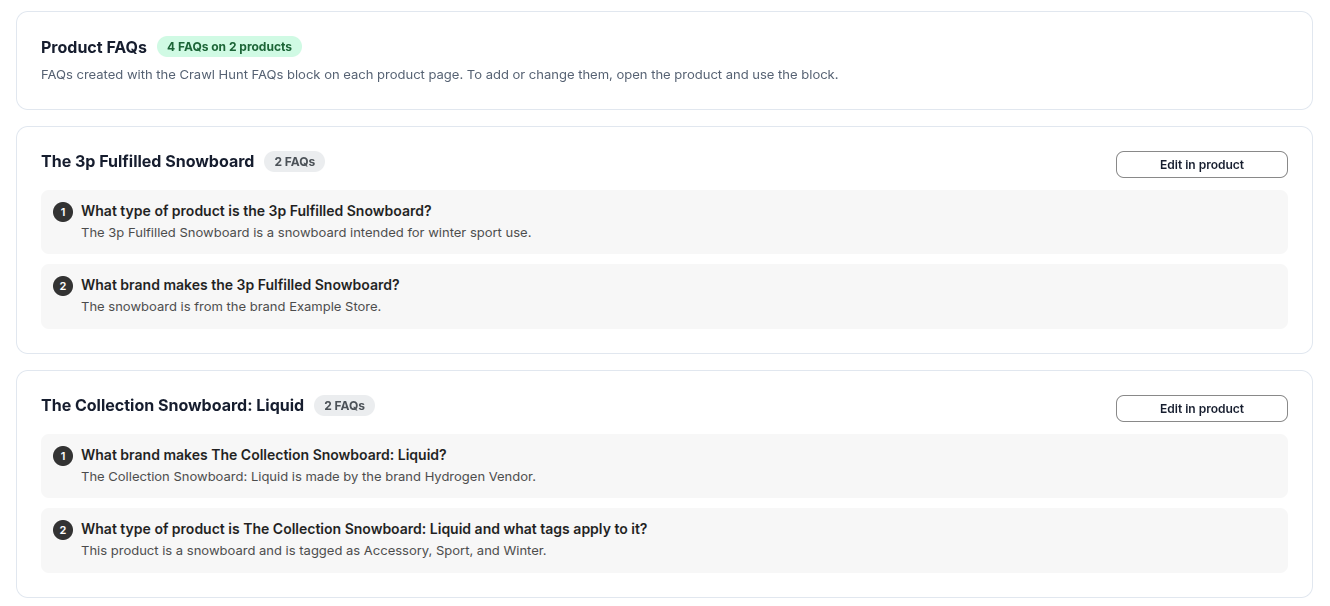
The list is read-only; you create and edit FAQs only in the product's admin block. On very large catalogs the tab reads the first 2,000 products and tells you when there are more.
Design the FAQ accordion to match your theme
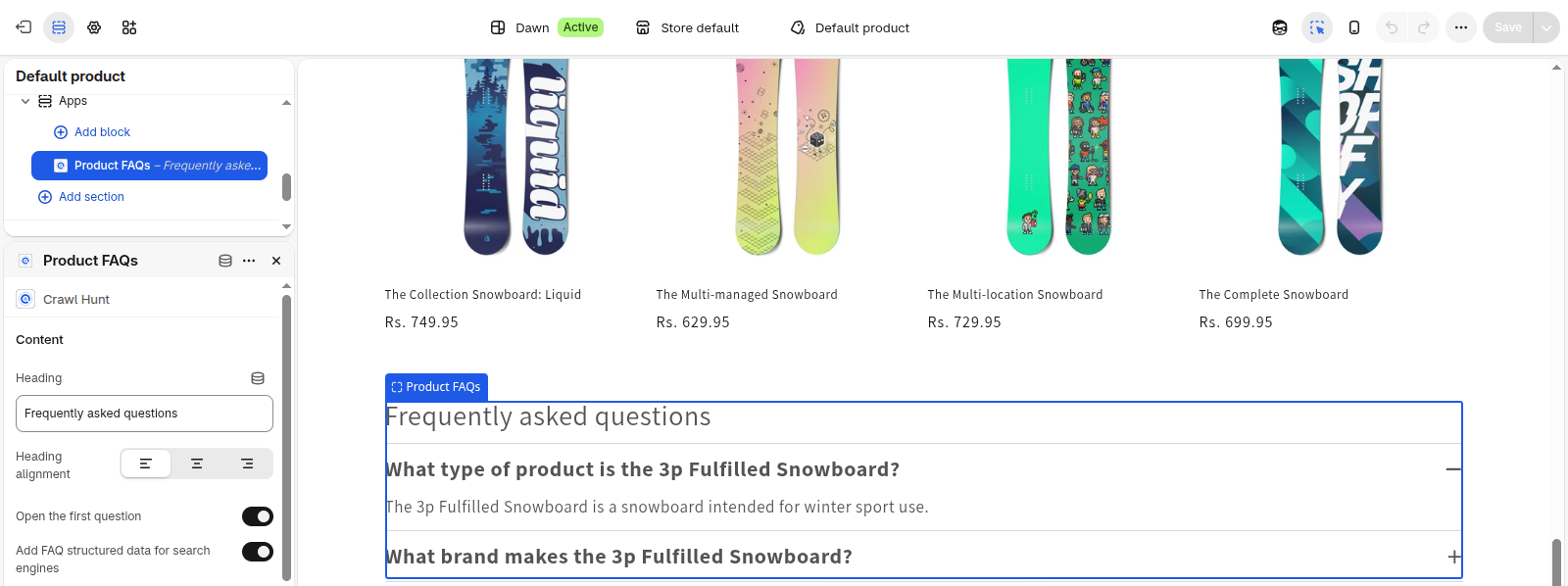
Select the Product FAQs block in the theme editor to change how it looks. Every setting is optional; with no changes, the block uses your theme's own fonts and colors.
Setting group | What you can change |
|---|---|
Content | Heading text and alignment, whether the first question opens by default, and whether to add FAQ structured data |
Accordion design | Four styles: Lines, Boxed, Filled and Connected. Plus/minus, chevron or no icon, on the left or right. Corner radius and space between questions |
Text size | Separate sizes for the heading, questions and answers |
Colors | Heading, question, answer, icon, background and border colors. Leave a color empty to use your theme's color |
Advanced | A Custom CSS box for anything the settings do not cover |
Each question is a native HTML details element, so the accordion opens and closes without extra JavaScript and works with a keyboard and screen readers.
Product FAQs and search engines
The storefront block can add FAQPage structured data (JSON-LD) built from the same questions and answers shown on the page. The setting "Add FAQ structured data for search engines" is on by default. Turn it off if your theme or another app already adds FAQ structured data to product pages, so the page does not carry two copies. For more on how structured data works, see our guide to schema markup for SEO.
Be realistic about what this does in Google. Since August 2023, Google shows FAQ rich results only for well-known, authoritative government and health websites, as explained in Google's post on changes to HowTo and FAQ rich results. For most stores, the expandable FAQ snippet under the search result will not appear.
The markup on your product FAQs is still valid, and Google's FAQPage structured data documentation describes the format the block follows.
The bigger benefit is the visible text. Product FAQs add useful, specific content to product pages that are often thin, answer the questions shoppers search for, and give search engines more context about the product. Google's advice on creating helpful content applies here: write for shoppers first.
A few habits keep product FAQs useful:
- Keep each answer specific to the product. The same generic FAQ pasted on every product adds little, and our guide on how to fix duplicate content explains why repeated text is a problem.
- Put the important facts in the product description too. FAQs support the description; they do not replace it.
- Keep answers short and plain. One to three sentences is enough, which is also what the generator writes.
- Update FAQs when the product changes, for example a new size or material.
FAQs are one part of a product page. For the rest, see our Shopify SEO optimization tips.
AI credits and where your FAQs are stored
Generating FAQs uses AI credits from your CrawlHunt plan or from credit top-ups. Editing, deleting, saving and showing FAQs on your store never use credits.
Action | AI credits |
|---|---|
Generate FAQs (each run) | 5 for the run + 1 for every FAQ created |
Regenerate one FAQ | 1 |
A run that creates no FAQs | 0 |
Edit, delete, save, show on the store | 0 |
For example, asking for 5 FAQs uses 10 credits if all 5 are written, and 8 credits if the product details only support 3. If you do not have enough credits, the block stops before anything is generated, charges nothing, and tells you how many credits the run needs and how many you have left. Credit amounts per plan are on the pricing plans page.
Your product FAQs belong to your store. They are saved on each product in Shopify, not in CrawlHunt's database. If you uninstall the app, the metafield stays on the product, but the storefront block stops showing it because the block is part of the app.
If you also want to improve titles and meta descriptions across many products at once, read how to bulk edit Shopify SEO metadata with AI.
FAQ
Can I add product FAQs without AI?
Not from an empty block: the block creates FAQs only through Generate. Once FAQs exist you can rewrite any question or answer by hand with Edit, so you can generate one FAQ and replace its text completely if you prefer to write your own.
Do product FAQs work on WordPress or Magento sites?
Not yet. The FAQ blocks are built on Shopify's admin and theme extensions, so they work on Shopify product pages only.
Why did I get fewer FAQs than I asked for?
The generator only writes questions that your product details can answer, and it skips questions already on the product. Add more detail to the description, such as materials, sizes or care, and generate again. You pay only for the FAQs that are created.
Will FAQ rich results show in Google for my store?
Probably not. Google limits FAQ rich results to well-known government and health websites. The structured data is still valid, and the visible FAQ text still helps shoppers and gives search engines more to read.
Do I need to add the storefront block for every product?
No. Add the Product FAQs block to your product template once. It then shows the saved FAQs on every product that has them and shows nothing on products that do not.
How many FAQs can a product have?
Each run creates up to 10 FAQs, and you can click Generate more to add further runs. The block keeps up to 50 FAQs per product; in practice, 4 to 8 good questions are enough for most product pages.