Auditing a website’s SEO helps you understand how well its pages are optimized for search engines and identify issues that may affect search visibility. However, finding SEO problems is only half the work. You also need a practical way to resolve them without spending hours switching between different SEO analysis tools, analyzing reports, and manually implementing changes.
The CrawlHunt Chrome Extension makes this process more convenient by allowing you to audit a webpage while browsing it. Instead of simply showing you a list of SEO issues, CrawlHunt connects the auditing process with its main application, where you can work on fixing the problems identified during the audit.
In this guide, we will explore the CrawlHunt Chrome Extension, its key features, and how you can use it to identify and fix website SEO issues.
What Is the CrawlHunt Chrome Extension?
The CrawlHunt Chrome Extension is a browser-based SEO auditing tool designed to help website owners, SEO professionals, marketers, and developers identify optimization opportunities while browsing a website.
Traditional SEO auditing tools often generate reports, such as an on page SEO audit report, containing missing metadata, technical SEO problems, image optimization issues, and other findings. These reports are useful, but identifying a problem does not automatically resolve it. You still need to determine what needs to change, find the relevant settings, and implement the necessary fixes.
CrawlHunt takes a more action-oriented approach by connecting its Chrome Extension with the main CrawlHunt application. You can use the extension to examine a webpage and then work on resolving the identified issues through the application’s available fixing features.
For example, if a page has a missing meta description, you can identify the problem during your audit and use the relevant fixing functionality in CrawlHunt to address it. Similarly, issues involving image alt text, schema markup, canonical tags, page speed, and Google Search Console data can be investigated through the relevant features available in the main application.
The goal is to make SEO auditing more practical by connecting issue detection with the process of fixing those issues.
Key Features of the CrawlHunt Chrome Extension
The CrawlHunt Chrome Extension helps you identify SEO issues while browsing and connect your findings with the fixing tools available in the main CrawlHunt application. Here are its key features.
1. Audit Webpages While Browsing
The extension lets you examine webpages directly from your browser without constantly switching between different SEO tools. Whether you are reviewing product pages, landing pages, blog posts, or competitor websites, you can identify optimization opportunities and use CrawlHunt’s main application to address them.
2. Identify and Fix SEO Issues
Unlike tools that only generate reports, CrawlHunt connects SEO auditing with actionable fixes. After scanning a page, you can review the identified problems and use the relevant fixing features in the main application.
You can address issues such as:
- Missing meta titles and descriptions
- Missing image alt text
- Missing schema markup
- Incorrect or missing canonical tags
- Page speed optimization issues
- Google Search Console-related issues
Available fixes depend on your plan, connected website, and the relevant application features.
3. Fix Missing Meta Titles and Descriptions
Meta titles and descriptions help communicate a webpage’s content to search engines and potential visitors. CrawlHunt helps identify missing metadata and provides relevant functionality in its main application to create or update these fields. You can optimize product pages, blog posts, and landing pages without manually searching for every missing element.
4. Identify Missing Image Alt Text
Image alt text improves accessibility and helps search engines understand images. CrawlHunt’s image optimization capabilities, including its AI image alt text generator, help identify missing alt text and generate suitable descriptions through the main application. When creating alt text, ensure each description accurately represents its image rather than simply repeating keywords.
5. Add Schema Markup and Canonical Tags
Schema markup for SEO helps search engines interpret page information, while canonical tags indicate the preferred URL among duplicate or similar pages. CrawlHunt provides relevant functionality to help you implement these technical SEO elements. Always verify that the schema matches the page content and that canonical tags point to the correct URLs.
6. Investigate Page Speed Issues
Slow pages can affect user experience and website performance. CrawlHunt provides page speed optimization capabilities, along with Core Web Vitals monitoring, to help investigate and address issues involving:
- CSS and Minify files or defer non-critical scripts where appropriate.
- Images: Reduce image file sizes through optimization.
- Loading behavior: Investigate resources that delay page rendering.
- Core Web Vitals: Review performance measurements to identify areas for improvement.
Test performance before and after applying changes to evaluate their impact.
7. Investigate Google Search Console Issues
CrawlHunt offers Google Search Console integration that helps you investigate search performance and technical SEO concerns. You can review relevant data to identify pages that may need attention.
For example, pages receiving impressions but few clicks may benefit from a review of their titles, descriptions, and content relevance. Indexing problems require additional investigation to identify their underlying causes.
8. Turn SEO Audits into Actionable Fixes
CrawlHunt connects page-level auditing with the fixing tools available in its main application. Instead of stopping at a report, you can use a straightforward workflow:
- Open the webpage you want to audit.
- Scan the page and review its SEO issues.
- Prioritize the problems that need attention.
- Open the relevant fixing feature in CrawlHunt.
- Review and apply the appropriate changes.
- Recheck the page to verify the corrections.
This approach helps website owners and marketers move from identifying SEO problems to implementing practical improvements.
How to Audit Any Website’s SEO with the CrawlHunt Chrome Extension
You can use the CrawlHunt Chrome Extension to begin an SEO audit from your browser and then work on resolving the identified issues through the main CrawlHunt application.
The exact workflow depends on the website, your selected plan, the available integrations, and the types of issues discovered during the scan.
Step 1: Install the CrawlHunt Chrome Extension
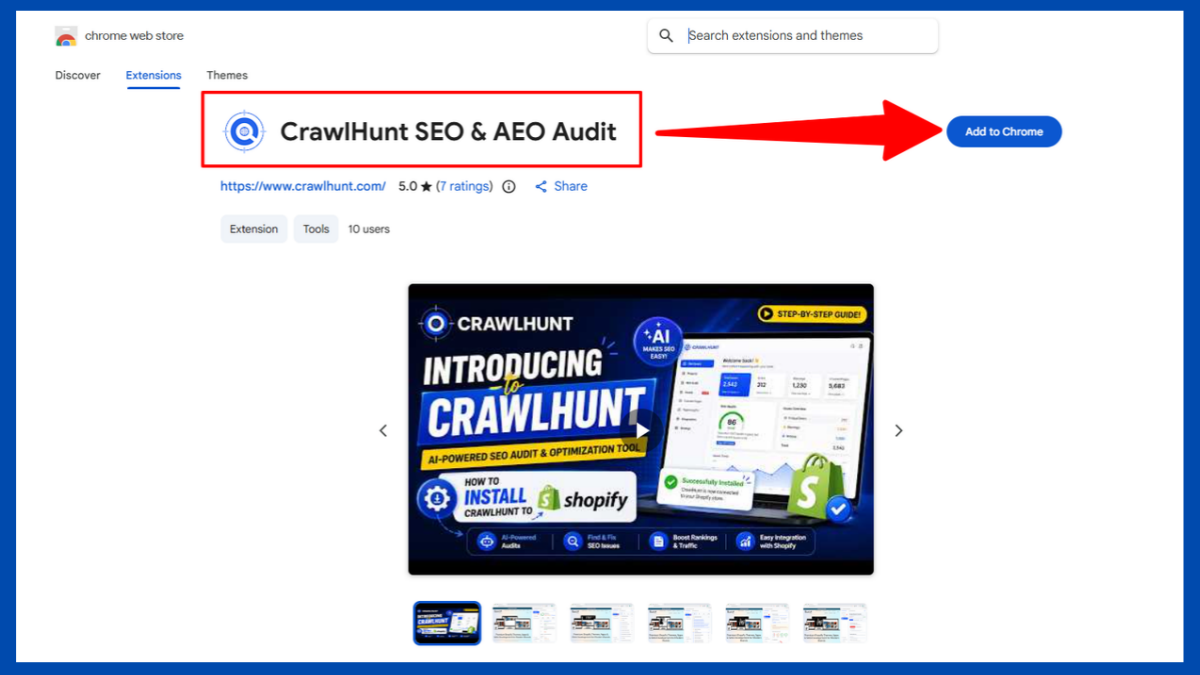
Start by installing the CrawlHunt Chrome Extension from its official listing in the Chrome Web Store.
Open the listing, review the extension information, and select the option to add it to Chrome. Follow the browser’s prompts to complete the installation.
Once installed, locate the extension in your browser’s extensions menu. You can pin it to the Chrome toolbar if you want to access it more conveniently while browsing websites.
After installation, open the extension and follow any setup or sign-in instructions presented to you.
Using the official extension listing helps ensure that you install the intended version rather than an unrelated extension with a similar name.
Step 2: Open the Website You Want to Audit
Navigate to the website or specific webpage you want to examine.
You can start with your homepage, a product page, a collection page, a blog article, or a landing page. If you are investigating a particular SEO problem, it is usually best to begin with the page where you suspect the issue exists.
For example, an ecommerce store owner might start with a product page that receives little organic traffic. A content marketer might inspect a blog post that has stopped attracting search visitors.
Before running the audit, make sure you are viewing the correct URL. Similar pages can have different metadata, canonical tags, content, and technical configurations, so auditing the intended URL matters.
Step 3: Launch the CrawlHunt Chrome Extension
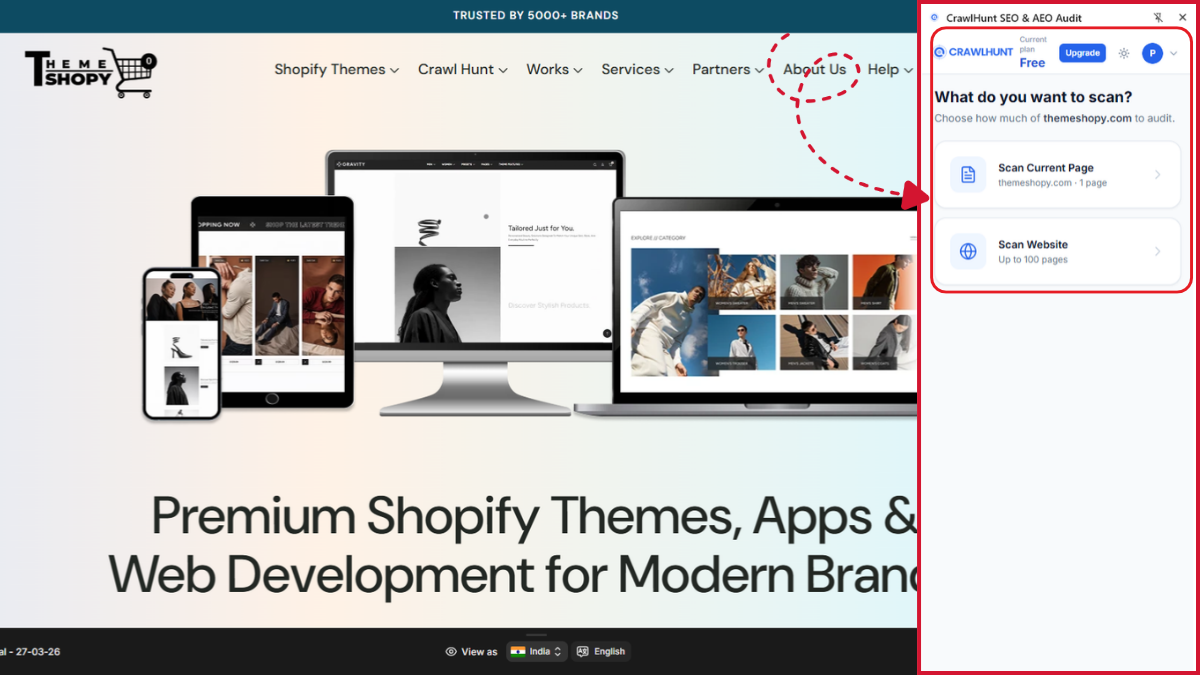
Open CrawlHunt from the Chrome toolbar to access its auditing interface.
The extension is designed to let you examine the webpage you are currently viewing without requiring you to leave your browsing session and navigate through a separate set of SEO tools.
Follow the extension’s on-screen instructions to initiate the analysis. If the workflow requires you to sign in, connect your account, or authorize access to a relevant feature, complete those steps first.
The extension provides an entry point for inspecting the page and accessing the associated CrawlHunt functionality.
If you are auditing a page on a website you do not own, remember that identifying publicly visible SEO issues is different from having permission to modify that website. Actual changes should only be applied to websites and accounts you are authorized to manage.
Step 4: Choose the Appropriate CrawlHunt Plan
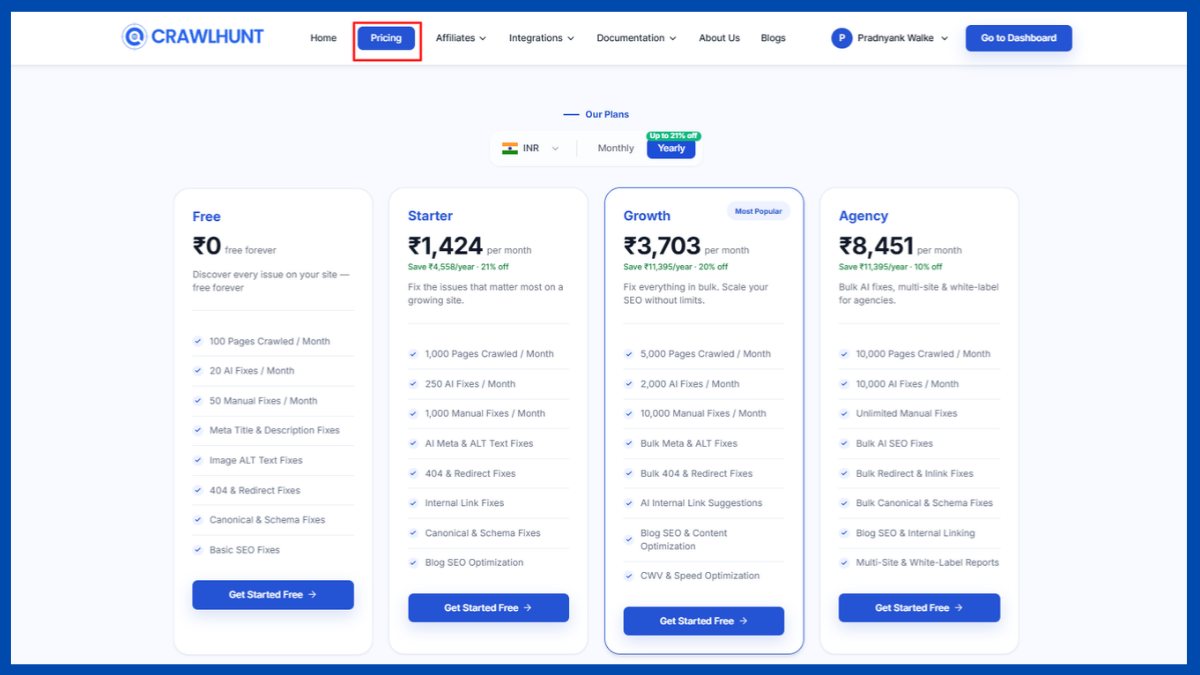
Before using CrawlHunt’s fixing capabilities, select a plan that suits your auditing and optimization requirements.
The most appropriate plan depends on factors such as how many pages you need to analyze, how frequently you perform audits, and which fixing features you need.
When evaluating a plan, consider:
- Page limits: How many pages you expect to scan.
- AI fixing allowances: How many AI-assisted fixes you may need.
- Manual fixing allowances: Whether you need to make individual corrections or handle multiple issues.
- Advanced features: Whether your workflow requires page speed optimization, Google Search Console integration, image optimization, or other technical SEO functionality.
For example, a website owner maintaining a small website may have different requirements from an agency managing several ecommerce stores.
Review CrawlHunt’s current pricing and plan limits before subscribing. Make sure your selected plan includes the features and usage allowances required for the workflow you intend to follow.
Step 5: Scan the Page and Review Its SEO Issues
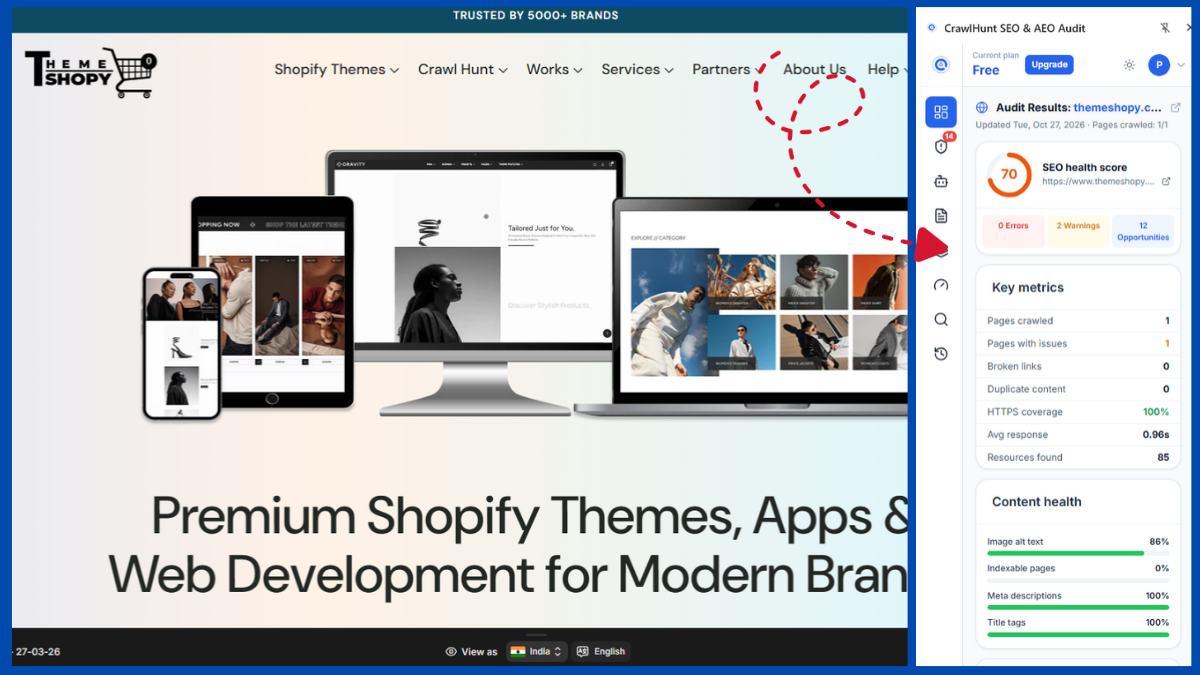
Once the extension and relevant account setup are ready, scan the webpage you want to examine.
The purpose of this step is to identify SEO issues that may require attention. Depending on the analysis performed and the features available, the findings may include missing metadata, image alt text problems, schema opportunities, canonical tag concerns, and other optimization issues.
Review the findings rather than immediately trying to fix everything.
For instance, imagine that an audit identifies a missing meta description, several images without alt text, and a potential canonical tag problem. Each finding requires a different type of correction.
A missing meta description can generally be addressed by writing an appropriate summary. Missing image alt text requires descriptions that accurately reflect the images. Canonical tag issues require you to verify which URL should be treated as the preferred version.
This is why reviewing the findings matters. A useful audit should help you understand what needs attention and provide a starting point for resolving it.
Step 6: Open the Main CrawlHunt Application
After identifying the issues, move to the main CrawlHunt application to access the relevant fixing functionality.
The Chrome Extension and the main application serve complementary purposes in this workflow. The extension makes it convenient to begin an audit while browsing, while the main application provides the broader tools used to investigate and fix supported issues.
Sign in to your CrawlHunt account and navigate to the relevant project or website. Locate the feature associated with the issue you want to resolve.
For example, you may need to use the appropriate metadata functionality to update a title, an image optimization feature to address missing alt text, or a technical SEO feature to work on schema markup and canonical tags.
The precise location of each feature may vary according to the type of issue and the application’s current interface.
Step 7: Use the Available Fix Options
Once you locate the relevant issue in the CrawlHunt application, look for the available fixing option.
CrawlHunt is designed to go beyond reporting SEO problems by providing fixing functionality for supported issues. Rather than simply reading a list of recommendations, you can use the corresponding feature to work on implementing the correction.
For example, if a page is missing a meta description, you can use the relevant metadata fixing workflow. If images lack alt text, you can explore the available image optimization and alt text generation functionality.
Before applying a change, check that the proposed result is suitable for the page.
A meta title should accurately describe the content and reflect the page’s search intent. Image alt text should describe the image rather than repeat unrelated keywords. Schema markup should represent information that is genuinely present on the page.
Some fixes may be generated with AI assistance, while others may require manual input or configuration. Review the available options and choose the method appropriate for each issue.
Step 8: Address Page Speed and Google Search Console Findings
After addressing basic on-page SEO issues, investigate the performance and search-related problems that may require additional work.
For page speed issues, use the relevant CrawlHunt application features to investigate optimization opportunities. Depending on the problem, this may involve image compression, CSS and JavaScript optimization, or other supported performance improvements.
For Google Search Console-related issues, review the available search performance and technical information to understand which pages may need further investigation.
For example, if a page receives organic impressions but few clicks, you might review the page’s title, description, and content relevance. If an important URL is not indexed, investigate the indexing status, canonical configuration, crawl accessibility, and other potential causes.
These issues should not all be treated as simple on-page errors. Performance problems may have multiple causes, while indexing concerns may require technical investigation beyond what a browser extension can identify.
Use CrawlHunt’s relevant features to guide your investigation, apply appropriate fixes, and measure the outcome where possible.
Step 9: Recheck the Page After Applying Fixes
Once you have implemented the necessary changes, revisit the affected page and verify that the corrections have been applied successfully.
For metadata, check the page title and meta description. For image optimization, confirm that the intended alt text has been added. For canonical tags and schema markup, inspect the rendered page or its source to verify that the expected elements are present and correctly configured.
For page speed improvements, run another performance test and compare the results with your earlier measurements. For Google Search Console issues, remember that search engine data may take time to reflect changes, and not every correction leads to an immediate ranking improvement.
Keep a record of the issues resolved and any problems that remain. This will help you prioritize subsequent work and avoid repeatedly investigating the same problems.
The objective is not merely to produce a cleaner audit report. It is to improve the website’s technical health, accessibility, performance, and search readiness through appropriate changes.
How to Prioritize SEO Issues Found During an Audit
Not every SEO issue has the same level of importance. When running a technical SEO audit with CrawlHunt, prioritize the problems that have the greatest potential impact on accessibility, indexing, user experience, and organic search performance.
For example, a page that cannot be indexed because of an incorrect technical configuration may deserve attention before a minor metadata improvement. Similarly, a product page with missing or incorrect canonical information may require more investigation than a small content formatting issue.
Consider the following prioritization approach.
Priority | Issues to investigate | Recommended action |
|---|---|---|
High | Indexing problems, incorrect canonical tags, broken important pages | Investigate the root cause and resolve technical issues |
Medium | Missing titles, meta descriptions, image alt text, schema opportunities | Implement relevant on-page improvements |
Performance | Large images, unoptimized CSS and JavaScript, slow loading | Test performance and apply appropriate optimizations |
Ongoing | Internal linking gaps, content optimization opportunities | Review regularly and improve affected pages |
This table is a general prioritization framework, not a classification assigned automatically by CrawlHunt. The appropriate priority depends on the page, the issue, and its potential consequences.
Conclusion
The CrawlHunt Chrome Extension provides a convenient starting point for auditing website SEO directly from your browser. More importantly, it connects the identification of SEO issues with fixing capabilities available in the main CrawlHunt application. From missing metadata and image alt text to schema markup, canonical tags, page speed, and Google Search Console-related concerns, you can investigate different optimization opportunities within a connected workflow.
By choosing the appropriate plan, scanning relevant pages, reviewing the findings, and applying suitable fixes, you can make SEO maintenance more organized and practical. Remember to verify your changes and monitor their results to ensure that your optimization efforts contribute to a healthier website.
Frequently Asked Questions
1. What is the CrawlHunt Chrome Extension?
The CrawlHunt Chrome Extension is a browser tool that helps you audit webpages and identify SEO optimization opportunities. It connects the auditing workflow with the main CrawlHunt application, where you can access relevant fixing features.
2. Can CrawlHunt fix SEO issues automatically?
CrawlHunt provides fixing capabilities for supported SEO issues through its main application. Depending on the issue and feature, you may be able to use AI-assisted fixes or manual options. Review proposed changes before applying them.
3. Can I use CrawlHunt to fix missing meta titles and descriptions?
Yes, CrawlHunt includes functionality for working on missing or incomplete metadata. You can identify the relevant issue and use the appropriate feature in the main application to create or update the metadata.
4. Can CrawlHunt help improve page speed?
CrawlHunt offers page speed optimization capabilities, including supported image, CSS, and JavaScript optimizations. The appropriate solution depends on the cause of the performance issue, so test the page before and after applying changes.
5. Do I need a CrawlHunt plan to fix SEO issues?
Your available fixing features and usage allowances depend on your CrawlHunt plan. Review the current pricing and plan details to determine which option supports your auditing requirements and the fixes you need.