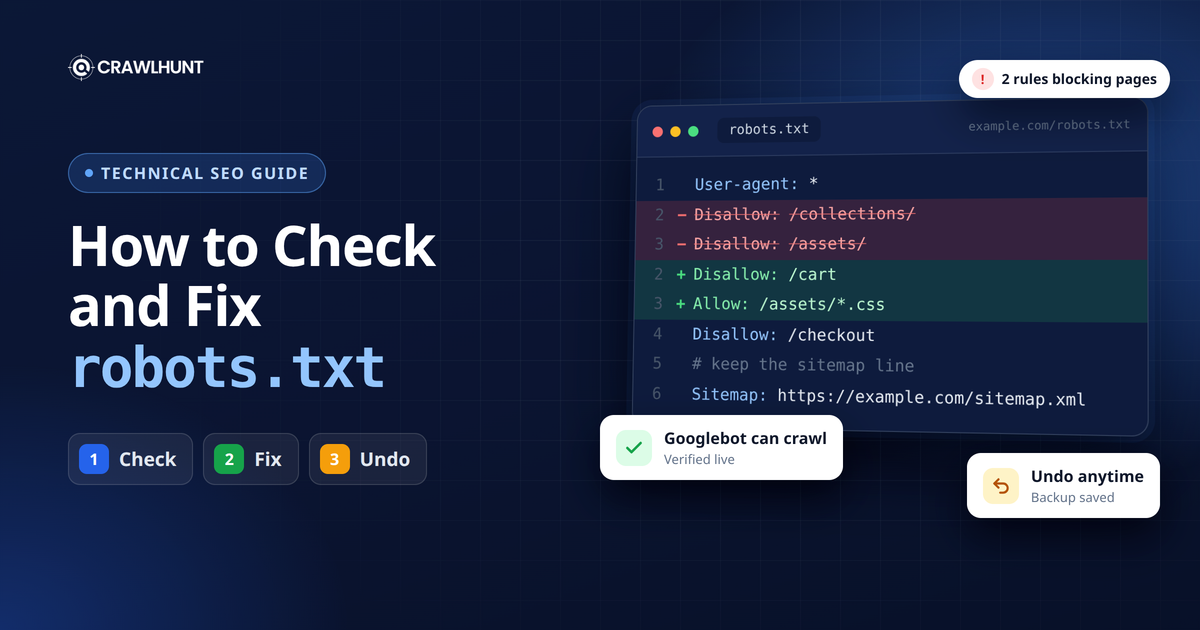
robots.txt is one of the smallest files on your site, but it decides which pages search engines are allowed to crawl. One wrong line can hide a whole collection from Google, block the CSS that makes your pages look right, or tell crawlers nothing about where your sitemap is. Because the file is so short, these mistakes are easy to make and easy to miss.
This robots.txt guide explains what the file does, which problems to look for, and how to check, fix and undo robots.txt changes safely with CrawlHunt. On a connected Shopify store you can apply the fix in one click and roll it back later. On WordPress, Magento and other platforms, CrawlHunt gives you the corrected file and the steps to publish it.
What Is a robots.txt File?
A robots.txt file is a plain text file at the root of your domain, for example https://www.example.com/robots.txt. Crawlers such as Googlebot read it before they crawl your site, and it tells them which paths they may and may not request.
The file is made of groups. Each group starts with a User-agent line that names the crawler, followed by the rules for that crawler. A simple file looks like this:
User-agent: *
Disallow: /cart
Disallow: /checkout

Sitemap: https://www.example.com/sitemap.xml
Here every crawler (*) is asked to stay out of the cart and checkout, and the last line points crawlers to the sitemap.
robots.txt directives at a glance
Directive | What it does | Example |
|---|---|---|
| Names the crawler the rules below apply to. |
|
| Asks the crawler not to crawl paths that start with this value. |
|
| Lets the crawler into a path inside a disallowed folder. |
|
| Gives the full URL of your XML sitemap. |
|
| Wildcards: |
|
What robots.txt Can and Cannot Do
Most mistakes come from expecting the file to do something it does not. According to Google's robots.txt specification, these are the rules to keep in mind:
- It controls crawling, not indexing. Google says the file is not a way to keep a page out of search results. A blocked page can still appear, without a description, if other sites link to it. To keep a page out of Google, use a
noindextag or password protection instead, as explained in Google's introduction to robots.txt. - The most specific rule wins. When an Allow and a Disallow rule both match, Google follows the one with the longer path. If they are equally specific, Google uses the less restrictive rule.
- Paths are case sensitive.
Disallow: /Saledoes not block/sale. - Size is limited. Google reads only the first 500 KiB of the file and ignores the rest.
- Some lines are ignored. Google does not support
Crawl-delay, and any line with a typo, such asDisalow, is simply skipped. - Server errors matter. If the file returns a 5xx error, Google stops crawling the site for the first 12 hours while it keeps retrying. A 404 is treated as "no restrictions".
Because this one file affects how search engines reach every page, it belongs near the top of any technical SEO checklist.
Common robots.txt Problems
Blocking the whole site
A single Disallow: / under User-agent: * stops every crawler from reaching any page, which means 100% of your site is blocked from crawling. This is often left over from a staging site that was copied to production. CrawlHunt reports it as an error, because no blocked page can rank.
Blocking pages that are in your sitemap
Your sitemap asks Google to index a page while robots.txt forbids crawling it. Search Console reports these as "Submitted URL blocked by robots.txt". Either allow the pages or, if they should stay hidden, remove them from the sitemap. Our guide to XML sitemap best practices explains what belongs in a sitemap.
Blocking CSS and JavaScript
Older files often block folders like /assets/ or /wp-content/. If those folders hold your CSS and JavaScript, Google sees your pages differently from visitors, which can affect how it judges mobile-friendliness and layout.
Lines crawlers ignore
Misspelled directives, rules placed before any User-agent line and unsupported fields do nothing. The rule you thought was protecting a folder may not apply at all.
A missing or broken Sitemap line
Listing your sitemap helps crawlers find every page. A Sitemap line that points to a missing file, or that uses a relative path instead of a full URL, does not help.
A missing file or one that returns errors
A missing robots.txt is not fatal, but crawlers get no guidance and no pointer to your sitemap. A file that returns server errors is more serious, because Google pauses crawling while it errors. That is a hosting problem rather than something you fix inside the file. If you are seeing other crawl problems as well, see how to fix crawl errors.
Blocking AI crawlers
Rules for crawlers such as GPTBot, ClaudeBot or PerplexityBot decide whether AI tools can read your pages. Blocking them is a valid business choice, for example to keep content out of AI training, but it also means those tools will not cite you in their answers.
How CrawlHunt reports each problem
Problem | Shown in the Issues tab as | What the recommended fix does |
|---|---|---|
Whole site or homepage blocked | Robots.txt: Blocks Entire Site | Removes the blocking rule |
Sitemap pages blocked | Robots.txt: Blocks Sitemap Pages | Allows the listed pages, or removes the rule when it blocks many of them |
CSS or JavaScript blocked | Robots.txt: Blocks CSS/JS Files | Adds Allow rules for just those file types |
Lines crawlers ignore | Robots.txt: Invalid Lines | Corrects obvious typos and removes the rest |
No Sitemap line | Robots.txt: No Sitemap Listed | Adds the working sitemap it found |
Broken Sitemap line | Robots.txt: Broken Sitemap Line | Removes it or writes the full URL |
File missing | Robots.txt: Missing | Creates a minimal file that allows everything |
AI crawlers blocked | Robots.txt: Blocks AI Crawlers | Optional: allows them only if you tick it |
Check and Fix Your robots.txt Step by Step
Before you start
The robots.txt check and fix is available on CrawlHunt's paid plans. One-click apply and undo work on connected Shopify stores, both in the web app and inside the CrawlHunt Shopify app. For WordPress, Magento and any other site, CrawlHunt shows the corrected file with step-by-step instructions to publish it yourself. If you work in someone else's workspace, the owner needs to give you access to Theme Actions before you can apply changes.
If you have not audited your site yet, start with our guide on how to perform an SEO audit.
Step 1: Open the robots.txt check
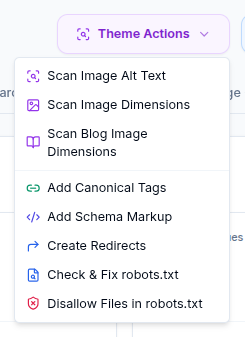
Open your audit results and select Theme Actions, then Check & Fix robots.txt. You can also open it from the Issues tab: select any robots.txt issue, such as Robots.txt: Blocks CSS/JS Files, and select View recommended fix.
Step 2: Review what CrawlHunt found
CrawlHunt reads your live file and checks it against your sitemap and the CSS and JavaScript files it crawled. The top of the dialog shows the file it checked, when it checked it and how many sitemap pages it compared. Under What we found, each problem has a severity (Error, Warning or Info), a plain-English explanation and examples of the affected URLs.
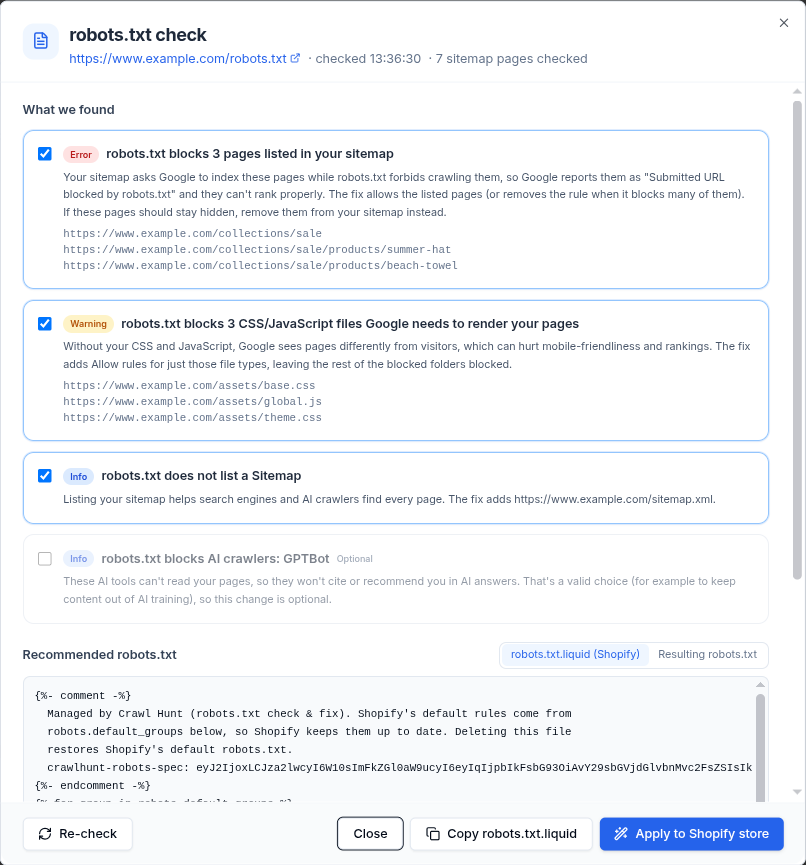
The check follows Google's matching rules, so it evaluates the file the way Googlebot does: the longest matching rule wins, and lines Google would ignore are flagged as having no effect.
Step 3: Choose which fixes to include
Every fixable problem has a checkbox. Recommended fixes are ticked for you. Optional ones, such as allowing AI crawlers, stay unticked until you decide you want them. When you tick or untick a fix, the corrected file updates straight away.
Before showing you a result, CrawlHunt runs a safety check. If a combination of fixes would block your homepage, newly block pages in your sitemap, or push the file over Google's 500 KiB limit, it shows Don't publish this combination yet and will not apply it.
Step 4: Review the corrected file
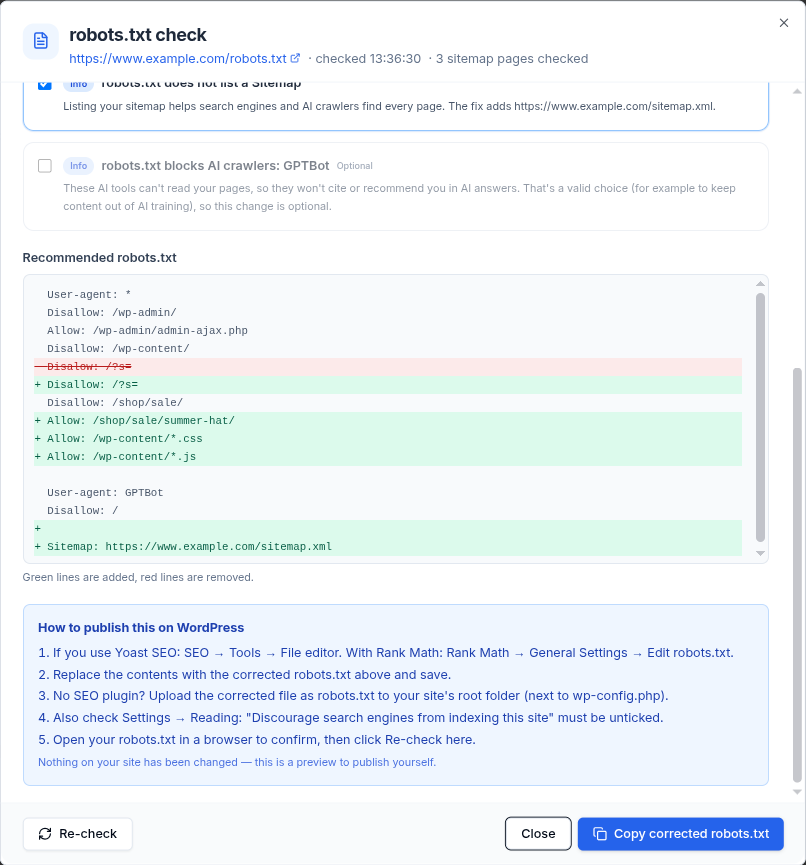
Under Recommended robots.txt, select Resulting robots.txt to compare your current file with the corrected one. Green lines are added and red lines are removed. In this example, the fix allows three sale pages that are in the sitemap, lets Google fetch the CSS and JavaScript in /assets/, and adds the Sitemap line. The rest of the blocked folders stay blocked.
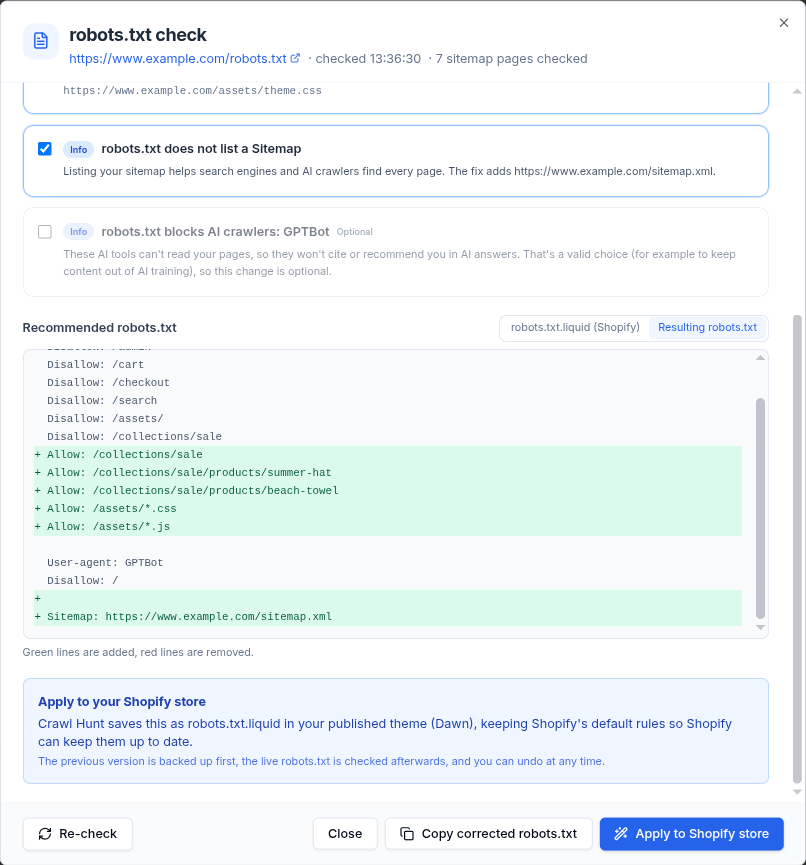
On Shopify the default view is robots.txt.liquid (Shopify), the template Shopify uses to build robots.txt. CrawlHunt's version adds your fixes on top of Shopify's default rules instead of replacing them, so Shopify can keep updating its defaults. Shopify's own guide to editing robots.txt.liquid explains how the template works.
Step 5: Apply the fix in one click on Shopify
On a connected Shopify store, select Apply to Shopify store. The first time, CrawlHunt asks you to confirm that it may make live changes to your store. Then it:
- Backs up your current robots.txt template.
- Saves the fix as
robots.txt.liquidin your published theme. - Fetches your live file to check the result.
When the live file matches, you see "robots.txt updated — the live file now matches the fix." Shopify sometimes takes a few minutes to update the live file. In that case CrawlHunt tells you the fix is saved to your theme, and you can select Re-check shortly after.
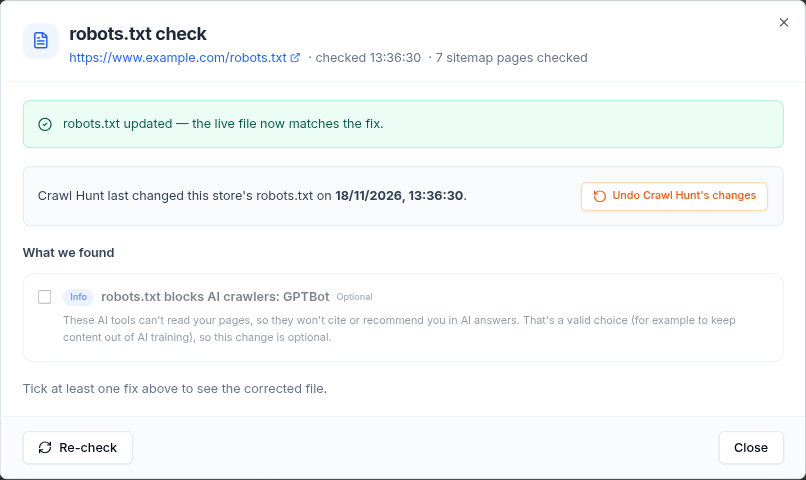
Several safeguards protect your store. If the live check shows the new file would block your homepage, CrawlHunt restores the previous version automatically and nothing changes. If your theme already has a custom robots.txt.liquid written by someone else, or someone edited CrawlHunt's file since it was saved, CrawlHunt does not overwrite it. It shows you the changes to add by hand instead. If your store is still password-protected, CrawlHunt tells you to remove the password first, because search engines cannot crawl a locked storefront whatever robots.txt says.
Step 6: Undo the change if you need to
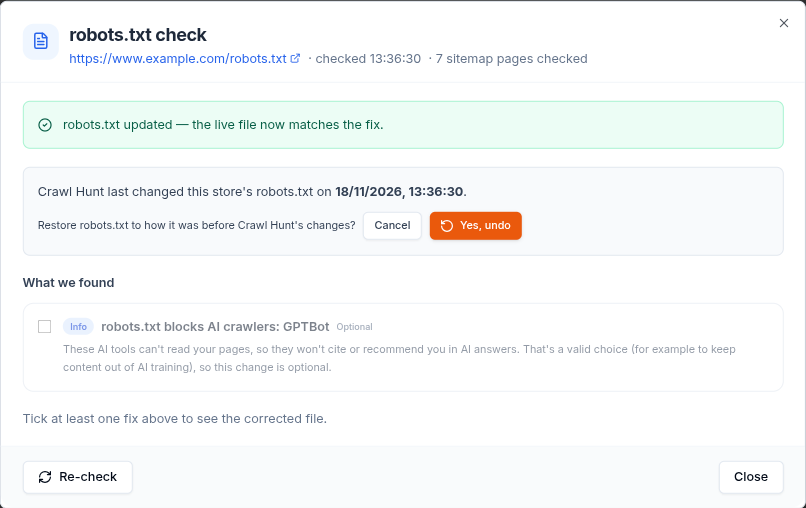
Every applied fix can be rolled back. Open the robots.txt check again, select Undo Crawl Hunt's changes and confirm with Yes, undo. CrawlHunt restores your robots.txt template to how it was before. If your theme had no robots.txt.liquid before, it removes CrawlHunt's file, and Shopify's default robots.txt comes back. The backup is kept for a year.
Step 7: Publish the fix on WordPress, Magento and other sites
On other platforms, select Copy corrected robots.txt and follow the steps CrawlHunt shows for your platform. For WordPress, that means pasting the file into the robots.txt editor in Yoast SEO or Rank Math, or uploading it to your site's root folder. CrawlHunt also reminds you to check that "Discourage search engines from indexing this site" is unticked under Settings → Reading. Magento, Wix and Webflow get their own steps. Nothing on your site changes until you publish the file.
Step 8: Re-check and confirm
Open your live file in a browser to confirm the new version is live, then select Re-check. The problems you fixed disappear from the list, and the matching issues clear from the Issues tab on your next crawl. If you have connected Search Console, watch for the "Submitted URL blocked by robots.txt" count to fall over the following weeks. Our guide to the Google Search Console integration shows where to find it.
robots.txt Best Practices and Mistakes to Avoid
Best practices
- Block only what crawlers genuinely should not visit, such as cart, checkout, account and internal search pages.
- Always list the full URL of your sitemap.
- Keep CSS and JavaScript crawlable so Google sees what visitors see.
- Keep the file short and readable. Wildcards can replace long lists of similar rules.
- Check the file again after every redesign, migration or theme change, since these often overwrite it.
Mistakes to avoid
- Using robots.txt to hide pages from Google. Use
noindexfor that. A page that is blocked from crawling cannot even show Google its noindex tag. For how crawling and indexing differ, see our guide to crawlability and indexability. - Launching with a staging robots.txt. A leftover
Disallow: /can wipe a new site from search. - Listing pages in your sitemap that the file blocks. Decide whether each page should be crawled, then make the two files agree.
- Editing the file without a way back. Keep a copy of the previous file, or use a tool that backs it up for you.
- Relying on Crawl-delay. Google ignores it.
Conclusion
A healthy robots.txt keeps crawlers out of pages that do not matter, lets them reach everything that does, and points them to your sitemap. The most damaging problems are blocking the whole site, blocking pages you want indexed and blocking the CSS and JavaScript Google needs to render them. With CrawlHunt you can check your robots.txt against your real sitemap and resources, review the corrected file line by line, apply it to a Shopify store in one click with an automatic backup and live check, and undo it whenever you need to.
Frequently Asked Questions
Where is my robots.txt file?
It is always at the root of your domain, for example https://www.example.com/robots.txt. Open that address in a browser to see the live file. CrawlHunt shows the exact URL it checked at the top of the robots.txt check.
Does robots.txt stop a page from appearing in Google?
No. It controls crawling, not indexing. A blocked page can still appear in search results if other pages link to it. Use a noindex tag to keep a page out of Google, and make sure robots.txt does not block that page, or Google will never see the tag.
Should I block AI crawlers in robots.txt?
It depends on what you want. Blocking crawlers such as GPTBot or ClaudeBot keeps your content out of those tools, but it also means they cannot cite or recommend you. CrawlHunt treats this as optional and never changes it unless you tick it.
Can CrawlHunt edit my robots.txt automatically?
Yes, on connected Shopify stores. CrawlHunt backs up the current template, saves the fix as robots.txt.liquid in your published theme, checks the live file and lets you undo it. On WordPress, Magento and other platforms it gives you the corrected file and the steps to publish it yourself.
How do I undo a robots.txt change made with CrawlHunt?
Open the robots.txt check, select Undo Crawl Hunt's changes and confirm. CrawlHunt restores your previous robots.txt template, or removes its own file so Shopify's default robots.txt returns.
How quickly does Google see the new robots.txt?
Google usually caches the file for up to 24 hours, so changes can take a day to be picked up. Pages that were blocked then need to be recrawled before they can be indexed, which can take longer.