A page that is not in Google's index cannot rank, however good its content is. Pages drop out of the index, or never get in, for reasons that are easy to miss: a leftover noindex tag, a robots.txt rule, a canonical tag that points somewhere else, or simply a page Google has not got round to crawling yet.
This guide shows how to check whether a page is indexed by Google, how to read the result, and what to do about each reason a page is not indexed. It covers the quick site: search, Google Search Console's URL Inspection tool, and how to check many pages at once with CrawlHunt, then fix the causes and request indexing from the same screen.
What "Indexed" Actually Means
Google handles a page in three stages. It discovers the URL, usually from a link or your sitemap. It crawls the page, which means Googlebot downloads it. Then it decides whether to index the page, which means storing it so it can appear in search results. A page can be discovered but never crawled, or crawled but never indexed.
Being indexed is also not the same as ranking. Google describes an indexed page as one that is eligible to appear in search results, not a promise that it will appear for any query. If you want the background on how crawling and indexing fit together, read our guide to crawlability and indexability.
3 Ways to Check If a Page Is Indexed
1. The site: search (quick, but not reliable)
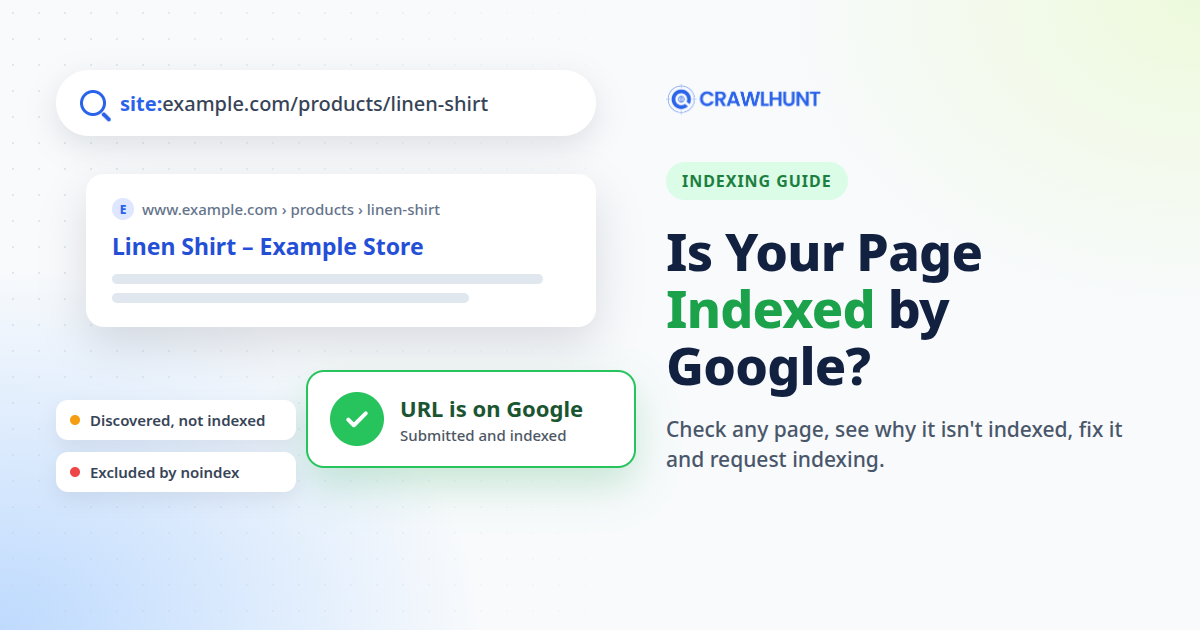
Type site: followed by the page address into Google, for example site:www.example.com/products/linen-shirt. If the page shows up, it is indexed. If it does not, that is not proof it is missing. Google's own documentation for the site: operator says the results are not always exhaustive and do not necessarily include every indexed URL. Use it as a quick hint, never as the final answer.
2. URL Inspection in Google Search Console (the reliable answer)
Search Console's URL Inspection tool reports Google's own index status for one URL at a time. According to Google's URL Inspection help page, the main results are:
- URL is on Google: the page is indexed and eligible to appear in results.
- URL is on Google, but has issues: indexed, but some enhancements such as rich results may not show.
- URL is not on Google: the page cannot appear in results, and the Page indexing section explains why.
Two things to keep in mind. The result describes the last version Google crawled, not your live page, so a fix you made yesterday will not show until Google crawls the page again. And you can only inspect URLs in a property you have verified.
3. Check many pages at once with CrawlHunt
Inspecting pages one by one in Search Console is slow once you have more than a handful to check. CrawlHunt uses the same Search Console data, through Google's URL Inspection API, to check every page from your latest audit in one go. It then shows the reason each page is not indexed next to a fix you can apply.
Which method to use
Method | Best for | Accuracy | Limits |
|---|---|---|---|
| A quick look at one page | A hint only | Can miss indexed pages |
Search Console URL Inspection | One page, in depth | Google's own data | One URL at a time, verified properties only |
CrawlHunt Search Console Issues tab | Every crawled page, plus fixes | Google's own data (same API) | Paid plans; Google allows 2,000 inspections per property per day |
How to Check Indexing Status with CrawlHunt, Step by Step
Before you start
Google Search Console features are available on CrawlHunt's paid plans. You need to connect the Google account that has access to your site's Search Console property, and the property must be verified. Our guide to the Google Search Console integration walks through connecting it. If you have not audited your site yet, start with how to perform an SEO audit, because the bulk check works from the pages your audit crawled.
Step 1: Open the Search Console Issues tab
Open your audit results and select the Search Console tab, then Issues. You can also open Google Search Console in the sidebar and select Issues. Inside an audit, the check covers every page that audit crawled. From the sidebar, it checks up to 30 of the site's top pages in Search Console, plus the homepage.
Step 2: Inspect your crawled pages
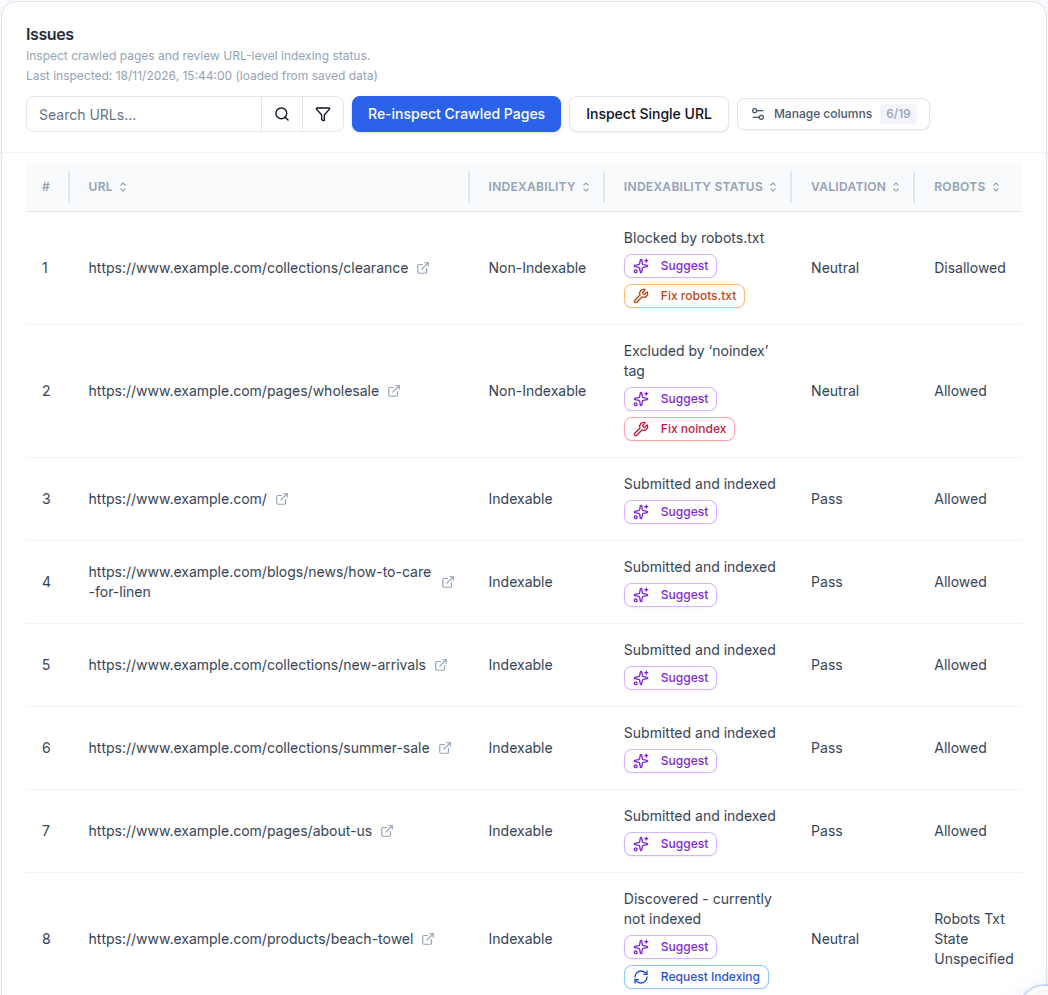
Select Inspect Crawled Pages. CrawlHunt asks Google about each page and shows the progress as it goes. The results are saved, so the next time you open the tab you see them straight away, with a "Last inspected" date at the top. To get fresh data later, select Re-inspect Crawled Pages.
The table puts pages that cannot be indexed at the top, so problems are the first thing you see.
Step 3: Read the result for each page
Each row answers a different question, so it helps to know what the columns mean:
- Indexability says whether anything stops Google from indexing the page. Indexable means nothing blocks it. It does not mean the page is indexed.
- Indexability Status is Google's actual answer, for example "Submitted and indexed" or "Crawled - currently not indexed". This is the column that tells you whether the page is indexed.
- Validation is Google's overall verdict: Pass, Neutral or Fail.
- Robots shows whether robots.txt allows Googlebot to crawl the page.
Select Manage columns to add more, such as Fetch, Last Crawl and Crawled As. Use the search box or the filter to narrow the list, for example to every page that is not indexed.
Step 4: Check a single URL
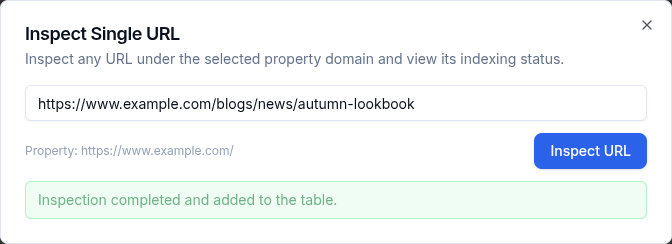
To check a page your audit did not crawl, such as a blog post you published this morning, select Inspect Single URL. Paste the full address and select Inspect URL. The URL must belong to the connected Search Console property. The result is added to the top of the table, so you can see straight away whether the page is indexed.
Step 5: Open the full details for a page
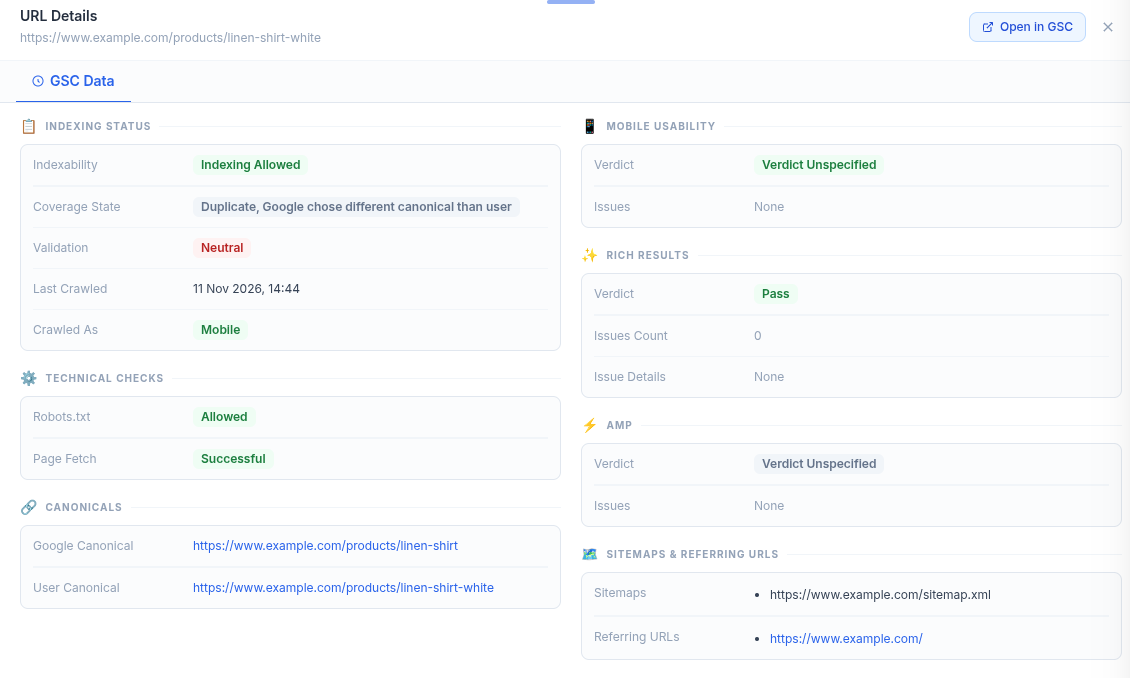
Select any row to open URL Details. Here you see everything Google reported for that page: the coverage state, when Google last crawled it and as which crawler, whether the fetch succeeded, rich results, the sitemaps that list it and the pages that link to it.
The Canonicals section is often the most useful. It shows the canonical you set (User Canonical) next to the one Google chose (Google Canonical). In this example, Google has decided that a white variant of a shirt is a duplicate of the main product page, so it indexes the main page instead. Select Open in GSC to see the same report in Search Console.
Step 6: Fix what is stopping the page from being indexed
Under each status you will find the actions that apply to it:
- Suggest explains in plain English why this page is not indexed and what to change. Each suggestion uses one AI fix from your plan.
- Fix robots.txt appears when robots.txt blocks the page, and adds a rule that allows it. Our robots.txt guide covers this in detail.
- Fix noindex appears when the page carries a noindex tag, and removes it.
- Fix canonical appears when Google picked a different canonical, and corrects the canonical tag. For the background, see our guide to canonical tag issues.
The Fix buttons work on connected Shopify, WordPress and Magento sites. Each one shows you the change before applying it, and every applied fix has a Revert button. On other sites, use the Suggest explanation to make the change yourself.
Step 7: Request indexing
For pages Google has not indexed yet but has no reason to reject, CrawlHunt shows a Request Indexing button. It appears for "URL is unknown to Google", "Discovered - currently not indexed", "Crawled - currently not indexed" and "Soft 404". After you select it, the button changes to Requested.
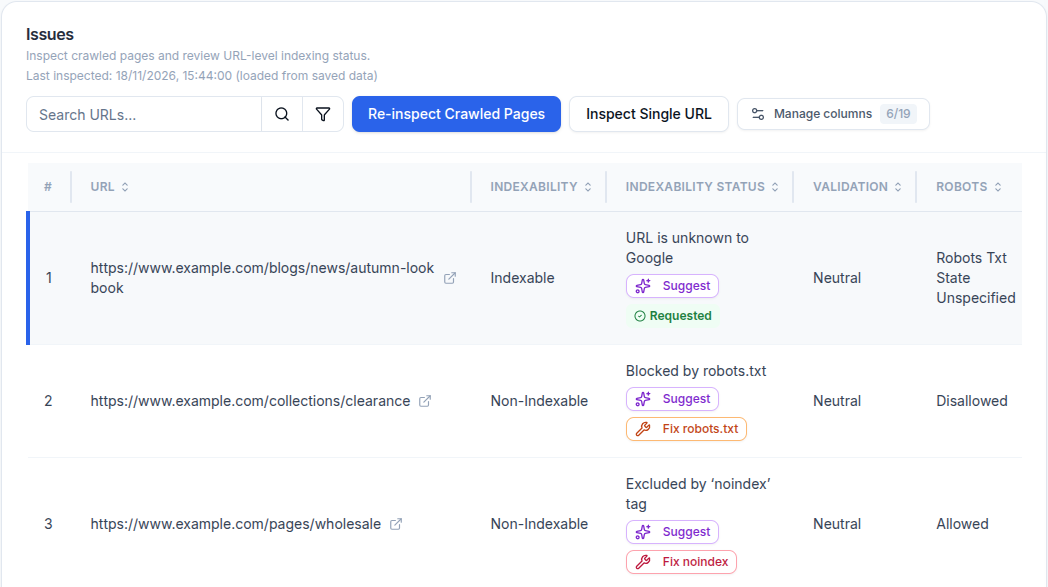
A few things to know about requesting indexing:
- It asks Google to crawl the page. It is not a promise that the page will be indexed. Google decides that based on the page itself.
- CrawlHunt sends the request through Google's Indexing API. Google officially documents that API for job posting and livestream pages only, so for other pages treat a request as a nudge. Your sitemap and internal links remain the dependable way to get pages found, and you can also use the Request indexing button in Search Console's URL Inspection tool.
- Your Google account needs owner access to the Search Console property. If CrawlHunt asks you to reconnect, it needs the indexing permission that older connections did not grant.
- Each request counts towards your plan's monthly indexing-request allowance.
Fix the cause first. Requesting indexing for a page that still has a noindex tag or a robots.txt block will not get it indexed.
Step 8: Re-inspect after Google recrawls
The status changes only after Google crawls the page again, which can take a few days. Select Re-inspect Crawled Pages later and check that the status has moved to "Submitted and indexed", which means the page is indexed. The "Last crawl" date in URL Details tells you whether Google has visited since your fix.
Why Pages Are Not Indexed and What to Do
These are the statuses you will see most often. The explanations follow Google's Page indexing report documentation.
Status | What it means | What to do |
|---|---|---|
URL is unknown to Google | Google has not found the page yet. | Add it to your sitemap, link to it from other pages, then request indexing. |
Discovered - currently not indexed | Google found the page but has not crawled it yet. | Usually wait. Strengthen internal links to the page. |
Crawled - currently not indexed | Google crawled the page and chose not to index it for now. | Make the content more useful and distinct, check for thin or duplicate content, then request indexing. |
Excluded by 'noindex' tag | The page tells Google not to index it. | If you want it indexed, remove the tag (Fix noindex). |
Blocked by robots.txt | robots.txt stops Google from crawling the page. | Allow it in robots.txt (Fix robots.txt). |
Duplicate, Google chose different canonical than user | Google indexed another page it considers the main version. | Point the canonical to the right page, or make this page clearly different (Fix canonical). |
Alternate page with proper canonical tag | The page correctly points to an indexed canonical. | Nothing. This is expected. |
Page with redirect | The URL redirects to another page. | Nothing, as long as the redirect goes to the right page. |
Not found (404) or Soft 404 | The page is missing, or looks empty to Google. | Redirect moved pages with a 301, or add real content. See how to fix 404 errors. |
Server error (5xx) | Your server returned an error when Google visited. | Fix the hosting problem, then re-inspect. See how to fix crawl errors. |
Mistakes to avoid
- Trusting a site: search. A page can be missing from
site:results even when the page is indexed. Check with URL Inspection. - Reading "Indexable" as "indexed". Indexable means nothing blocks the page. Always check the Indexability Status to see whether the page is indexed.
- Requesting indexing before fixing the cause. Google will crawl the page, find the same problem and leave it out again.
- Expecting the status to change straight away. Inspection shows Google's last crawl. Wait for a recrawl before you decide a fix did not work.
- Trying to index everything. Cart, account, filtered and duplicate pages are often better left out. Focus on pages you want people to find. Our XML sitemap best practices explain which pages belong in your sitemap.
Conclusion
To check whether a page is indexed by Google, rely on Search Console's URL Inspection data rather than a site: search. Read the coverage state, not just whether the page is allowed to be indexed, and remember the result reflects Google's last crawl. With CrawlHunt you can check every crawled page at once, see why each one is not indexed, apply the fix to a Shopify, WordPress or Magento site, request indexing and re-inspect to confirm, all from the same tab.
Frequently Asked Questions
How do I check if a single page is indexed by Google?
Inspect it in Google Search Console's URL Inspection tool, or select Inspect Single URL in CrawlHunt's Search Console Issues tab. "Submitted and indexed" or "URL is on Google" means the page is indexed.
Why does my page not show up in a site: search?
Google says the site: operator does not always list every indexed URL. A missing result is not proof the page is not indexed. Check it with URL Inspection.
How long does it take Google to index a new page?
Google says indexing typically takes a day or so after a request but can take longer, and a request is no promise that the page will be indexed. Pages with good internal links and a sitemap entry tend to be found sooner.
What does "Crawled - currently not indexed" mean?
Google visited the page and decided not to add it to the index for now. Improve the content so it is useful and different from your other pages, make sure other pages link to it, then request indexing again.
Can I check whether a page is indexed without Search Console?
Only roughly, with a site: search. Index status comes from Google's own data, which is available only through Search Console for sites you have verified. CrawlHunt reads that same data once you connect Search Console.
Does requesting indexing make sure my page is indexed?
No. A request asks Google to crawl the page. Whether it is indexed depends on the page itself, so fix any noindex tag, robots.txt block or canonical problem first.