404 errors can quietly hurt your website’s user experience, internal linking, and search performance if they are not handled properly. When visitors or search engines land on a broken URL, they may struggle to find the content they expected, which can lead to lost traffic and missed conversions. The process to Fix 404 errors usually involves finding the broken pages, choosing the right replacement URLs, setting up redirects, and updating internal links.
Doing this manually can become time-consuming, especially on larger websites. With CrawlHunt AI Redirects and Inlink Fixing, you can simplify the process by generating relevant redirect suggestions, applying fixes efficiently, and updating internal links that still point to outdated URLs.
What Is a 404 Error?
A 404 error is an HTTP status code that appears when a visitor or search engine tries to access a URL that does not exist on the website. The server is working correctly, but it cannot find the requested page at that specific address.
For example, if a product page previously existed at:
example.com/products/blue-shirt
and that page is deleted without setting up a redirect, anyone visiting the old URL may see a 404 Page Not Found message.
404 errors are common on websites, especially ecommerce stores where products, collections, landing pages, and URLs frequently change. A few genuine 404 pages are not automatically a serious SEO problem. However, having many broken URLs, especially when your own website still links to them, can create a poor experience for users and make your website structure harder to maintain.
What Causes 404 Errors?
404 errors can occur for many reasons. In most cases, they appear when a page is removed, its URL is changed, or another page continues linking to an outdated address.
Some of the most common causes include:
- Deleted pages or products: Removing a product, blog post, collection, or landing page without adding an appropriate redirect can create a 404 URL.
- Changed URLs: If you edit a page handle, slug, category structure, or permalink, the old URL may stop working unless it is redirected.
- Incorrect internal links: Typing errors or outdated links inside blog posts, menus, product descriptions, and other pages can send visitors to URLs that do not exist.
- Website migrations: Moving to a new CMS, domain, or URL structure can create large numbers of broken URLs if old pages are not properly mapped to their new locations.
- Discontinued products: Ecommerce stores regularly remove products that are no longer available. If those product URLs still have internal links or backlinks, they may generate 404 errors.
- Broken external backlinks: Other websites may link to an outdated or incorrectly typed URL on your site.
- External Link Analysis: Regular External Link Analysis helps identify backlinks pointing to broken URLs, allowing you to evaluate whether a relevant redirect can recover visitor access and preserve the value of links from other websites.
- Page restructuring: Merging categories, changing collections, reorganizing content, or redesigning a website can leave older URLs inaccessible.
- Manual URL mistakes: Users or website administrators may accidentally enter or publish an incorrect URL.
As a website grows, these issues can accumulate. This is why regularly monitoring broken URLs and checking internal and external links is important, particularly for large ecommerce stores and content-heavy websites.
How Do 404 Errors Affect SEO?
A 404 page does not automatically cause your entire website to lose rankings. Search engines expect websites to have some URLs that no longer exist. The bigger SEO concern appears when important pages disappear without proper redirects or when your site contains many internal links pointing to broken URLs.
Here are some ways unmanaged 404 errors can affect SEO:
- Poor user experience: Visitors who click a link and reach a missing page may leave the website instead of continuing to browse.
- Lost organic traffic: If a previously ranking page is deleted without redirecting users to a relevant replacement, the traffic associated with that URL may be lost.
- Lost backlink value: A removed page may have backlinks from other websites. Without a suitable redirect, some of the value associated with those links may no longer reach an active page.
- Broken internal linking: Internal links pointing to 404 pages interrupt the normal navigation path between your website's content.
- Unnecessary crawling: Search engine crawlers may repeatedly discover broken URLs through internal links, old sitemaps, or external backlinks, which can waste crawl resources and weaken overall crawlability and indexability.
- XML Sitemap: Following XML Sitemap Best Practices helps ensure that your sitemap includes important, canonical URLs that return successful responses, rather than outdated or redirected URLs that can create unnecessary crawling issues.
- Poor website maintenance signals: Large numbers of broken links can indicate that important parts of the website have not been properly maintained.
- Reduced conversions: For ecommerce stores, a customer landing on a deleted product page instead of a relevant alternative can result in a lost sale.
The best approach is not to redirect every 404 URL automatically. Instead, important broken URLs should be reviewed and redirected to the most relevant existing page when an appropriate replacement is available. Internal links should also be updated so visitors and search engines can reach the final destination directly.
This is where tools such as CrawlHunt AI Redirects and Inlink Fixing can make the process easier by helping identify broken URLs, suggest relevant redirect destinations, and update internal links that still point to outdated pages.
How to Fix a 404 Error Using CrawlHunt AI Redirects
Manually fixing broken URLs can become difficult when a website has dozens or hundreds of outdated product pages, collection URLs, blog links, or landing pages. CrawlHunt simplifies this process with AI-powered redirects and bulk fixes, allowing you to fix multiple 404 errors in one workflow instead of creating redirects one by one.
If you want to Fix 404 error issues efficiently, CrawlHunt first detects the affected URLs, then uses AI to identify relevant active pages that can serve as suitable redirect destinations. You can review the suggestions before accepting them, apply the redirects directly to your store, and then repair internal links that are still pointing to the old URLs. If you are wondering how to fix crawl errors like these, the key is to combine detection, redirects, and internal link updates in a single workflow.
Here is the complete process.
Step 1: Run a CrawlHunt SEO Audit
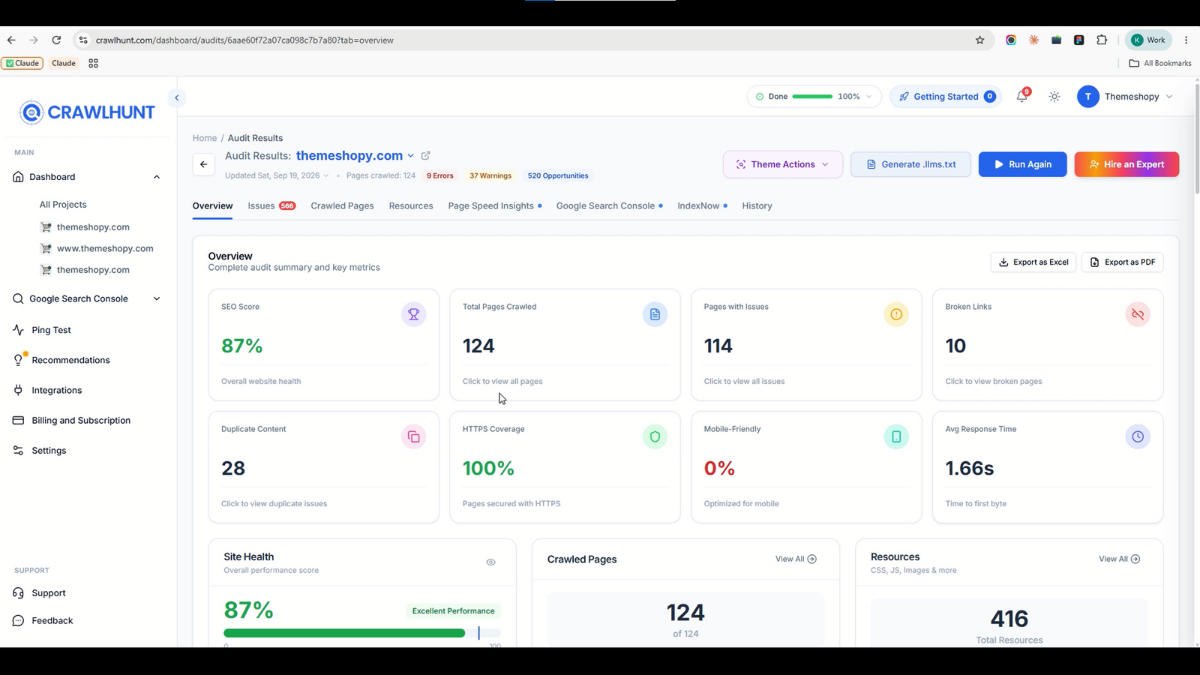
Start by running a complete SEO audit of your website or Shopify store using CrawlHunt. The audit crawls your pages and acts as a technical SEO audit, checking for different technical and on-page SEO issues, including URLs that return a 404 Page Not Found response.
Once the audit is complete, CrawlHunt organizes the detected problems into different categories so that you can easily identify which areas require attention.
The audit helps you:
- Discover broken URLs across your website.
- Find deleted or outdated pages that are still being linked to.
- Identify technical SEO issues from one dashboard.
- See how many 404 URLs need to be fixed.
- Start fixing issues without manually checking every page.
This gives you a clear starting point before you begin the Fix 404 error process.
Step 2: Open the Page Not Found (404) Issue
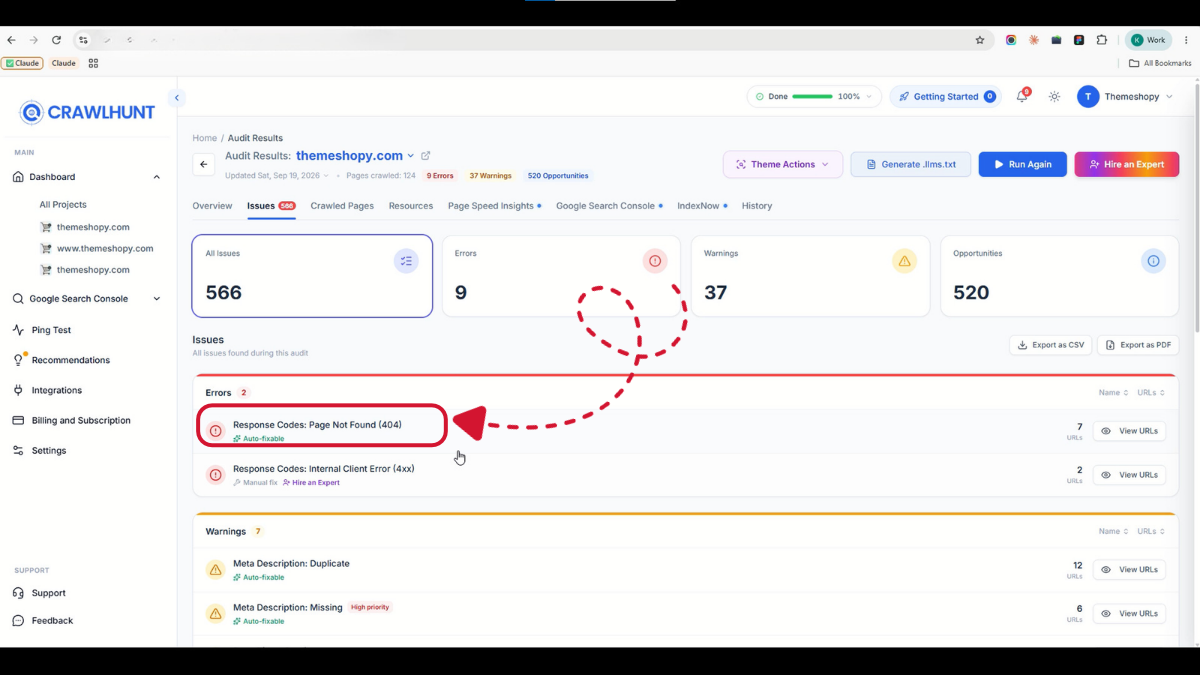
From your CrawlHunt audit results, open the Page Not Found (404) issue.
Here, you will see the URLs that CrawlHunt detected as returning a 404 response. Instead of manually searching through your website or checking broken links one by one, all the affected URLs are available in one place.
You can review information such as:
- The affected 404 URL.
- The issue detected by CrawlHunt.
- Available fixing options.
- AI-generated redirect recommendations once the process begins.
This makes it easier to understand the scale of the problem before applying any changes.
Step 3: Click on Bulk AI Fixes
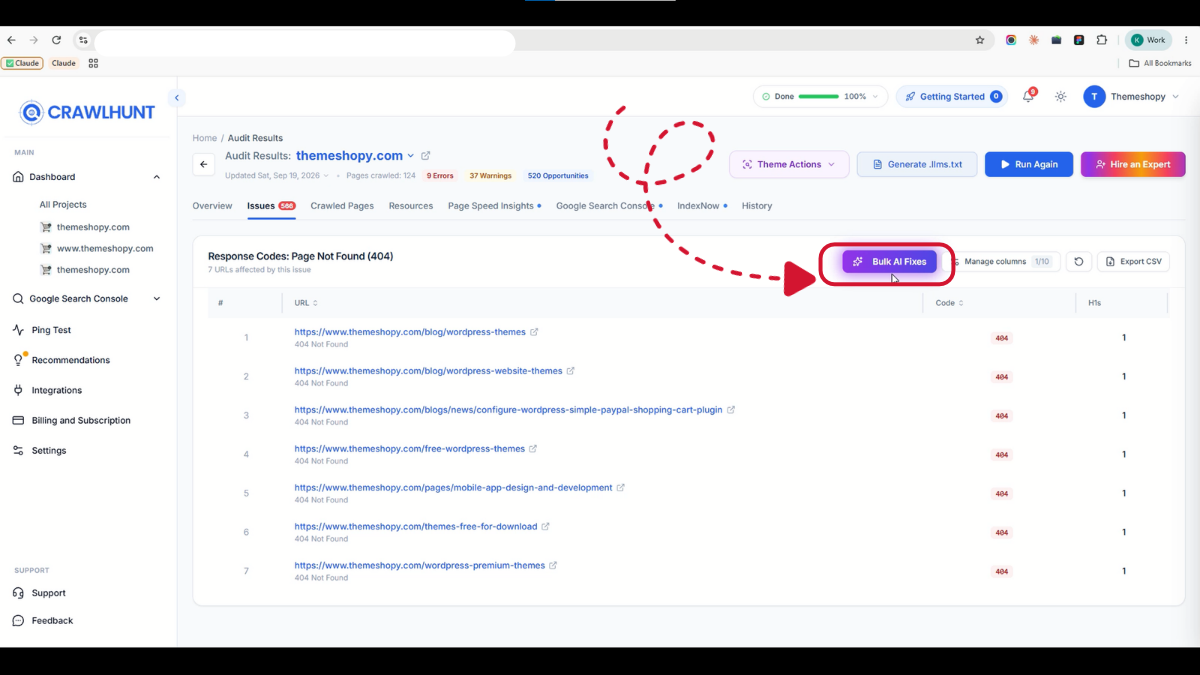
CrawlHunt is not limited to fixing only one broken URL at a time. If your website contains several 404 errors, you can use Bulk AI Fixes to process them together.
Simply click the Bulk AI Fixes button from the 404 error section.
CrawlHunt will begin analyzing the affected URLs and looking for suitable active pages on your website that can be used as redirect destinations.
This is especially useful for:
- Ecommerce stores with discontinued products.
- Stores where product or collection URLs have changed.
- Websites that recently migrated to a new structure.
- Large blogs with deleted or renamed posts.
- Websites containing hundreds of historical URLs.
Instead of manually reviewing every possible destination page yourself, CrawlHunt uses AI to speed up the process.
Step 4: Generate AI Redirect Suggestions
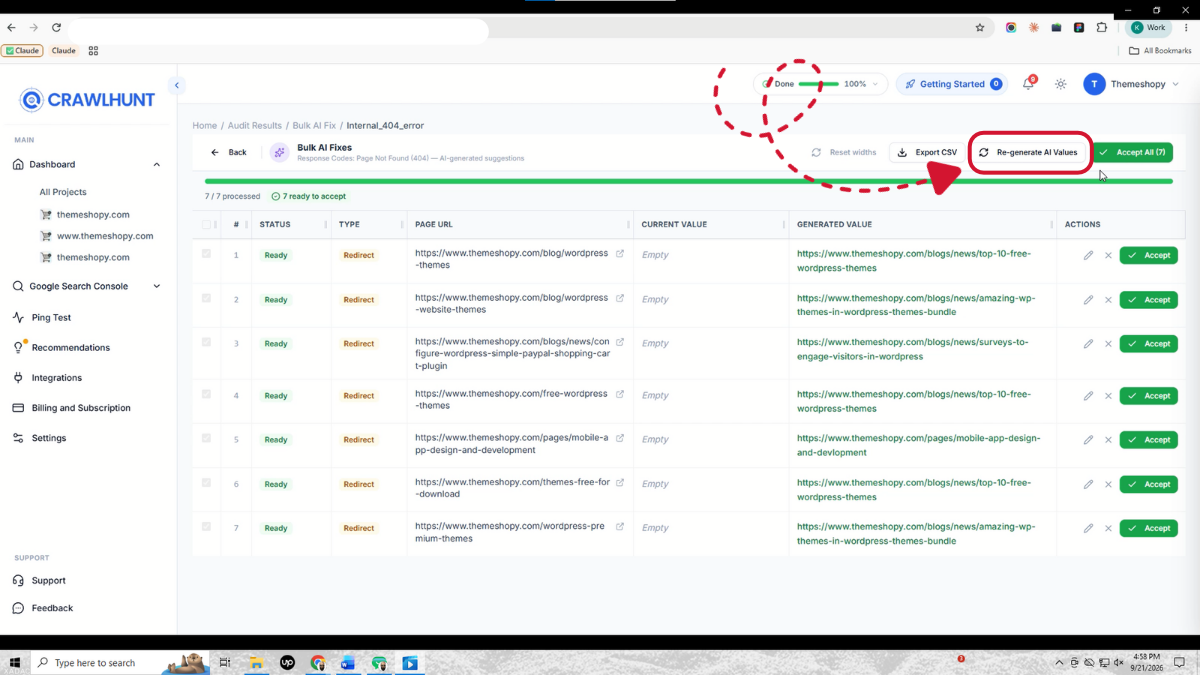
After starting the bulk fixing process, CrawlHunt analyzes each broken URL and generates an AI-powered redirect suggestion.
The goal is to find an active URL that is contextually relevant to the old page.
For example, suppose this URL no longer exists:
example.com/products/black-running-shoes
CrawlHunt may identify an active and relevant page such as:
example.com/products/mens-black-running-shoes
Rather than redirecting the broken URL to a generic homepage, the system attempts to find a closer match based on the available URLs and page context.
This can help preserve a more relevant user journey while reducing the manual work required to find replacement pages.
Step 5: Review the Generated Destination
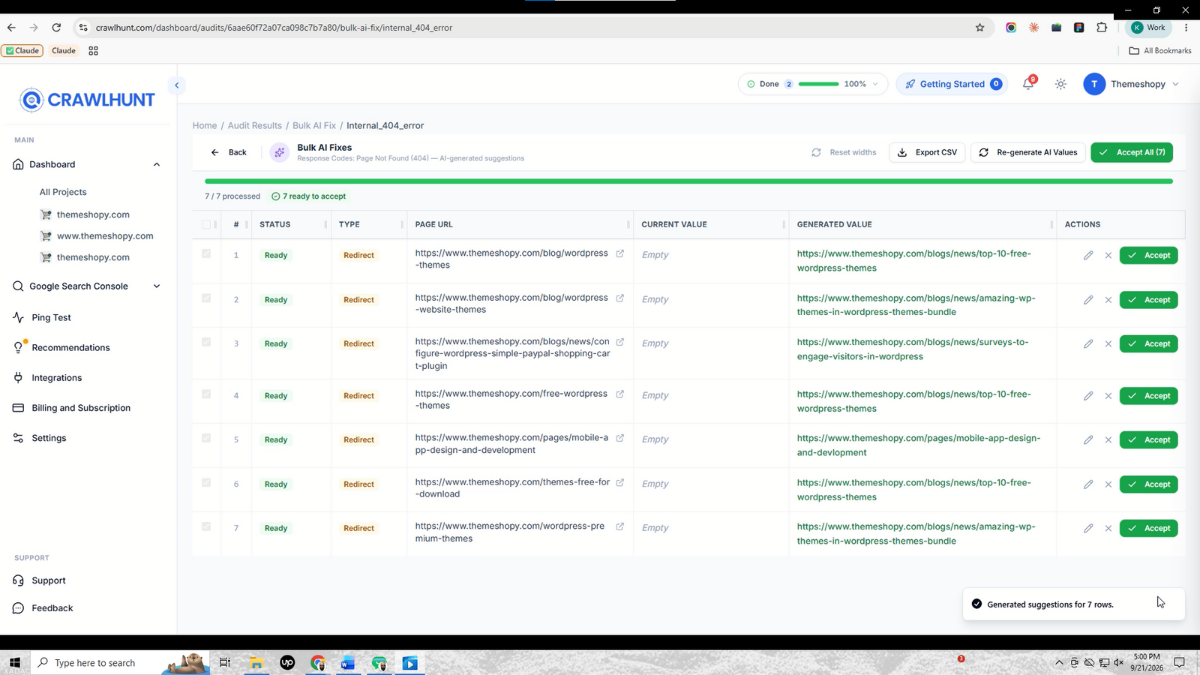
Once CrawlHunt generates the redirect suggestions, review the proposed destination URLs before applying them.
CrawlHunt is designed to find the closest relevant active URL for the broken page, but it is still good SEO practice to review AI-generated recommendations before publishing them.
Check whether:
- The new URL is live and accessible.
- The destination is relevant to the original page.
- The replacement page satisfies similar search intent.
- Visitors landing on the new page will find useful content.
- The redirect does not point to an unrelated category or product.
For example:
Old URL:
/collections/womens-running-shoes
Good redirect:
/collections/womens-sports-shoes
Poor redirect:
/pages/contact-us
The first option keeps the visitor within a relevant topic, while the second provides little connection to the original URL.
Step 6: Edit the AI Suggestion If Required
In most cases, CrawlHunt can identify a close active match for the broken URL automatically. However, you should still check each suggestion before accepting it.
If you know that another page would be a better destination, you can edit the suggested URL.
This gives you the benefits of AI automation without removing your control over the final redirect.
Before accepting a redirect, ask:
- Is this the closest replacement page?
- Does it match the original page's topic?
- Is there a more specific product, collection, or article available?
- Is the destination currently active?
- Would this destination make sense to someone clicking the old link?
This review step is particularly important when you want to Fix 404 error issues without sending users to irrelevant pages.
Step 7: Accept and Apply the Redirect
Once you are satisfied with the generated redirect destination, accept the suggestion and apply the redirect.
CrawlHunt can then apply the accepted redirect directly to your connected store, reducing the need to manually configure each redirect separately.
With bulk fixes, you can review multiple recommendations and apply the approved redirects much faster than creating them individually.
The workflow becomes:
Broken URL → AI Suggested Destination → Review → Accept → Redirect Applied
This can save considerable time when dealing with large numbers of broken URLs.
Step 8: Fix Internal Links Connected to the Old URL
Creating the redirect is only one part of properly fixing a 404 issue.
Your website may still contain internal links pointing to the old broken URL. These links could exist inside:
- Blog posts.
- Product descriptions.
- Collection pages.
- Landing pages.
- Navigation elements.
- Other internal content.
For example, imagine that you have created this redirect:
example.com/product-1 → example.com/product-2
Your redirect will send visitors to the new page, but some pages on your website may still link to:
example.com/product-1
This creates an unnecessary redirect hop.
CrawlHunt helps solve this with its Inlink Fixing feature.
After applying your redirects, simply click the Fix Inlinks or available inlink fixing option. CrawlHunt will start identifying internal links that still point to the old URL and attempt to replace them with the new destination.
Instead of:
Blog Post → Old URL → Redirect → New URL
you can have:
Blog Post → New URL
This creates a cleaner internal linking structure and supports a stronger internal linking strategy across your store.
Step 9: Verify the 404 Fix
After applying the redirects and fixing the related internal links, verify that everything is working correctly.
Open the old URLs and confirm that they redirect to the intended destination. You should also check the pages where internal links were updated to ensure they now point directly to the active URL.
For additional verification:
- Test the old URL in your browser.
- Confirm that it reaches the correct destination.
- Check that the destination page returns a successful response.
- Review updated internal links.
- Re-run a CrawlHunt audit.
- Confirm that the previous 404 issue is no longer being reported.
- Review any inlinks that could not be updated automatically.
Re-crawling the website after the fixes gives you additional confidence that the broken URLs and associated internal links have been handled correctly.
With Google Search Console Integration, website owners can review reported indexing issues, inspect affected URLs, and identify pages that need further investigation alongside the results of a technical SEO audit.
Fix Multiple 404 Errors Without Managing Every Redirect Manually
The biggest advantage of CrawlHunt's 404 management workflow is that you do not have to manually research replacement pages, create every redirect individually, and search your entire website for links pointing to old URLs.
With Bulk AI Fixes and Inlink Fixing, CrawlHunt brings the process together in one workflow:
- Detect 404 URLs during an SEO audit.
- Generate AI-powered redirect suggestions.
- Find relevant active destination URLs.
- Review and edit recommendations.
- Accept redirects individually or in bulk.
- Apply redirects directly to your store.
- Find internal links pointing to old URLs.
- Update those internal links to the new destinations.
- Re-audit the website to verify your fixes.
So, whether you need to Fix 404 error issues for a few deleted pages or clean up hundreds of outdated URLs, CrawlHunt can significantly reduce the repetitive manual work involved in 404 management.
Conclusion
404 errors are common, but leaving them unresolved can create poor user experiences, broken internal links, and lost SEO opportunities. The right approach is to redirect important broken URLs to relevant active pages while also updating the internal links that still point to outdated URLs. CrawlHunt simplifies this entire process with AI-powered redirect suggestions, bulk fixes, and inlink fixing.
Instead of manually reviewing every broken page, creating redirects one by one, and searching for old links across your website, CrawlHunt helps automate these repetitive tasks. Whether you manage a Shopify store, ecommerce website, or content-heavy site, and are searching for the best SEO audit tool to keep it healthy, CrawlHunt can help you fix 404 error issues faster, maintain a cleaner website structure, and keep visitors moving toward relevant pages.
Frequently Asked Questions
1. What is a 404 error?
A 404 error appears when a visitor or search engine tries to access a URL that no longer exists or cannot be found on the website.
2. Do 404 errors affect SEO?
A few 404 errors are normal, but large numbers of broken URLs, especially those connected through internal links or backlinks, can create poor user experience and unnecessary crawl issues.
3. How can I fix a 404 error?
You can fix 404 error issues by identifying the broken URL, finding the most relevant replacement page, creating an appropriate redirect, and updating internal links pointing to the old URL.
4. Can CrawlHunt automatically fix 404 errors?
CrawlHunt can detect 404 URLs, generate AI-powered redirect suggestions, allow you to review them, apply approved redirects, and help fix internal links pointing to old URLs.
5. What are CrawlHunt AI Redirects?
CrawlHunt AI Redirects analyze broken URLs and help suggest relevant active destination pages. You can review or edit the suggested destination before applying the redirect.
6. Can CrawlHunt fix multiple 404 errors at once?
Yes. CrawlHunt offers Bulk AI Fixes, allowing you to generate and review redirect suggestions for multiple 404 URLs instead of handling every broken page individually.
7. What is CrawlHunt Inlink Fixing?
Inlink Fixing identifies internal links that still point to an old or broken URL and helps update those links so they point directly to the new active destination.
8. Why should I fix internal links after creating a redirect?
Updating internal links removes unnecessary redirect hops and creates a cleaner path between your pages. It can also improve navigation and make your internal linking structure easier to maintain.
9. Should every 404 URL be redirected?
No. You should generally redirect a 404 URL only when there is a relevant replacement page available. Redirecting unrelated pages to the homepage or another irrelevant destination is not recommended.
10. How do I check whether a 404 fix worked?
Open the old URL and confirm that it redirects to the correct destination. You can also re-run a CrawlHunt SEO audit to check whether the 404 issue has been resolved and review the related inlinks.