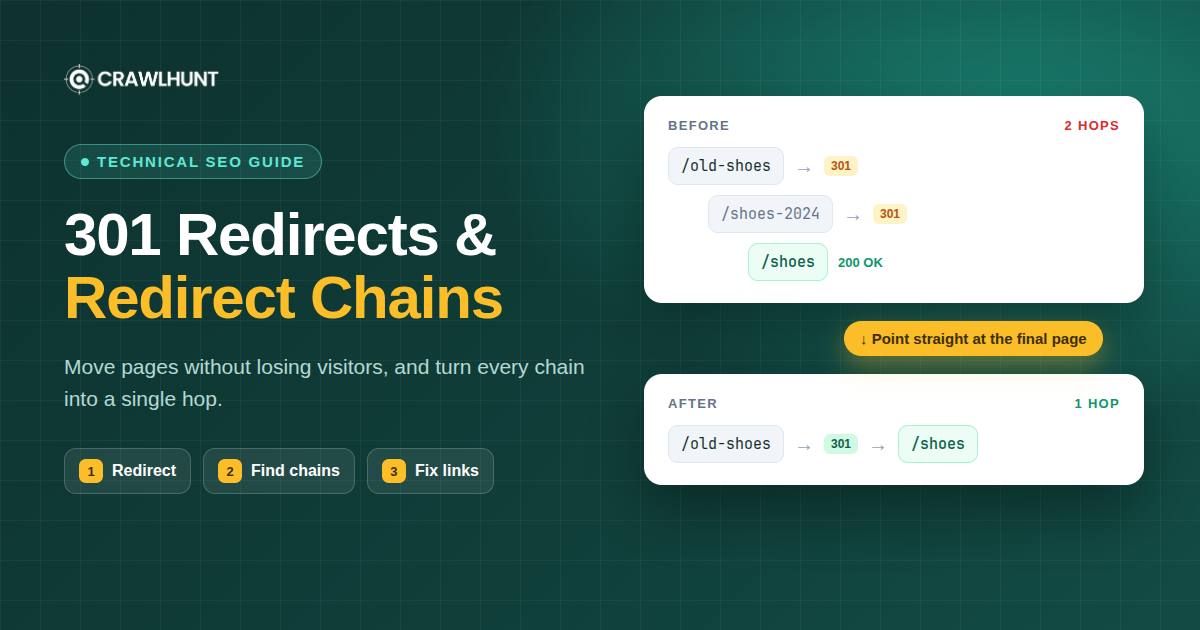
Every site changes its URLs sooner or later. You rename a product, merge two blog posts, retire a seasonal collection or move a page to a cleaner address. If the old URL just stops working, visitors and search engines land on a 404 page, and the links other sites gave you point at nothing. 301 redirects fix that: they tell browsers and search engines that a page has moved for good and send everyone to the new address.
Redirects also need looking after. When one redirect points to another, you get a redirect chain, and chains slow pages down and waste crawl time. This guide explains what 301 redirects and redirect chains are, when to use each type of redirect, how to set up 301 redirects in CrawlHunt for a Shopify, WordPress or Magento store, and how to find and fix redirect chains.
What Are 301 Redirects and Redirect Chains?
A redirect is a server response that says "this content lives somewhere else now" and gives the new address. The browser or crawler then requests the new URL. The status code tells search engines whether the move is permanent or temporary, and that changes which URL Google shows in search results.
301 vs 302, 307 and 308
Status code | Meaning | What Google shows in search | Use it when |
|---|---|---|---|
301 Moved Permanently | Permanent move | The new URL | A page has moved and will not come back |
308 Permanent Redirect | Permanent move (Google treats it like a 301) | The new URL | Same as 301 |
302 Found | Temporary move | The old URL | A short-term change, such as a page under maintenance |
307 Temporary Redirect | Temporary move (Google treats it like a 302) | The old URL | Same as 302 |
According to Google's own guide to redirects, permanent redirects show the new target in search results and temporary redirects show the source page. Google also says a server-side redirect has the best chance of being understood correctly, ahead of meta refresh and JavaScript redirects. For pages that have really moved, server-side 301 redirects are the right choice.
What a redirect chain is
A redirect chain is a redirect that leads to another redirect instead of to a real page. A typical example on an online store:
/old-shoes        → 301 → /shoes-2024
/shoes-2024       → 301 → /shoes
/shoes            → 200 OK
It happens naturally. In 2024 you renamed /old-shoes to /shoes-2024 and added a redirect. A year later you renamed the page again and added a second redirect. Each redirect was correct when you made it, but anyone who follows an old link now goes through two hops before they see a page.
Why redirect chains are a problem
- Slower pages. Each hop is another request and response before the browser can start loading the real page.
- Wasted crawl time. Search engines spend requests on hops instead of pages. Google's documentation on HTTP status codes says its crawlers follow up to 10 redirect hops, so very long chains may never reach the final page.
- More things to break. If one URL in the middle of the chain is deleted or changed, every older link that passes through it breaks too.
- Loops. If a chain ever points back to a URL earlier in the chain, the redirect never ends and the page cannot load at all.
A chain is one of the crawl problems an audit should catch, alongside broken links and blocked pages. If you are new to this area, start with crawlability and indexability.
When to Use 301 Redirects
Use a 301 redirect whenever a URL that people or search engines already know about stops being the right address for its content:
- You changed a URL slug or handle. For example, a product handle with a typo or a date in it. If you are cleaning up URLs, read how to fix URL slugs and page handles first, then redirect each old address.
- You deleted a page that still gets traffic or links. Send it to the closest replacement, such as the parent collection or a newer product. This is also the standard way to fix 404 errors that real visitors hit.
- You merged two similar pages. Keep the stronger page and redirect the weaker one to it. Merging is often the cleanest way to fix duplicate content.
- You moved to HTTPS or a new domain. Every old URL should redirect to its exact new equivalent, not to the homepage.
Do not use a 301 for something temporary, like a sale page that will come back next month. Use a 302 there, so Google keeps the original URL in search results. And do not send every old URL to the homepage: a visitor who clicked a link to a specific product wants that product or its closest replacement, not a fresh start.
How to Set Up 301 Redirects in CrawlHunt
CrawlHunt can create 301 redirects directly on a connected Shopify, WordPress or Magento store, for any URL on the site, not only for pages its crawl found as 404s. You can add them by hand, paste or upload a list, or let AI suggest where each old URL should go. Here is the full process.
Step 1: Connect your store
Redirects are made on the store itself, so CrawlHunt needs a connection to it. Install the CrawlHunt app or plugin for your platform and connect it to your account:
- Shopify: follow the setup guide for the CrawlHunt Shopify app.
- WordPress: follow the setup guide for the CrawlHunt WordPress plugin.
- Magento: follow the setup guide for the CrawlHunt Magento extension.
Then run an audit of the site, so CrawlHunt knows which pages exist and which pages link to which.
Step 2: Open Create Redirects
Open the audit for your site. In the toolbar at the top of Audit Results, click Theme Actions, then Create Redirects.
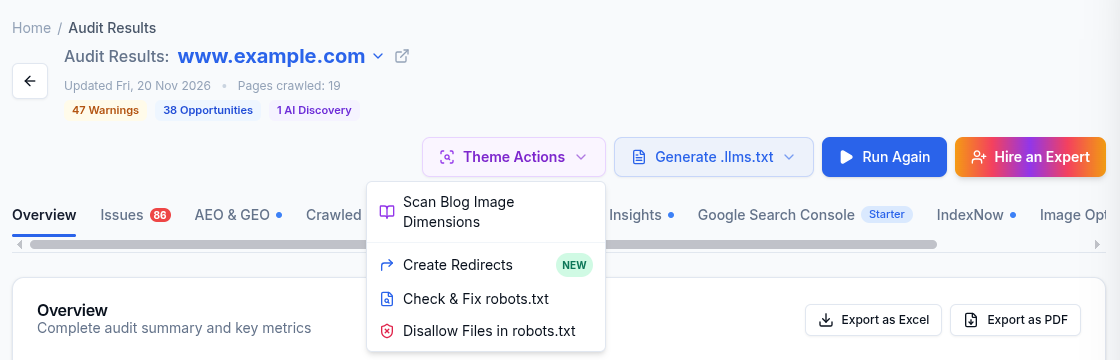
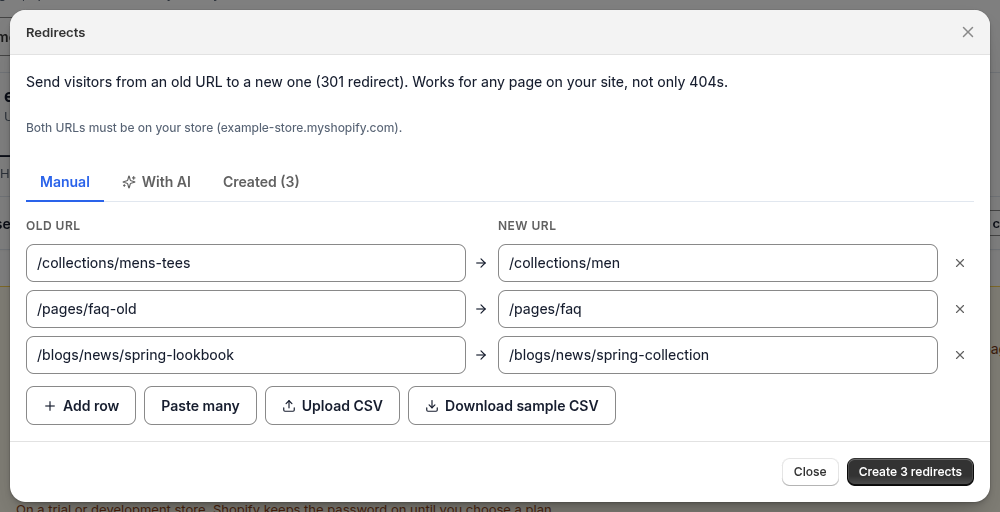
The Redirects window has three tabs: Manual, With AI and Created.
Step 3: Add redirects by hand, by paste or from a CSV
On the Manual tab, type the old URL on the left and the new URL on the right, one redirect per row. You can enter a path such as /old-contact-page or a full URL. Click Add row for more rows.
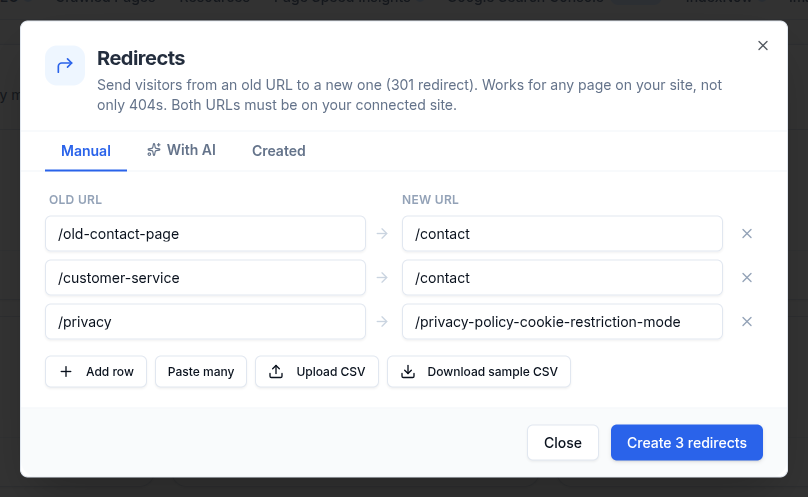
For larger lists, click Paste many and paste one redirect per line in the form old URL, new URL, or click Upload CSV with two columns. Download sample CSV gives you a file in the right format. A few rules are checked before anything is sent to your store:
- Both URLs must be on your connected site.
- The homepage cannot be redirected.
- The old and new URL cannot be the same, and the same old URL cannot appear twice in one list.
- If a redirect already exists from that old URL, you have to remove it first.
- A redirect that would point straight back at an existing redirect (A to B while B to A exists) is refused, because it would create a loop.
- You can create up to 100 redirects at a time.
Click Create redirects. The first time you apply a live change, CrawlHunt asks for permission to update your store. After you allow it, each redirect is pushed to the store as a 301 and starts working straight away. Rows that fail, for example because of a plan limit, are marked in red with the reason. Manual redirects count toward your plan's monthly redirect limit; see the pricing plans for what each plan includes.
Step 4: Let AI suggest the new URLs
If you have a list of old URLs and are not sure where each should go, open the With AI tab. Paste the old URLs, one per line, and click Suggest new URLs. CrawlHunt picks a destination for each one from the live pages it found in your last crawl, so it suggests pages that really exist.
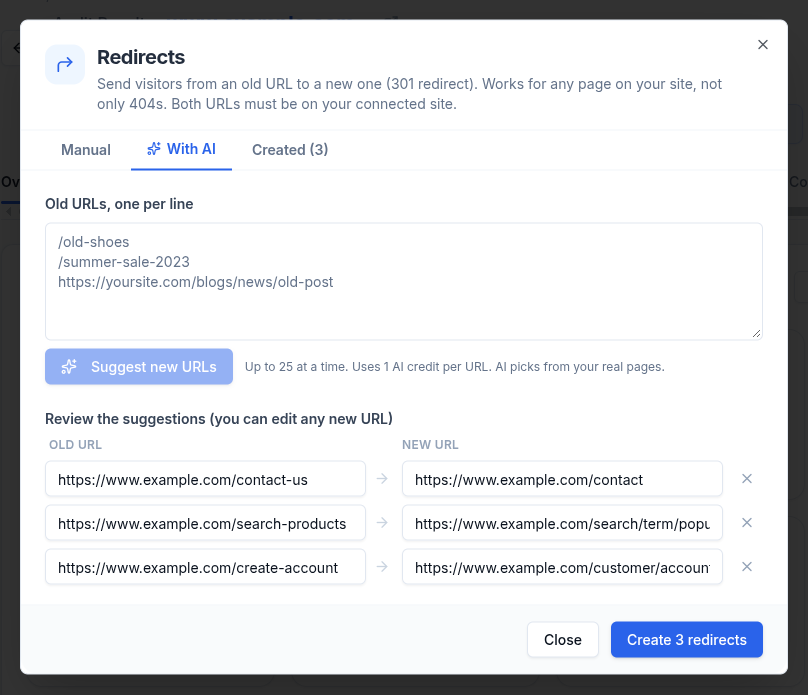
Check every suggestion before you create it, and edit any new URL that is not the best match. You can ask for up to 25 suggestions at a time, and each URL uses one AI credit. Redirects created from AI suggestions use AI credits instead of counting toward the monthly redirect limit.
Step 5: Review or undo redirects on the Created tab
The Created tab lists the 301 redirects made from this window for the site, with the old URL above and the destination below.
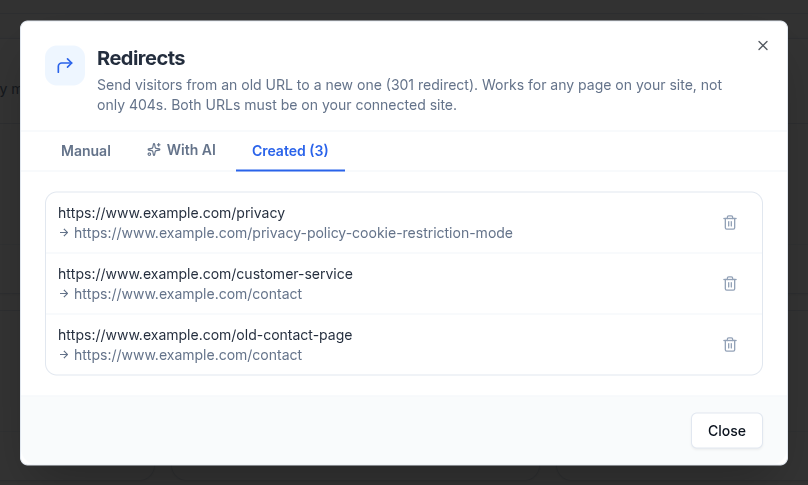
To undo one, click the bin icon. CrawlHunt removes the redirect from your store as well as from the list, so the old URL behaves as it did before.
Step 6: Point internal links straight at the new page
A redirect catches visitors who arrive from old links, but your own pages should not rely on it. If the old URL was in your last crawl and other pages still link to it, the Redirects window shows how many links still point to the old URL and offers Fix All Inlinks. That rewrites those links on your pages to go directly to the new URL, so your own navigation never goes through a redirect. This is part of a healthy internal linking strategy.
Redirecting a 404 page from the crawl
For a page the crawl found as a 404, you can also work from the page itself. Open the Crawled Pages tab, select the 404 page and open the Redirect tab in the details panel below to set its new URL. Then open the Inlinks tab and click Fix Link on each link, or Fix All Links, to update every page that links to it.
The same tool in the Shopify app
If you use CrawlHunt inside the Shopify admin, you will find the same window under Audit Results, Theme Actions, Create Redirects. It works the same way and creates the redirects in your store's URL Redirects list.
One Shopify rule to know: Shopify only follows a redirect when the old URL no longer loads a live page. Shopify's help page on URL redirects says "You can redirect only from broken URLs." If a product is still published at the old address, delete it, change its handle or take it off your sales channels first. Shopify also deletes a redirect automatically if you make the hidden product or collection visible again at the old URL.
How to Find and Fix Redirect Chains
Find redirecting URLs in your audit
After a crawl, open the Crawled Pages tab. URLs that redirect are marked Redirected, and the Redirect URL column shows where each one finally ends up. CrawlHunt follows up to five hops for each URL, so for a chain you see the first URL and the final page, not each step in between. Any internal link pointing at a redirected URL is a link you can update to go straight to that final page.
To see every hop in a chain, check the URL from a terminal:
curl -sIL https://www.example.com/old-shoes | grep -iE "^(HTTP|location)"Each HTTP line is one response. If you see more than one 301 or 302 before the final 200, the URL goes through a chain. Your browser's developer tools show the same thing in the Network tab when "Preserve log" is turned on.
Fix the chain at the source
- Write down the chain. For example
/old-shoesto/shoes-2024to/shoes. - Point every old URL at the final page. Change
/old-shoesso it goes straight to/shoes. In CrawlHunt, remove the old redirect on the Created tab and create the new one; redirects made elsewhere (in Shopify's URL Redirects list, a WordPress redirect plugin or Magento's URL rewrites) are edited where they were made. - Keep the middle redirect.
/shoes-2024may have its own links and bookmarks, so keep it, pointing directly at/shoestoo. - Update your internal links. Use Fix All Inlinks or Fix Link so menus, product descriptions and blog posts link to
/shoesdirectly. - Update your sitemap and canonical tags. Both should list only final URLs, never redirecting ones. See our XML sitemap best practices for the sitemap side.
- Run the audit again. Confirm the old URLs now land on the final page in one hop and no internal links point at redirects.
Canonical tags that point at a redirecting URL send search engines a mixed signal, so check them while you are here. Our guide to canonical tag issues covers the common cases.
Redirect Best Practices
- Redirect to the closest match. A product goes to its replacement or its collection, a blog post to the newer post on the same topic.
- Use one hop. Every old URL should reach its final page with a single 301.
- Keep 301 redirects in place. Old links on other sites, bookmarks and emails keep sending people to old URLs for years, so do not remove a 301 because the new page is indexed.
- Do not redirect pages that should simply return 404 or 410. A page with no replacement and no links is fine to let go.
- Re-check after every site change. Theme changes, migrations and bulk handle edits are when chains and loops appear. A regular audit catches them; our technical SEO checklist lists what else to check at the same time.
- Watch Search Console. After a big batch of redirects, use the URL Inspection tool to check if a page is indexed by Google at its new address.
FAQ
Do 301 redirects hurt SEO?
No. A correct 301 redirect to a relevant page is how Google expects you to move content, and Google then shows the new URL in search results. Problems come from redirecting to unrelated pages, long redirect chains and loops.
How many redirects in a row is too many?
Aim for one. Google's crawlers follow up to 10 hops, but every hop slows the page down for visitors, so any chain of two or more is worth fixing.
Should I use a 301 or a 302 redirect?
Use a 301 when the move is permanent and a 302 when the old URL will come back. CrawlHunt creates 301 redirects, because its redirects are meant for pages that have moved for good.
Can CrawlHunt create redirects on any website?
CrawlHunt creates redirects on connected Shopify, WordPress and Magento stores, because the redirect has to be saved on the store itself. On other sites, the crawl still shows which URLs redirect and which pages link to them, and you add the redirects in your server or CMS settings.
How long should I keep 301 redirects?
As long as people might still use the old URL. For most stores that means keeping them indefinitely; they cost almost nothing to keep and protect every old link.
301 redirects are one of the simplest technical SEO fixes, and one of the easiest to let slide. Set up 301 redirects whenever a URL changes, keep every redirect to a single hop, and point your own links at final URLs. If you want a full picture of where your site stands, see how to perform an SEO audit.