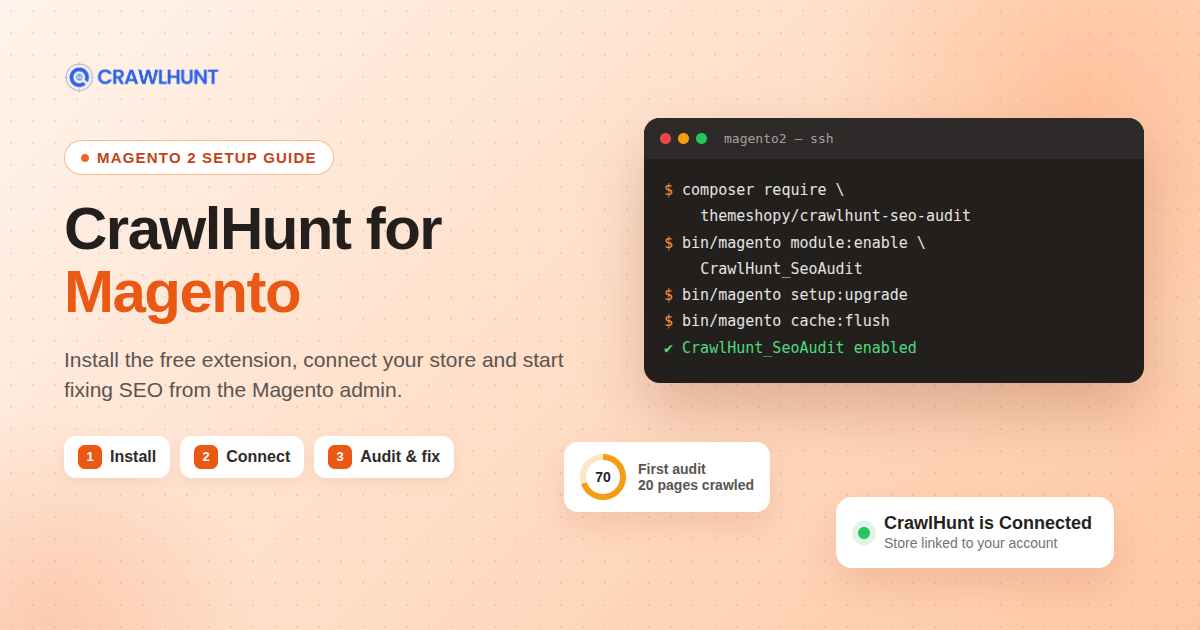
Magento gives you a lot of control over your store, but it does not tell you which pages have duplicate titles, missing meta descriptions, broken canonical tags or images without alt text. Finding those problems by hand across hundreds of products, categories and CMS pages takes a long time, and fixing them usually means opening each record in the admin one by one.
CrawlHunt for Magento closes that gap. This free Magento SEO extension connects your Magento 2 store to a CrawlHunt account, crawls the store, lists every SEO issue it finds, and lets you apply fixes from CrawlHunt or from inside the Magento admin. This guide walks through the whole CrawlHunt for Magento setup: what you need, how to install the extension with Composer, how to connect your store, and how to run your first audit and fix your first issue.
What CrawlHunt for Magento Does
CrawlHunt for Magento is a free extension on the Adobe Commerce Marketplace, listed as CrawlHunt ‑ Fix SEO/AEO/GEO. Once it is installed, it adds a CrawlHunt menu to your Magento admin with six pages:
- Home: connect the store to your CrawlHunt account and see what CrawlHunt does.
- Dashboard: your store's SEO health score, issue counts, last crawl and next scheduled crawl.
- AEO & GEO: checks how ready your pages are for AI search assistants, with fixes you can apply.
- Search Engine Tools: canonical tags, schema markup, IndexNow and sitemap ping. For the sitemap itself, see our XML sitemap best practices.
- Pricing: your plan and how much of it you have used.
- What's New: release notes for new CrawlHunt features.
On the storefront, the extension outputs canonical tags and schema markup and applies the fixes you approve in CrawlHunt, such as new page titles, meta descriptions, image alt text and redirects. You do not need to edit your theme files to use it. If structured data is new to you, start with schema markup for SEO.
How to Install and Connect CrawlHunt for Magento
Before you install
You need | Details |
|---|---|
Magento | Magento 2.4.x (Magento Open Source or Adobe Commerce, cloud or on-premise) |
PHP | 7.4, 8.1, 8.2, 8.3, 8.4 or 8.5 |
Server access | SSH access, with permission to run |
Public store | The store must be reachable from the internet, not behind a password, IP restriction or maintenance page. CrawlHunt checks that you own the store by loading a small proof file from it when you connect. |
CrawlHunt account | A free account at crawlhunt.com. You can also create one during the connect step. |
Take a backup first. Back up your database and the app/ folder before you change a live store. If the store runs in production mode, install it at a quiet time, because compiling and deploying static files can take several minutes.
Step 1: Get the extension from the Adobe Commerce Marketplace
Open the CrawlHunt ‑ Fix SEO/AEO/GEO listing on the Adobe Commerce Marketplace, sign in with your Adobe ID, add the extension to your cart and check out. It costs $0.00. Under My Purchases > Technical Details you will see the Composer package name, themeshopy/crawlhunt-seo-audit.
Step 2: Install it with Composer
Connect to your server over SSH and go to the folder that contains bin/magento. Composer needs your Marketplace access keys in the store's auth.json. They are already there if Magento itself was installed with Composer.
Run every command as the user that owns the store's files. In the examples below that user is www-data; you can check yours with stat -c '%U' pub. Running Magento commands as root creates files the website cannot write to, which is the most common cause of a 500 error after installing an extension.
cd /path/to/magento2
sudo -u www-data php bin/magento maintenance:enable
sudo -u www-data composer require themeshopy/crawlhunt-seo-audit
Step 3: Enable the module and update the database
sudo -u www-data php bin/magento module:enable CrawlHunt_SeoAudit
sudo -u www-data php bin/magento setup:upgrade
If your store runs in production mode, also compile the code and deploy static files. Let each command finish before you start the next one. You can check the mode with php bin/magento deploy:mode:show; skip this step in developer or default mode.
sudo -u www-data php bin/magento setup:di:compile
sudo -u www-data php bin/magento setup:static-content:deploy -f
Step 4: Clear the cache
sudo -u www-data php bin/magento cache:flush
sudo -u www-data php bin/magento maintenance:disable
Adobe's own guide to installing Magento extensions explains these commands in more detail if you want the background.
Step 5: Connect your Magento store to CrawlHunt
Log in to the Magento admin. A new CrawlHunt ‑ Fix SEO/AEO/GEO item now sits at the bottom of the left sidebar. If you do not see it, hard-refresh the page with Ctrl+Shift+R.
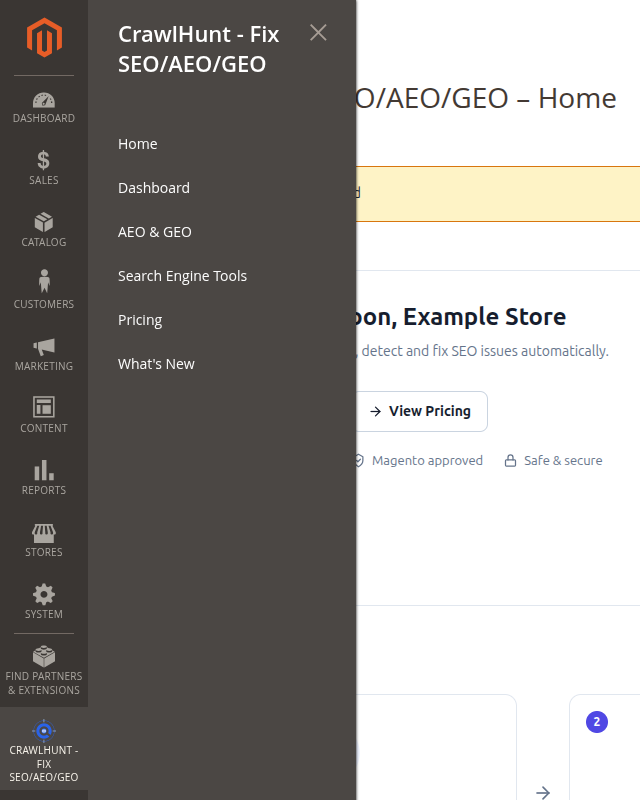
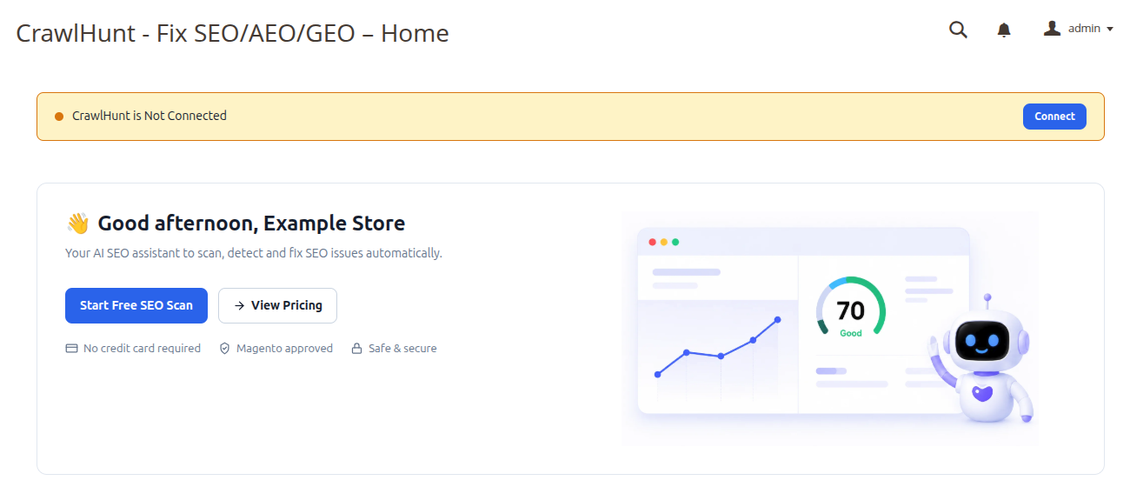
- Open CrawlHunt ‑ Fix SEO/AEO/GEO > Home. The banner at the top says CrawlHunt is Not Connected.
- Click Connect. A new tab opens on CrawlHunt.
- Sign in to your CrawlHunt account, or create one. If you are already signed in, this step happens on its own.
- CrawlHunt loads a small proof file from your store to confirm you own it, then the tab closes and the banner turns green: CrawlHunt is Connected.
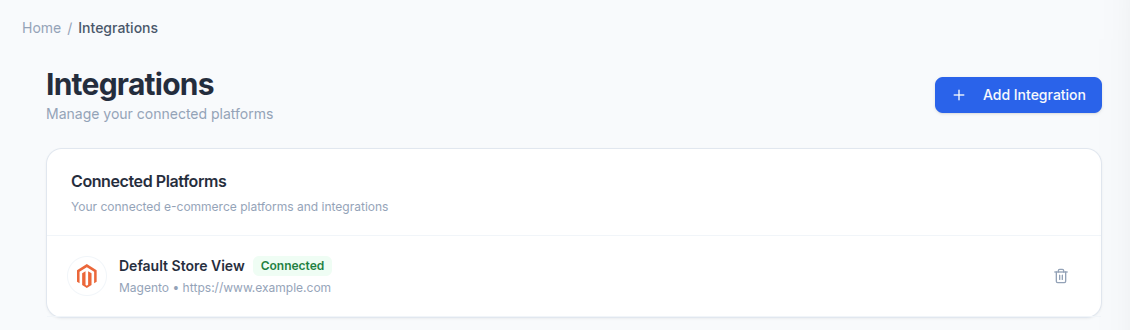
Your store now appears under Integrations in the CrawlHunt web app, listed by its store view name with the label Connected.
A store can be connected to one CrawlHunt account at a time. If your store was connected to a different account before, connecting it again moves it to the account you sign in with.
Run Your First Audit and Fix Issues
Start the first crawl
Open CrawlHunt ‑ Fix SEO/AEO/GEO > Dashboard. Until your store has been crawled, it shows No Audit Data Available. Click Open Web Portal to Start Audit.
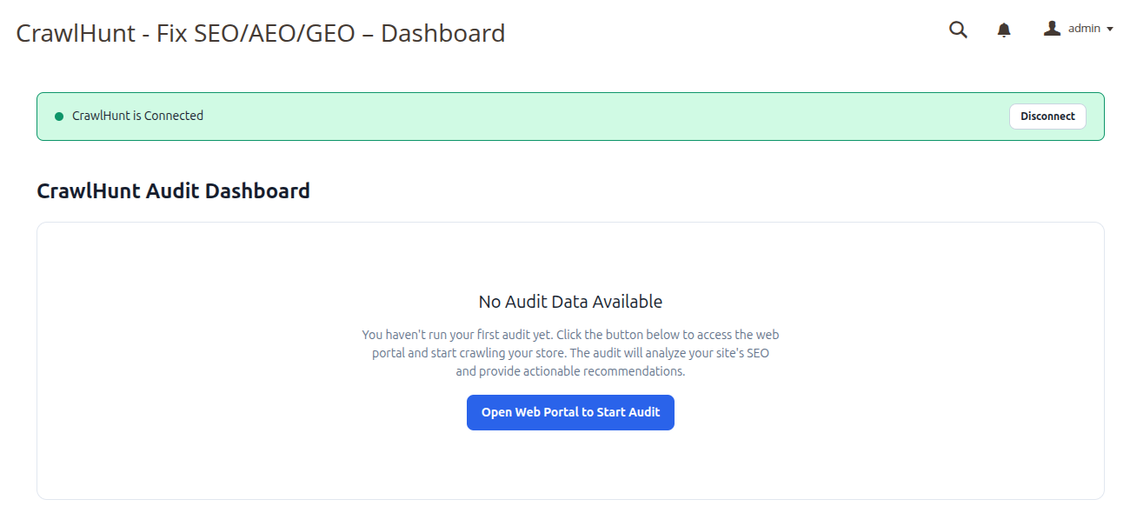
CrawlHunt opens in a new tab, already signed in, and adds your store to your projects. Click Run next to the store to start the crawl. A small store finishes in a minute or two; larger stores take longer, and how many pages are crawled depends on your plan. If you are new to audits, our guide on how to perform an SEO audit explains what the crawl checks.
Read your results in the Magento admin
When the crawl is done, go back to the Dashboard in the Magento admin. It now shows your Website SEO Health score out of 100, the number of critical issues, warnings and notices, when the last crawl ran and how many pages it covered. Use View Issues to jump to the full list, or Crawl Now to run a fresh crawl after you make changes.
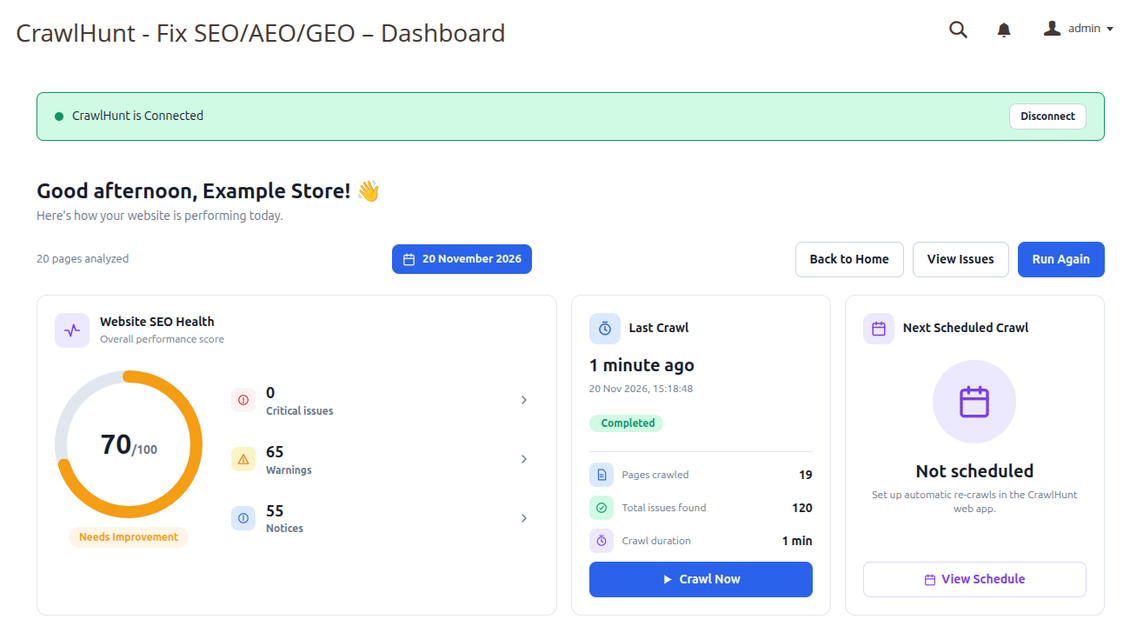
To re-crawl on a schedule, set one up in the CrawlHunt web app. The Dashboard then shows the date of the next scheduled crawl.
Apply your first fix
In CrawlHunt, open the store's audit results and go to the Issues tab. Common findings on Magento stores include duplicate page titles and meta descriptions, missing meta descriptions, titles that are too long or too short, and images without alt text. Issues marked Auto-fixable can be fixed straight from CrawlHunt. Our guide on how to fix duplicate content explains why duplicates hold pages back.
- Click an issue, then click one of the affected URLs to open its Page Details.
- Open the Seo tab. It shows the page title and meta description, each with the number of issues found.
- Click AI Fix to get a suggested rewrite, or Edit to write your own.
- Save the change. The first time you apply a fix, CrawlHunt asks you to allow live changes to your store.
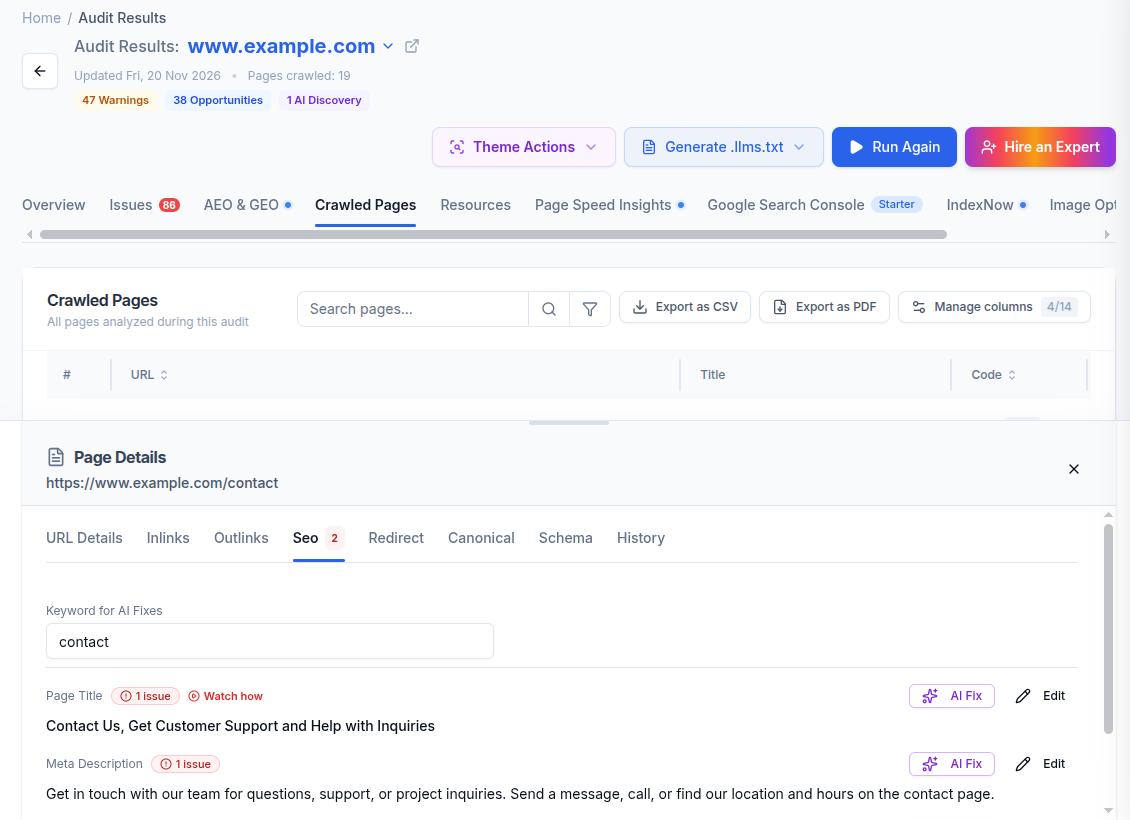
Where the fix ends up depends on the page. For products, categories and CMS pages, CrawlHunt updates the page's own meta title, meta description or URL key in Magento. Pages that have no SEO fields in Magento, such as the contact form, search and customer account pages, get their title and description saved by the extension, which adds them to the page head. That is why the contact page in the screenshot above can be fixed even though Magento has nowhere to store its meta description. Image alt text is fixed the same way, and the AI image alt text generator can write a description for each image you pick.
The same Page Details panel has tabs for redirects, canonical tags and schema markup. For pages that return a 404, our guide on how to fix 404 errors explains when a redirect is the right fix.
If you change a URL key, first read how to fix URL slugs and page handles, so the old address keeps working.
For canonical problems, see common canonical tag issues and how to resolve them.
Update, Remove and Troubleshoot the Extension
Update to a newer version
Your connection is saved, so you do not need to reconnect after an update:
cd /path/to/magento2
sudo -u www-data composer update themeshopy/crawlhunt-seo-audit
sudo -u www-data php bin/magento setup:upgrade
sudo -u www-data php bin/magento cache:flush
In production mode, run setup:di:compile and setup:static-content:deploy -f before the final cache flush.
Remove the extension
If you want to stop using CrawlHunt, you can first disconnect the store under Integrations in your CrawlHunt account. Then uninstall the module. Magento removes the package and the extension's saved settings:
sudo -u www-data php bin/magento module:uninstall CrawlHunt_SeoAudit \
  --remove-data --clear-static-content
sudo -u www-data php bin/magento cache:flush
Troubleshooting
Problem | What to do |
|---|---|
The CrawlHunt menu does not appear | Check the module is enabled with |
HTTP 500 error, or the admin never finishes loading | Almost always file ownership after running commands as root. Give the files back to the web user ( |
Composer cannot find the package | Make sure the Marketplace keys in |
Admin pages are blank or unstyled | In production mode, static files were not deployed. Run the compile and static-content deploy commands again and let each one finish. |
Connect fails with an ownership or proof message | CrawlHunt could not load |
Banner says "Your CrawlHunt connection has expired" | Click Reconnect and sign in again. Your projects and settings stay in place. |
Still stuck? Email contact@crawlhunt.com with the exact error message, your Magento and PHP versions, and the mode your store runs in. The full command reference is also in the Magento extension documentation.
Conclusion
Setting up CrawlHunt for Magento takes four Composer and Magento commands and one click on Connect. From then on, your store's SEO health, issues and fixes live in the Magento admin and in CrawlHunt, and you can fix titles, meta descriptions, URL keys, alt text, redirects, canonical tags and schema without editing theme files or opening each record by hand. Run your first audit, start with the issues marked high priority, and re-crawl after each round of fixes to see your score move.
When you are ready to go further, our technical SEO checklist covers the next checks to work through.
If you plan to edit your store's robots.txt, read how to fix robots.txt first, so you do not block important pages by mistake.
Frequently Asked Questions
Is CrawlHunt for Magento free?
Yes. The extension is free on the Adobe Commerce Marketplace, and you can connect it to a free CrawlHunt account. Paid CrawlHunt plans add more pages per crawl, more fixes and bulk actions; see the pricing page for details.
Which Magento versions does it support?
Magento 2.4.x, both Magento Open Source and Adobe Commerce, with PHP 7.4 or 8.1 to 8.5.
Do I need SSH access to install it?
Yes. Like most Magento extensions, it is installed with Composer and bin/magento commands on the server. If you do not have SSH access, ask your hosting provider or developer to run the steps in this guide.
Can I connect a store that is still in development?
Only if it is reachable from the internet. CrawlHunt has to load a proof file from the store when you connect, and it has to reach your pages to crawl them, so a store behind a password, an IP restriction or a maintenance page cannot be connected. Our guide to crawlability and indexability explains what search engines need to reach your pages.
Will CrawlHunt for Magento change my theme files?
No. Fixes are written to Magento's own SEO fields or stored by the extension and added to the page when it is served, so your theme files are not edited.
Want to see the full feature list first? Visit the CrawlHunt for Magento page.